(part 2)
TinyDB
Summary
The TinyDB component can be used as a Data Source by using values identified by tags. In order to use values of TinyDB in the Charts, the values have to be Lists containing List entries with 2 entries each (as shown in Figure 44). We have seen this format before in the ImportFromLists block example.

Figure 44: TinyDB compatible value format
Provided a value of the valid format is stored in the tag value, the value can then be imported as follows:

Figure 45: ImportFromTinyDB block example
In order to use the TinyDB as a Source via either the ChangeDataSource block, or the Source property, the DataSourceValue (or the key value) has to be the tag to use from the TinyDB component (in this case, we have used “tag”)
Lastly, if the TinyDB component is used as a Source either via the Source property or the ChangeDataSource block, any changes made to the value will be reflected in the Data Series (old values will be removed, and the new values will be added).
CloudDB
Summary
The CloudDB component is used in the same fashion as the TinyDB component. The format of the values can be seen in Figure 46, and the block for importing the values can be seen in Figure 47.

Figure 46: CloudDB compatible value format

Figure 47: ImportFromCloudDB block example
With regards to using the CloudDB component as a Source, whenever the DataChanged event occurs, the Data Series which uses the corresponding value in the CloudDB component will respond to the changes automatically.
Data File
Summary
Together with the Chart components, the Data File component has been introduced which allows reading in CSV or JSON formatted files which can then be used to easily access data, as well as easily import data from files to Chart Data Series.
To use the DataFile component, first it has to be added to the palette. After adding the DataFile, a file has to be loaded to the DataFile. This can be done via the ReadFile block, as shown in Figure 48. The format of the ReadFile Source is the same as of the File component’s ReadFrom block.

Figure 48: ReadFile block
Alternatively, a file can be selected via the SourceFile Designer property (see Figure 49)

Figure 49: DataFile SourceFile property
The DataFile also comes with three property getters (as seen in Figure 50)
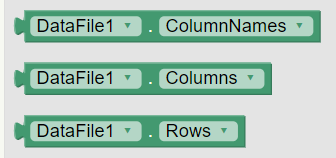
Figure 50: DataFile properties
Since the DataFile accepts either CSV or JSON files, the DataFile reads in the columns and rows from the file, which can then be accessed via the Columns and Rows properties. The ColumnNames property holds the names of each column.
All three properties return Lists. The Columns and Rows List entries consist of Lists, and the ColumnNames entries consist of text entries. The indexes of Columns, Rows and ColumnNames match, but the order is not ensured in the case of JSON files (but it is in the case of CSV files)
Figure 51 and 52 represent what a row, a column and a column name corresponds to in both CSV and JSON files.

Figure 51: CSV Rows, Columns and Column Names example

Figure 52: JSON Rows, Columns and Column Names example. The data stored in the shown JSON file is equivalent to the CSV example in Figure 51.
Since the DataFile reads the columns and rows from the data, the data is imported to the Data Series by specifying the columns (column names) to use for both x and y values, as shown in Figure 53.

Figure 53: Import From Data File block
Alternatively, a column name can be left blank to use default values (see Figure 54). For example, if the x column is left blank, but a y column is specified with 5 entries, then the x values of the entries will be set to 0, 1, 2, 3 and 4, in that order.

Figure 54: Import From Data File block using blank column
In order to import data from a Data File via the ChangeSource block, the key value has to be a CSV formatted text value, as shown in Figure 55.

Figure 55: Change Data Source block for Data File
In order to use default values (blank columns), simply add a comma right away without any text value (see Figure 56)

Figure 56: Change Data Source block for DataFile with blank column
Finally, if using the Source property via the Designer, and a SourceFile is set to the DataFile, the columns can be selected via designated DataFile column properties (see Figure 57)

Figure 57: DataFile column properties
Provided that the SourceFile has been loaded, and the file contained valid data, the dropdown menu for selecting the columns should display all the columns of the file (see Figure 58). In addition, the “None” property selection is treated as the blank column option which uses default values instead.

Figure 58: DataFile Column property dropdown
Web
Summary
The Web component behaves in a similar way as the DataFile, exceptexpect that data is retrieved from online sources. The basic principle behind Web component importing is that the retrieved content should be either CSV or JSON files.
In order to import data via the Web component, first the Web component should be set up as usual, and the Get method should be used (as in Figure 59)

Figure 59: Web component Get block
After the Get block is used, the data can be imported to the Data Series via the designated block (see Figure 60)

Figure 60: Import From Web block
Here, the columns should be specified in the same way as for the Data File component.
When using the Web component as a Source in the Designer properties, Web column properties will become visible, which have to be filled in manually (see Figure 61)

Figure 61: Web column properties
If the Web component is used as a Source for the Data Series, whenever the Get block is called again, the data is updated in the Data Series as well.
Bluetooth
Summary
In order to import real time data via Bluetooth, the BluetoothClient component should be used either via the Source property, or the ChangeDataSource block.
First, it is important to set the corresponding DelimiterByte in the BluetoothClient component (see Figure 62). This byte is used to separate each individual incoming value (which also has to be taken care of on the Bluetooth client side)

Figure 62: BluetoothClient DelimiterByte property example
The key value (or the DataSourceValue) for the case of Bluetooth data importing corresponds to the prefix of the data. For example, if the data were to be retrieved in the format t:5, the prefix t: could be specified to properly retrieve the value 5 as the data (Figure 63 shows an example of the setup). However, if the data is retrieved as numeric values (simply 5, for example), then the DataSourceValue should be left empty.
It is important to note that the BluetoothClient acts as a real time Data Source. As soon as data is available, the data is read, and sent to the Data Series. This means that Read blocks will no longer function on the BluetoothClient, since it is being read by the Data Series. However, as many Data Series as needed may make use of a single BluetoothClient (even with multiple prefixes). Incoming values with prefixes that do not match the Data component’s DataSourceValue are ignored by that Data Series (but are sent to all Data Series using the BluetoothClient as a Source).

Figure 63: BluetoothClient Source property settings example
Accelerometer Sensor
Summary
The Accelerometer Sensor can only be used either via the Source property, or the ChangeDataSource block. Data is sent from the sensor to the Data Series dynamically as soon as the value updates.
The Accelerometer Sensor has 3 valid key (DataSource) values:
- X - x dimension acceleration
- Y - y dimension acceleration
- Z - z dimension acceleration
An example is shown in the figure below:

Figure 64: Accelerometer Sensor as a Data Source example
Gyroscope Sensor
Summary
The Gyroscope Sensor can only be used either via the Source property, or the ChangeDataSource block. Data is sent from the sensor to the Data Series dynamically as soon as the value updates.
The Gyroscope Sensor has 3 valid key (DataSource) values:
- X - x angular velocity
- Y - y angular velocity
- Z - z angular velocity
An example is shown in the figure below:

Figure 65: Gyroscope Sensor as a Data Source example
Pedometer
Summary
The Pedometer can only be used either via the Source property, or the ChangeDataSource block. Data is sent from the sensor to the Data Series dynamically as soon as the value updates.
The Pedometer has 3 valid key (DataSource) values:
- WalkSteps
- SimpleSteps
- Distance
An example is shown in the figure below:

Figure 66: Pedometer as a Data Source example
Orientation Sensor
Summary
The Orientation Sensor can only be used either via the Source property, or the ChangeDataSource block. Data is sent from the sensor to the Data Series dynamically as soon as the value updates.
The Orientation Sensor has 3 valid key (DataSource) values:
- azimuth
- pitch
- roll
An example is shown in the figure below:
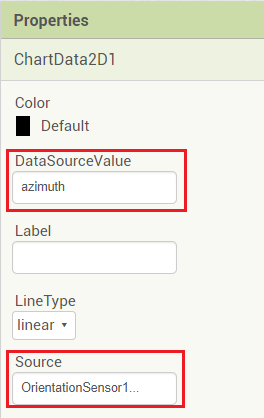
Figure 67: Orientation Sensor as a Data Source example
Location Sensor
Summary
The Location Sensor can only be used either via the Source property, or the ChangeDataSource block. Data is sent from the sensor to the Data Series dynamically as soon as the value updates.
The Location Sensor has 4 valid key (DataSource) values:
- longitude
- latitude
- altitude
- speed
An example is shown in the figure below:

Figure 68: Location Sensor as a Data Source example
Proximity Sensor
Summary
The Proximity Sensor can only be used either via the Source property, or the ChangeDataSource block. Data is sent from the sensor to the Data Series dynamically as soon as the value updates.
The Proximity Sensor requires the Data Source value of “distance” in order to produce real time data.
(Image to be updated)

Figure 69: Proximity Sensor as a Data Source example