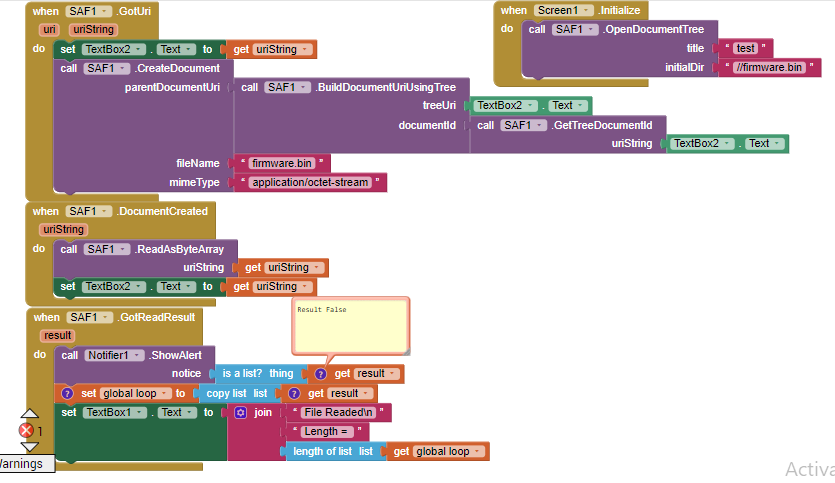
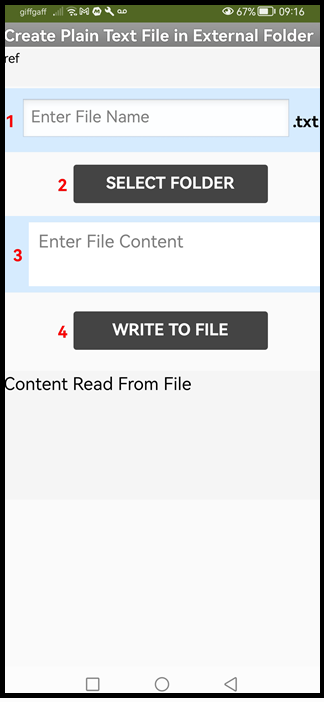
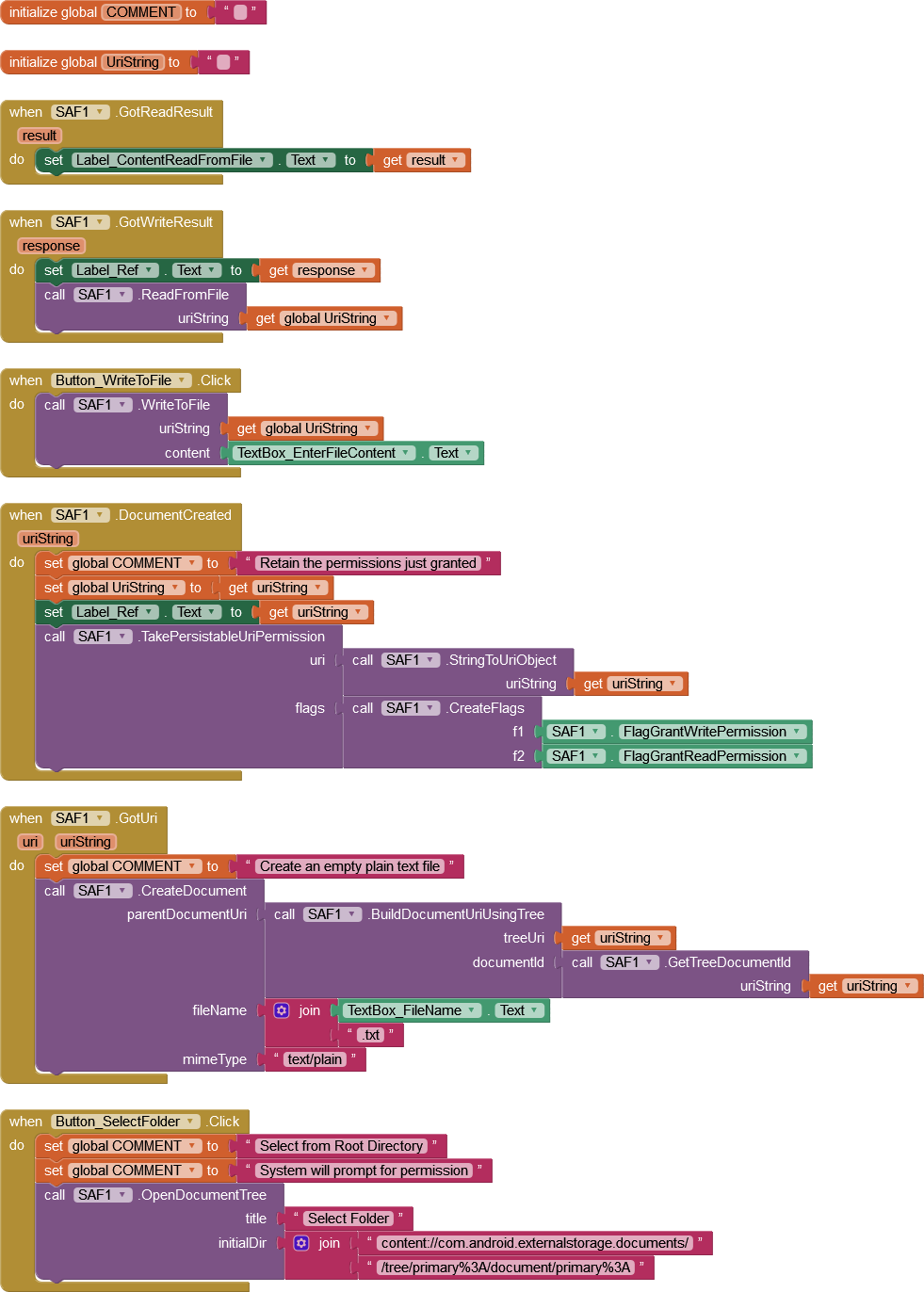
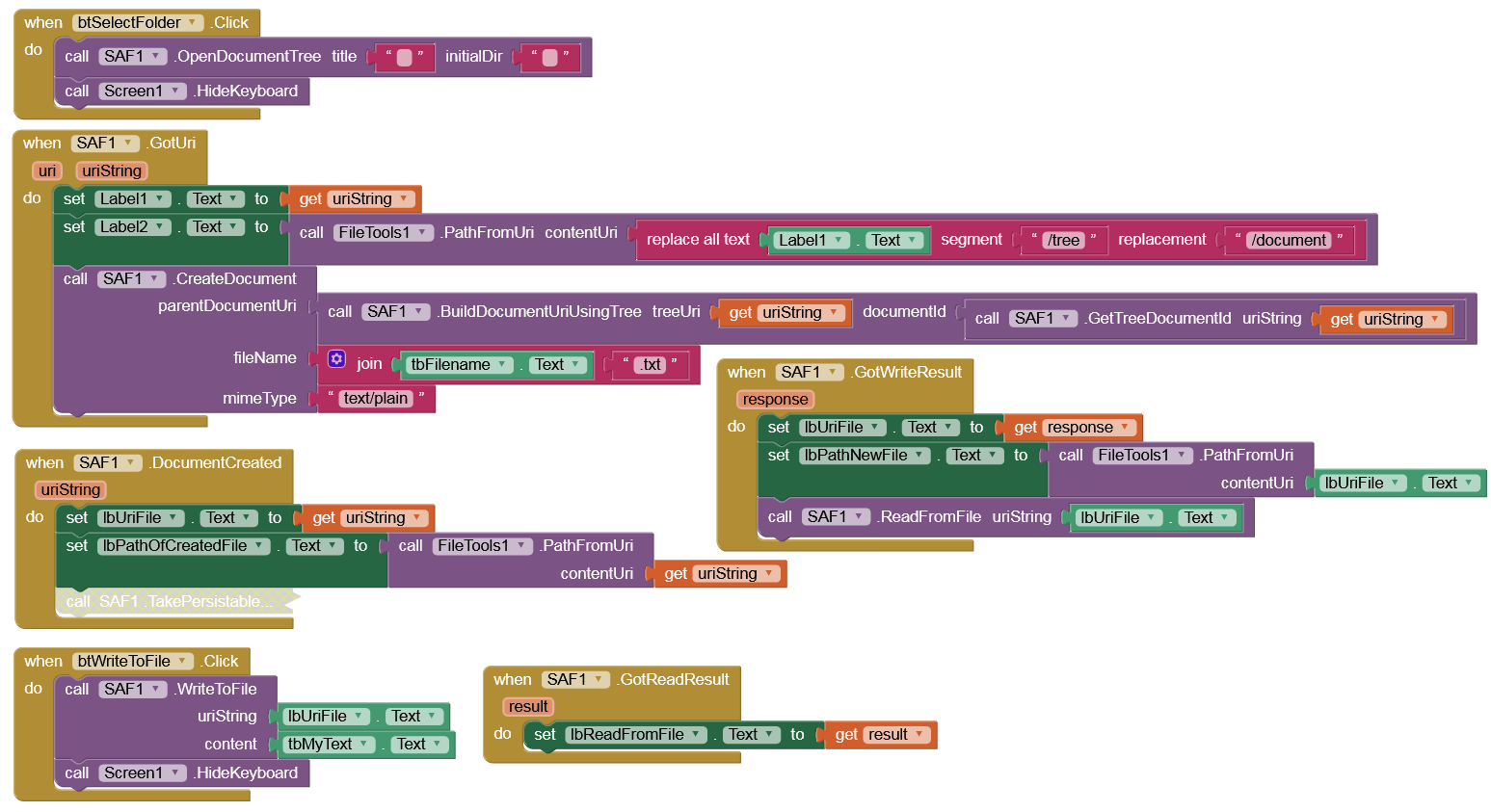
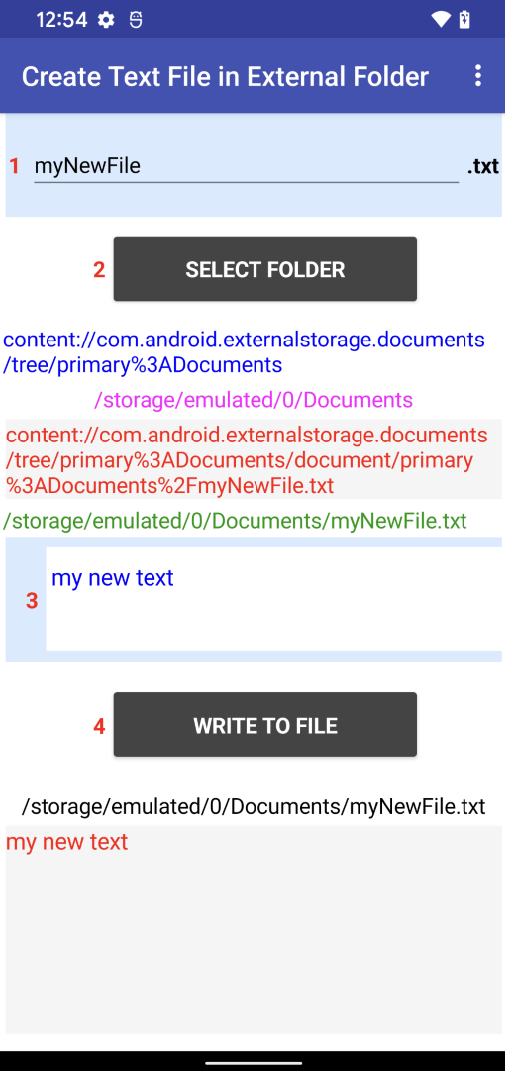
As Sunny (the extension developer) has already explained, the possibilities of using this extension are almost unlimited, so it is hardly possible to present all possible scenarios in tutorials/examples.
Therefore, proceed as most users usually do
describe your specific goal / problem(s) in detail,
show us what you have tried so far (blocks & aia) and
where you get stuck.
Then someone (at least from the power users) will surely be able to help you.
See also here:
Note: It would also be helpful (at least that's how I see it) if you open a new topic for it, so that later users can more easily find the solution to your specific problem.
dear vknow360, I have read the usage example in the first post. But still dont get it. I can open window to pick a folder, but do not know how to open assets packaged file.
My case is simple, I want to open assets packaged file, then read it with ReadAsByte array and store it at Empty list
Don't get me wrong, your work on this extension is a masterpiece, small wonder that Evan wants you to integrate it into App Inventor.
I can suggest the examples you have already made. The issues:
Incomplete. SAF is baffling when you first see it, so examples should actually work stand-alone.
Old version Blocks used.
No introduction to the example describing what it's goal is.
Unattached Blocks
Anonymous inputs
Unreadable images
If you make more comprehensive examples, there wouldn't be so many posts from people asking what they have done wrong - including posts from fellow Power Users.
Actually if I leave the directory path blank, it defaults to the Downloads folder on my phone and I can't navigate from there, so starting specifically at the Root Folder (or any specific folder) is more reliable.
On Android < 11 SAF is not needed, because you can access all files (media & non-media) with storage permissions (in the external storage, outside the ASD), since AI2 decided to declare requestLegacyExternalStorage=true in the Manifest.