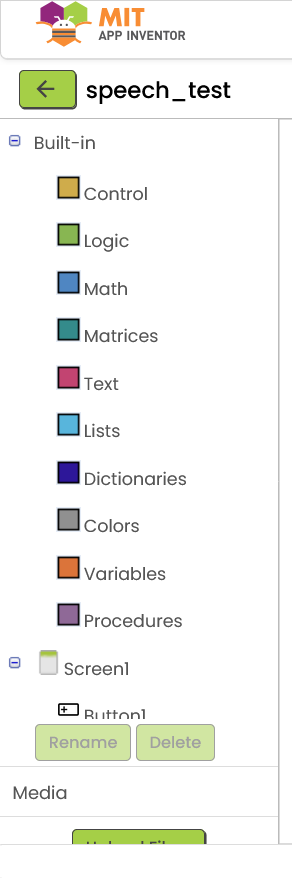
The Blocks editor currently lacks a search functionality, requiring users to manually navigate through multiple categories (Control, Logic, Variables, etc.) to locate specific blocks.
While this approach works for small projects, it becomes inefficient and time-consuming as project complexity grows.
Problem
Manual navigation slows down development
Difficult to locate specific blocks in large projects
High cognitive load, especially for beginners
Inconsistent UX compared to the Designer, which already provides a search feature
Proposed Solution
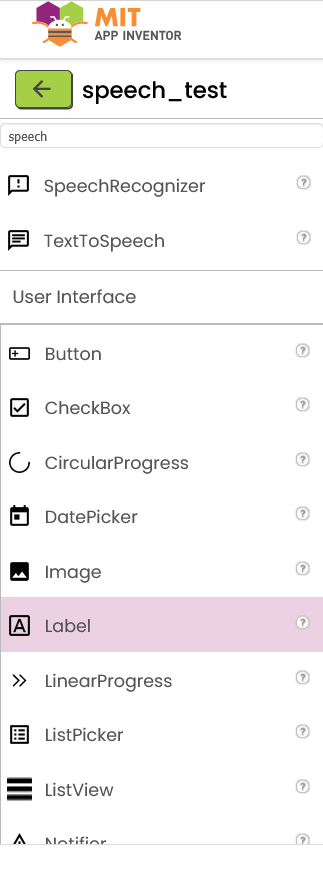
Introduce a search bar in the Blocks editor (similar to the Designer search bar) that allows users to quickly find blocks by name, functionality, or associated component.
Left: Designer search (existing) | Right: Blocks editor (no search)
Suggested Features
Real-time filtering of blocks based on search input
Support for both built-in and component-specific blocks (e.g., Button1.Click)
Fuzzy matching for partial or approximate queries (e.g., "speak" → TextToSpeech blocks)
Highlighting or preview of matching blocks
Clicking a result scrolls to the block or inserts it into the workspace (optional enhancement)
Benefits
Faster development workflow
Improved usability for large-scale projects
Better accessibility for beginners
Consistent user experience across Designer and Blocks editor
Additional Context
The Designer already includes a search feature for components, which significantly improves usability. Extending similar functionality to the Blocks editor would provide a more cohesive and efficient development experience.
Open Questions
Should search results replace the toolbox temporarily or appear as an overlay panel?
Should selecting a result auto-insert the block or just navigate to it?
I’d be happy to contribute or help explore implementation approaches if this feature is considered valuable.
Typeblocking is a different feature than the block workspace search (Ctrl+F). Click on the workspace, and then begin typing the text of a block (e.g., sort). You will get a dropdown of all the blocks that match. It is also locale aware, so people using App Inventor in another language can search the translated blocks list.