I’m creating an app that takes information from a csv file when called and displays the information. My app isn’t displaying the information. How should I fix this problem?
It would really help if you provided a screenshot your relevant blocks, so we can see what you are trying to do, and where the problem may be.
To get an image of your blocks, right click in the Blocks Editor and select “Download Blocks as Image”. You might want to use an image editor to crop etc. if required. Then post it here in the community.
Taifun
Thank you for replying. I have fixed that problem. One thing I do have a question on is how do you get your image to show on your app? I uploaded my image onto the main page and now I need to use blocks to get it to actually appear. Did I do something wrong with my blocks?
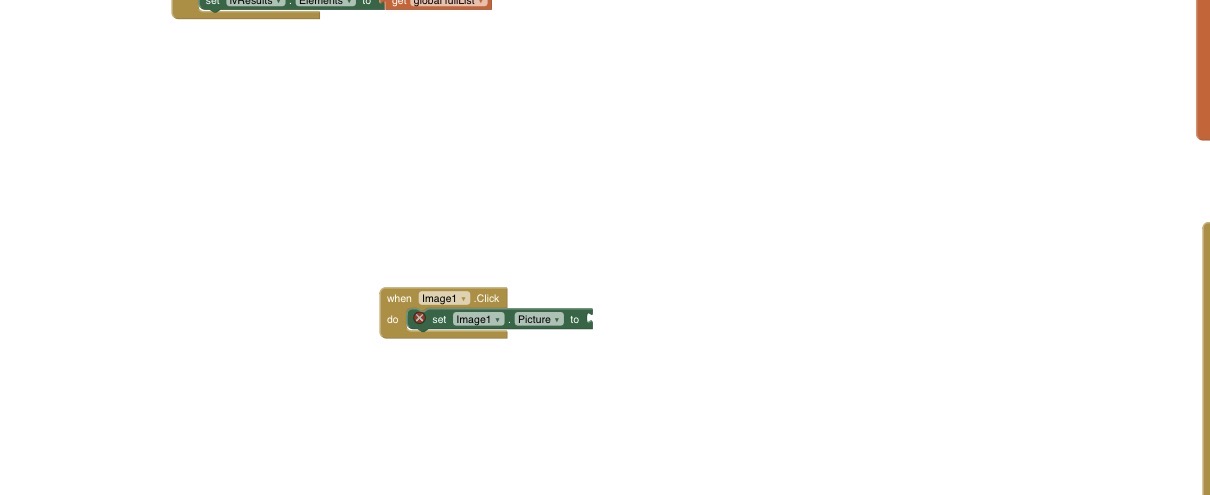
What main page
Please provide a screenshot if the solution to help others with the same question in future
You uploaded the image in the media section of the designer. To display it you set the default file scope in the Screen properties to Asset
DefaultFileScope
Specifies the default scope used when components access files. Note that the File component has its own property for controlling file scopes.
and then set Image1.Picture to the uploadwd filename. For example myInage.jpg. Alternatively there is also a helper block in the Screen drawer of the uploaded files.
A very good way to learn App Inventor or Kodular is to read the free Inventor's Manual here in the AI2 free online eBook App Inventor 2 Book: Create Your Own Android Apps ... the links are at the bottom of the Web page. The book 'teaches' users how to program with AI2 blocks.
There is a free programming course here Course In A Box and the aia files for the projects in the book are here: App Inventor 2 Book: Create Your Own Android Apps
How to do a lot of basic things with App Inventor are described here: How do you...? .
Also do the tutorials Our Tutorials! to learn the basics of App Inventor, then try something and follow the Top 5 Tips: How to learn App Inventor
Taifun
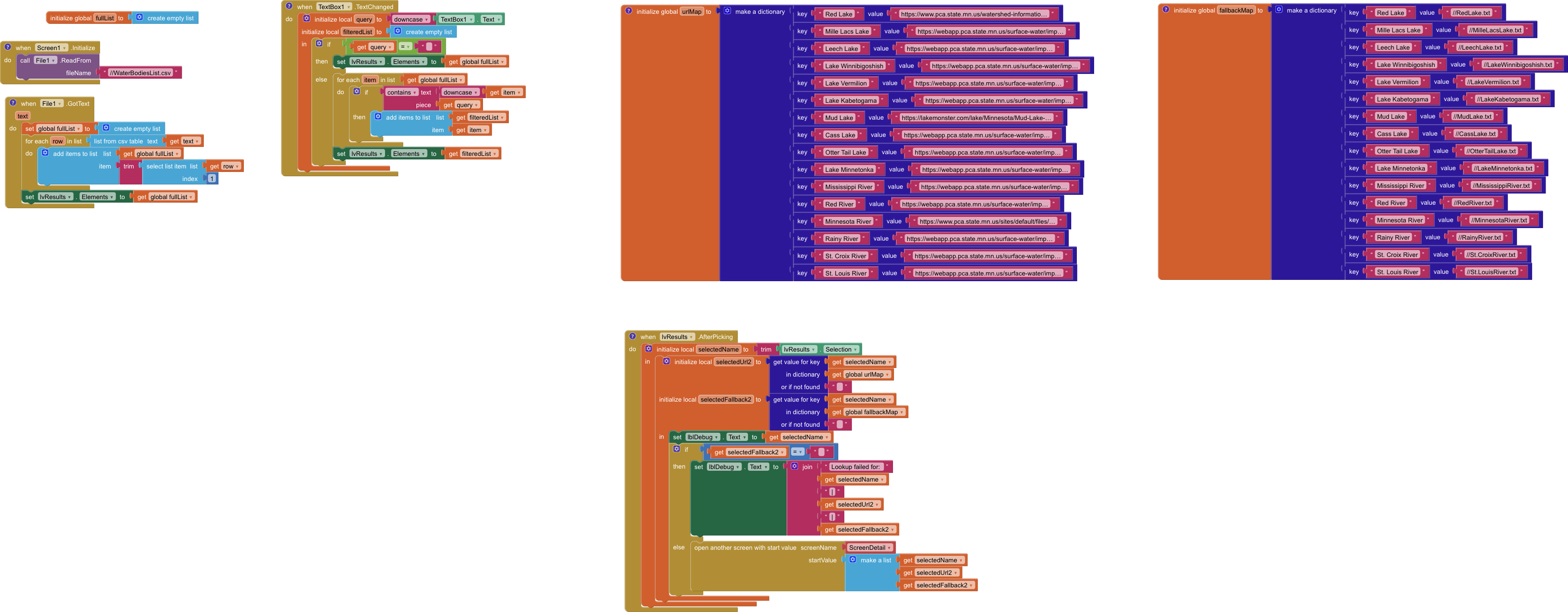
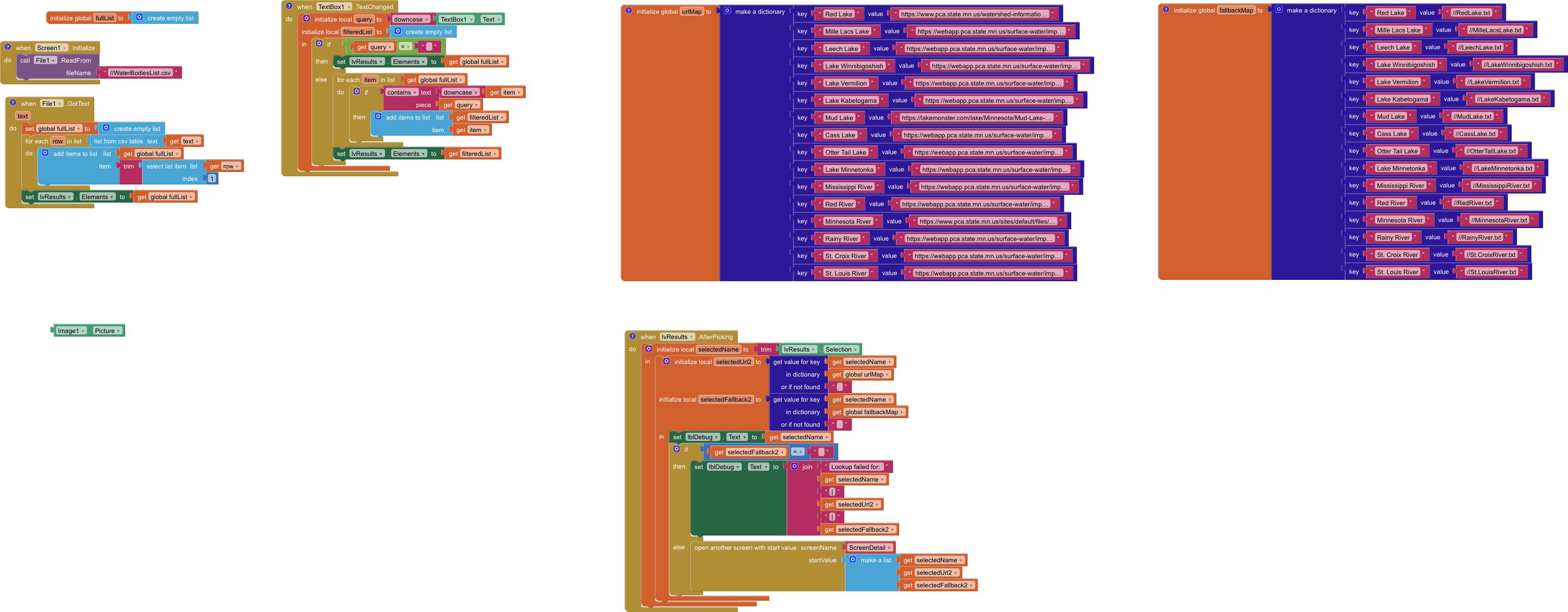
About the second problem about not being able to view the image, I’m still don’t understand the instructions you gave me. I’m a little bit confused. Here’s what I have and I don’t think it’s right. I also don’t know what to do next after putting in the Image1.Picture.
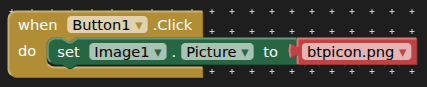
Clicking on the button above will set the image from Assets (media folder) to the image component