OpenAI Agent Extension for MIT App Inventor
🧩 OpenAIAgent
An extension for MIT App Inventor 2.OpenAI Responses API with RAG, Conversations and Streaming (Updated)
 Extension Details
GitHub Repository: https://github.com/iagolirapasssos/OpenAI-Agent-Extension
Related Project: The AIA model (App Inventor project) used for the chatbot interface is available at https://github.com/iagolirapasssos/Chat-Flow - you can download and import this complete chat application as a starting point for your projects!
 Technical Specifications
- Package:
com.iagolirapassos.openaiagent - Size: 109.29 KB
- Minimum API Level: 14 (Android 4.0+)
- Built & documented using: FAST v5.5.0
Overview
The OpenAI Agent extension allows you to integrate OpenAI's powerful AI models into your MIT App Inventor projects. With this extension, you can:
- Chat with AI models like GPT-5, GPT-4.1, and o3-mini
- Enable streaming responses for real-time AI interaction
- Use persistent conversations to maintain chat history
- Add custom instructions to guide the AI's behavior
- Use RAG (Retrieval Augmented Generation) with vector stores to make the AI answer questions based on YOUR documents (PDFs, Word files, text files, etc.)
 Quick Start with Example Project
Want to see a working example? Download the complete chat application from Chat-Flow GitHub and import the .aia file into MIT App Inventor. This gives you a fully functional chatbot that you can customize!
Getting Started
1. Prerequisites
- An OpenAI API key (get one at platform.openai.com)
- MIT App Inventor project
- For RAG: Documents you want the AI to learn from (PDF, TXT, DOCX, etc.)
2. Installation
- Download the
OpenAIAgent.aixextension file from the GitHub Releases - In your App Inventor project, go to Extensions → Import Extension
- Select the downloaded
.aixfile - The extension will appear in the Palette under "Not visible"
 Creating and Training Your Vector Store (RAG)
RAG (Retrieval Augmented Generation) lets your AI answer questions based on specific documents you provide. Here's how to set it up:
Step 1: Prepare Your Documents
- Supported formats: PDF, TXT, DOCX, PPTX, Excel, images (text extraction)
- Good for: Company manuals, study materials, personal notes, research papers
- File size: Up to 512 MB per file
Step 2: Create Vector Store on OpenAI Platform
Method A: Using OpenAI Platform Website
- Go to platform.openai.com
- Log in with your OpenAI account
- Click on "Assistants" in the left sidebar
- Click the "+ Create" button
- In the new assistant page:
- Give it a name (e.g., "My Knowledge Base")
- Click on "Add" under "Files"
- Upload your documents (PDF, TXT, etc.)
- Wait for files to process (green checkmark = ready)
- Important: Copy the Vector Store ID from the URL or details:
- It looks like:
vs_123abc456def789... - You'll use this ID in your app
- It looks like:
Method B: Using OpenAI API (Programmatic)
If you prefer code or have many files:
# Python example - run this once to create vector store
import openai

client = openai.OpenAI(api_key="your-api-key")

# Step 1: Upload files
file1 = client.files.create(
    file=open("manual.pdf", "rb"),
    purpose="assistants"
)

file2 = client.files.create(
    file=open("notes.txt", "rb"),
    purpose="assistants"
)

# Step 2: Create vector store
vector_store = client.vector_stores.create(
    name="My Documents",
    file_ids=[file1.id, file2.id]
)

print(f"Vector Store ID: {vector_store.id}")  # Copy this!
Step 3: Test Your Vector Store
Before using in App Inventor, test in OpenAI Playground:
- Go to OpenAI Playground
- Select "Assistants" mode
- Choose your assistant with the vector store
- Ask questions about your documents
- Verify AI answers correctly using your files
Step 4: Use in Your App
In your MIT App Inventor blocks:
when Screen1.Initialize
    set OpenAIAgent.ApiKey to "sk-...your-api-key..."
    set OpenAIAgent.VectorStoreId to "vs_123abc..."  # Your vector store ID
 Properties Reference
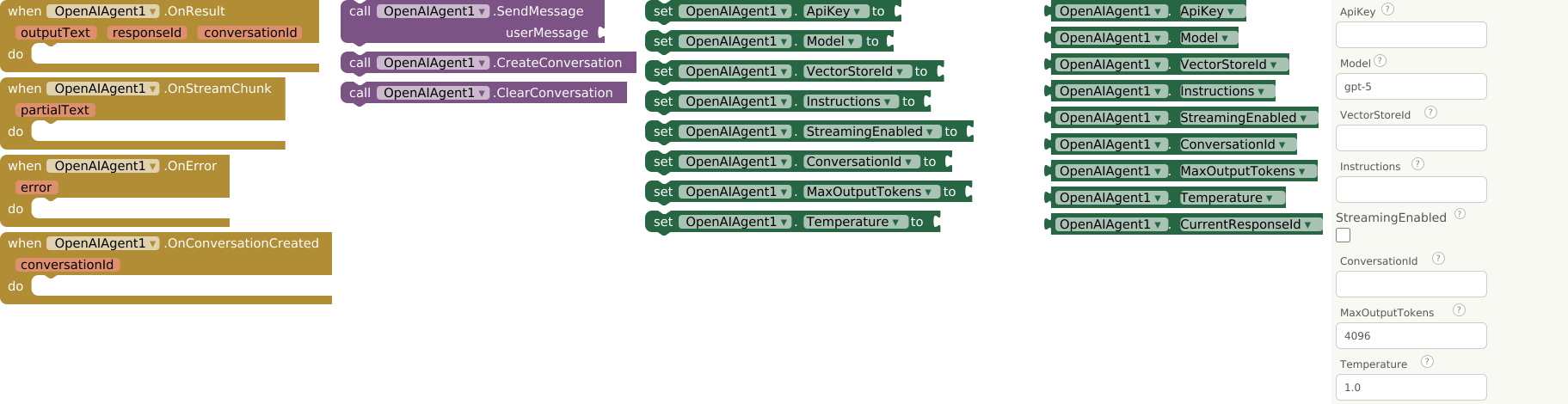
Designer Properties (Set in Designer Tab)
| Property | Type | Default | Description |
|---|---|---|---|
| ApiKey | string | "" |
Your OpenAI API key |
| Model | string | "gpt-5" |
AI model to use |
| VectorStoreId | string | "" |
Vector Store ID for RAG |
| Instructions | string | "" |
System instructions for the AI |
| StreamingEnabled | boolean | false |
Enable streaming responses |
| ConversationId | string | "" |
Conversation ID for persistent chats |
| MaxOutputTokens | integer | 4096 |
Maximum response length |
| Temperature | float | 1.0 |
Creativity control (0.0-2.0) |
Setter Properties (Set in Blocks)
| Property | Type | Description |
|---|---|---|
| ApiKey | text | OpenAI API Key |
| Model | text | Model ID (e.g., gpt-5, gpt-4.1, o3-mini) |
| VectorStoreId | text | Vector Store ID for RAG (file search) |
| Instructions | text | System instructions for the model |
| StreamingEnabled | boolean | Enable streaming responses |
| ConversationId | text | Conversation ID for persistent conversations |
| MaxOutputTokens | number | Maximum output tokens |
| Temperature | number | Sampling temperature (0-2) |
Getter Properties (Read in Blocks)
| Property | Returns | Description |
|---|---|---|
| ApiKey | text | Get current OpenAI API Key |
| Model | text | Get current model ID |
| VectorStoreId | text | Get current Vector Store ID |
| Instructions | text | Get current system instructions |
| StreamingEnabled | boolean | Check if streaming is enabled |
| ConversationId | text | Get current conversation ID |
| MaxOutputTokens | number | Get maximum output tokens setting |
| Temperature | number | Get current temperature setting |
| CurrentResponseId | text | Get response ID from last call |
 Methods (Functions)
1. SendMessage
Send message to OpenAI Responses API
| Parameter | Type | Description |
|---|---|---|
| userMessage | text | Your question or prompt for the AI |
Example:
call OpenAIAgent.SendMessage text = "Hello, how are you?"
2. CreateConversation
Create a new persistent conversation
Example:
call OpenAIAgent.CreateConversation
3. ClearConversation
Clear the conversation ID
Example:
call OpenAIAgent.ClearConversation
 Events
1. OnResult
Trigger: Final complete response received from OpenAI
| Parameter | Type | Description |
|---|---|---|
| outputText | text | Full AI response text |
| responseId | text | Unique ID for this response |
| conversationId | text | Conversation ID (may be new) |
Example:
when OpenAIAgent.OnResult(outputText responseId conversationId)
    set LabelResponse.Text to outputText
2. OnStreamChunk
Trigger: Partial chunk received during streaming response
| Parameter | Type | Description |
|---|---|---|
| partialText | text | Piece of AI response |
Example:
when OpenAIAgent.OnStreamChunk(partialText)
    set LabelResponse.Text to join(LabelResponse.Text partialText)
3. OnError
Trigger: API error occurred during request
| Parameter | Type | Description |
|---|---|---|
| error | text | Error message |
Example:
when OpenAIAgent.OnError(error)
    show alert error
4. OnConversationCreated
Trigger: New conversation created
| Parameter | Type | Description |
|---|---|---|
| conversationId | text | New conversation ID |
Example:
when OpenAIAgent.OnConversationCreated(conversationId)
    set LabelConvID.Text to conversationId
 Complete RAG Example App
Using the Example Project
The easiest way to get started is to download the Chat-Flow .AIA project which includes:
- A beautiful chat interface
- Streaming responses
- Conversation management
- Ready-to-use blocks
Step-by-Step Setup (From Scratch)
1. Design Your Screen:
- Add
TextBox(rename toTextBoxQuestion) for user questions - Add
Button(rename toButtonAsk) to send questions - Add
Label(rename toLabelAnswer) to show responses - Add
Label(rename toLabelStatus) for status messages
2. Initialize Extension:
when Screen1.Initialize
    set OpenAIAgent.ApiKey to "sk-...your-api-key..."
    set OpenAIAgent.VectorStoreId to "vs_123abc..."  # Your vector store ID
    set OpenAIAgent.StreamingEnabled to true
    set OpenAIAgent.Instructions to "Answer questions based only on the provided documents. If you don't know, say so."
    set LabelStatus.Text to "Ready. Ask about your documents!"
3. Handle Asking Questions:
when ButtonAsk.Click
    if TextBoxQuestion.Text = ""
        show alert "Please enter a question"
    else
        set LabelAnswer.Text to ""
        set LabelStatus.Text to "Thinking..."
        call OpenAIAgent.SendMessage text = TextBoxQuestion.Text
    end if
4. Handle Responses:
when OpenAIAgent.OnStreamChunk(partialText)
    set LabelAnswer.Text to join(LabelAnswer.Text partialText)

when OpenAIAgent.OnResult(outputText responseId conversationId)
    set LabelStatus.Text to "Done!"
    # Optional: Save conversationId if you want to continue later
5. Handle Errors:
when OpenAIAgent.OnError(error)
    set LabelStatus.Text to join("Error: " error)
    show alert error
 Practical RAG Use Cases
1. Company FAQ Assistant
- Upload: Employee handbook, policy documents, FAQ sheets
- Ask: "What is our vacation policy?" or "How do I request equipment?"
2. Study Assistant
- Upload: Textbook PDFs, lecture notes, research papers
- Ask: "Explain photosynthesis" or "What are Newton's laws?"
3. Personal Knowledge Base
- Upload: Meeting notes, project docs, personal journals
- Ask: "What did we decide in last week's meeting?" or "What are my project deadlines?"
4. Customer Support Bot
- Upload: Product manuals, troubleshooting guides, warranty info
- Ask: "How do I reset my device?" or "Is this covered by warranty?"
 Troubleshooting RAG
Problem: AI doesn't use my documents
Solutions:
- Verify Vector Store ID is correct
- Check files are processed (green checkmark in OpenAI)
- Test in OpenAI Playground first
- Add to Instructions: "Use the provided documents to answer"
Problem: "File search failed" error
Solutions:
- Check API key has access to Assistants feature
- Verify vector store exists in your account
- Files may be too large - split into smaller files
Problem: Slow responses
Solutions:
- Reduce file count (optimize to essential documents)
- Use smaller files
- Increase timeout in your app if needed
 Best Practices for Vector Stores
Document Preparation:
- Clean text: Remove scanned images (use OCR first)
- Chunk wisely: 1-5 pages per file works well
- Name clearly: "Sales_Process_v2.pdf" not "document1.pdf"
- Organize: Group related documents together
Optimizing Performance:
- Start small: Test with 1-2 documents first
- Use relevant files: Remove unrelated content
- Update periodically: Recreate vector store when documents change
- Monitor costs: Vector storage has separate pricing
Testing Your Setup:
- Basic test: Ask about specific content you know is in documents
- Edge test: Ask about topics NOT in your documents
- Comparison: Test with/without vector store enabled
 Cost Considerations
What Costs Money:
- API calls: Per token usage (input + output)
- Vector storage: Monthly fee per GB stored
- File processing: One-time cost when uploading
Cost-Saving Tips:
- Delete unused vector stores
- Compress documents before uploading
- Use only necessary pages/sections
- Monitor usage in OpenAI dashboard
 Updating Your Knowledge Base
When your documents change:
- Go to OpenAI Platform → Assistants
- Select your assistant
- Remove old files, add new ones
- Wait for processing
- Important: Your Vector Store ID stays the same!
Or create a new vector store and update the ID in your app:
when ButtonUpdateKnowledge.Click
    set OpenAIAgent.VectorStoreId to TextBoxNewVectorStoreID.Text
    show alert "Knowledge base updated!"
 Need Help?
Common Issues and Fixes:
| Problem | Likely Cause | Solution |
|---|---|---|
| "API Key not configured" | Forgot to set API key | Set ApiKey property |
| No document answers | Wrong Vector Store ID | Verify and copy correct ID |
| Slow streaming | Network issues | Check internet, reduce file size |
| Error 429 | Too many requests | Add delay between questions |
Getting Support:
- Check GitHub: Visit OpenAI Agent Extension GitHub for updates and issues
- Use Example: Start with the Chat-Flow example to ensure proper setup
- Test first: Always test in OpenAI Playground
- Check logs: Use
OnErrorevent to see details - Simplify: Remove vector store to test basic chat
Files
AIX: com.iagolirapassos.openaiagent.aix (109.3 KB)
AIA: BibliaSagradaIADemo.aia (633.7 KB)
 Congratulations!
You now have a powerful AI assistant that can:
- Answer questions based on YOUR specific documents
- Remember conversations
- Respond in real-time with streaming
- Follow your custom instructions
Pro Tip: Download the example Chat-Flow project to get a head start with a beautiful, working chat interface!
Start with simple documents and questions, then expand as you get comfortable. Your AI-powered app is ready to go!
Version: 13
Package: com.iagolirapassos.openaiagent
Minimum API: 14 (Android 4.0+)
GitHub: https://github.com/iagolirapasssos/OpenAI-Agent-Extension
Example Project: https://github.com/iagolirapasssos/Chat-Flow
Built with: FAST Extension Builder
Note: OpenAI API usage is billed separately. Check OpenAI Pricing for current rates.