Another example about Itoo with classic BT and ESP32 (full-duplex, with watchdog and automatic restart)

Dear all,
though this is not a completely new topic, I believe that it could be of some help, anyway, for those who need a step-by-step explanaition about the creation of an app capable of using the power of Itoo to run in background to manage a fast BT ful duplex communication. Moreover it shows how to restore the background communication after a failure. Tips and tricks to make it working are also described in the texts between the pictures.

Credits to @Kumaraswamy for Itoo and @Taifun for TaifunTools :muscle: :muscle: :muscle:

The .aia ; the .ino and a pdf with the explanation can be found at the end of the topic.
Hoping it can help !

Made with a Dell Latitude e7270, Win 10 Pro, Running on Lenovo Pad 8" Android 9.Esp32 DevModule


The purpose is to handle a full-duplex communication between the app and an ESP32 device, capable of receiving fast frames from the ESP32 and, contemporary, to send commands.
The communication is safeguarded by a watchdog, that is capable to restore the communication when, for any reason, the communication fails or ceases.
One of the advantages of this approach is to leave the “foreground” activities, i.e. those directly managed by AI2, free from those inherent only to the BT, with the possibility to handle all the buttons, the labels, in one word: the UI.
The steps that describe the flow are:

  1. Initialize the Screen1 with some stuff
  2. Initialize the Itoo background process in which the BT client is invoked and a clock timer event to send/receive data on the BT radio is linked to Itoo as well.
  3. After a while (i.e. 2 seconds) verify whether the BT client has been successfully started.
  4. From that point onward the BT communication is managed in background and the foreground can do its job parsing the data received on the BT, if any, and sending data on the BT, just by loading a buffer that will be sent out by the clock in background.
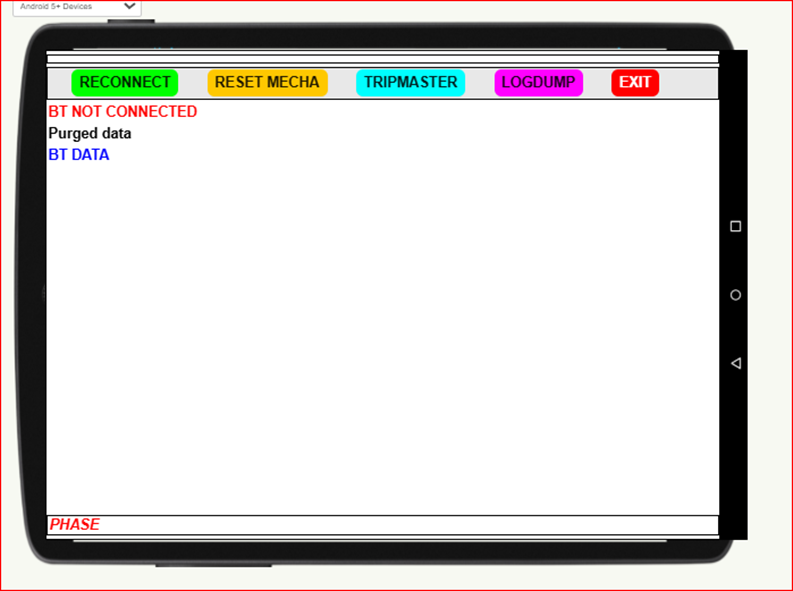
    The following picture depicts how the main screen looks like.
The main variables:
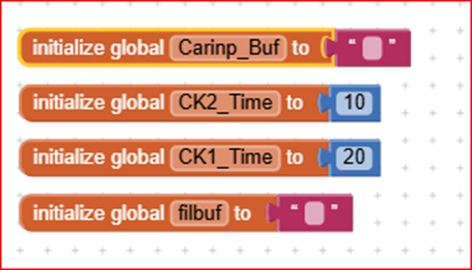
Carinp_Buf: buffer to contain the data received (text format)
Filbuf: buffer to scontain data to be stored into a file (text format)
CK1_Time: time constant of the receiving service (20 milliseconds)
CK2_Time: time constant of the parsing function. NOTE it must be faster than CK1 (to have a double speed it must be the half of CK1) in order to avoid loosing data.

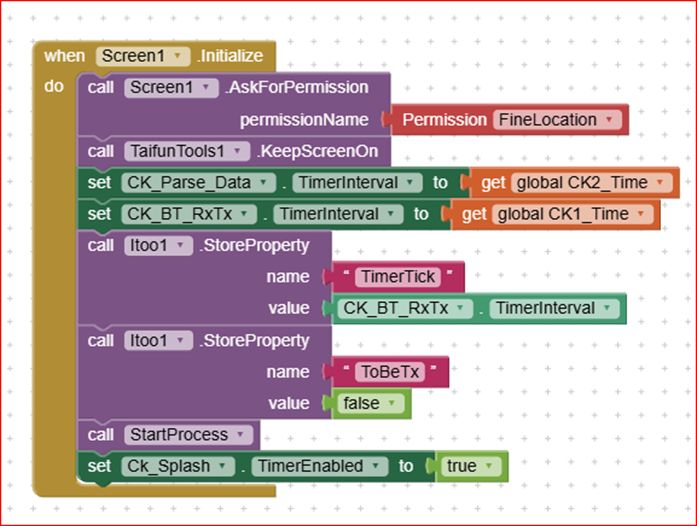
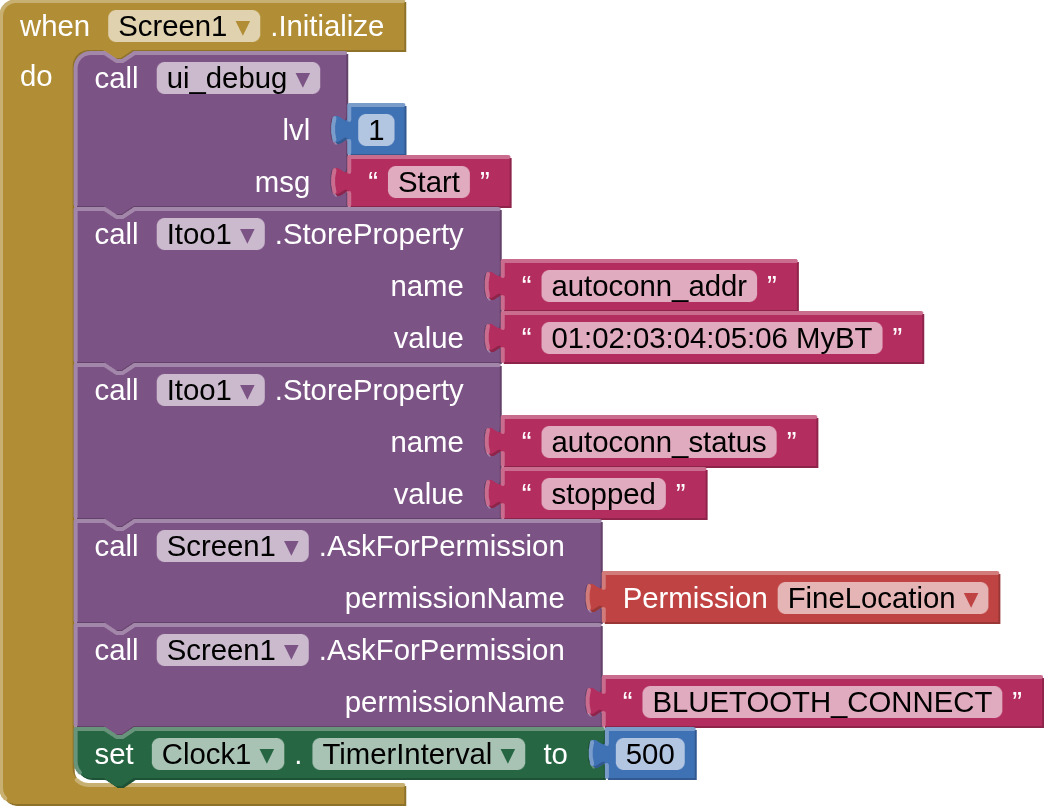
In the Screen1 initialization :
• the FineLocation permission is asked to allow the BT to work
• the Taifun’s Tool (credits !!!) extension is used to maintain the screen always alive
• The two clocks time constant properties are loaded into their respective clocks
• The Ck1 (= CK_BT_RxTx) TimeInterval is passed to Itoo using the StoreProperty method because it is a background clock
• The CK2 one (= CK_Parse_Data) is loaded directly because it is a foreground clock
• The flag instructing Itoo that no characters have to be sent, for the time being, is set (false)
• Itoo is started
• To allow time for Itoo to start, a splash screen clock is started (2 seconds, for example)
this means that for two seconds no other operations are executed waiting for Itoo to become operative
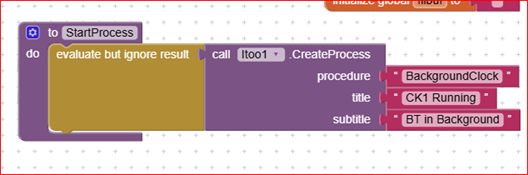
Itoo background process is started by loading the name of the procedure that will run in background.
Title and subtitle are shown for a while in a popup window so to advise that Itoo is started. The latest version of the extension does not show any longer the popup, this is useful if you need to start Itoo silently.
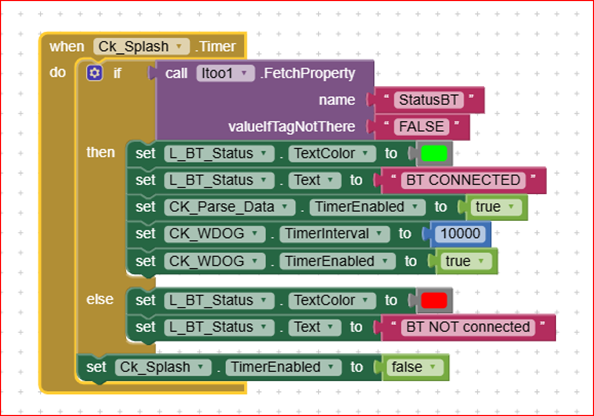
As said before, the splash screen is a procedure, triggered by a clock, which will run some time after the CreateProcess is invoked, so to allow the BT communication to be activated (otherwise the property BT_Status could be not set, yet).
If the BT status is ok (true) this means that the BT has been successfully connected and is ready to work. In this case the watchdog timer is firstly set to 10 seconds (later on it will be set to a faster intervention time).
The splash screen clock is then auto-disabled (i.e. it shall run only once).
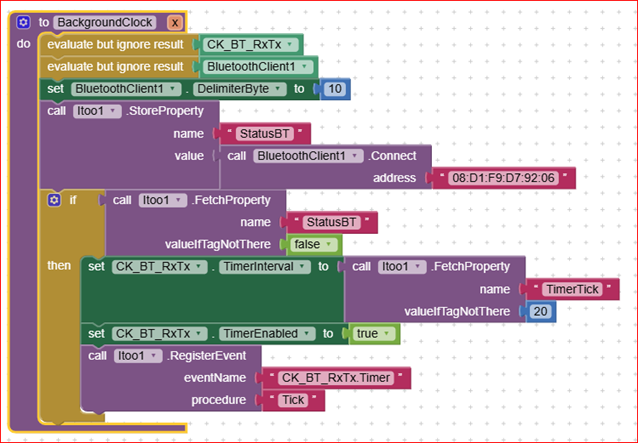
The BackgroundClock procedure is the Itoo core (please note the “x” parameter that has to be set mandatorily, though it is not used).
Two components are made available to Itoo: the BT_Rx_Tx clock and the Bluetooth Client.
Both are evaluated carelessly of their results.
The Linefeed Character (10 or 0x0A) is set as string terminator for incoming BT data frames. Note that it shall be done here in background.
The BT client is tried to be connected (the shown address is that of my ESP32, but in your application it shall be the one of YOUR system) and, if successfully connected, the StatusBT property will be set accordingly: True = ok; False = not connected.
If the BT connection is OK, then the time constant for the CK_BT_RxTx is fetched from the foreground (as per Itoo foreground background data passing method) and stored into the Clock Time Interval property. If the value is not available, a default 20 millisecond value is passed, anyway.
Finally, the CK_BT_RxTx timer is enabled and its event is registered by Itoo, so when it fires (i.e. the Clock.Timer Event is triggered) its service function, named Tick, is handled in the background.
The background timer event is composed by two sections: the first is devoted to send and the second to receive data on the BT radio. Both sections are subjected to a good functioning of the BT client that is retrieved by the property Status_BT.
If a character, or a string, has to be sent, the flag “ToBeTx” is set by the calling procedure and fetched here. If it is True, this means that a string, or a character, shall be sent, and in this case it is fetched from the BufferOutput property (as per Itoo foregroundbackground data exchange method). Once the data has been transmitted, the flag is reset so to avoid further transmissions of the same data.
NOTE please take care that the sending procedure (the first section of Tick) is activated every 20 milliseconds, therefore if the foreground asks faster transmissions, that is: the gap between two consecutive calls of the BT_Send_Text foreground procedure is less than 20 milliseconds, the latter overwrites the first, which is then lost. So if you want to send multiple messages, you can “join” together, as far as possible, the messages, or you can delay the latter messages each of a time about 20 milliseconds, by means of a dedicated clock.
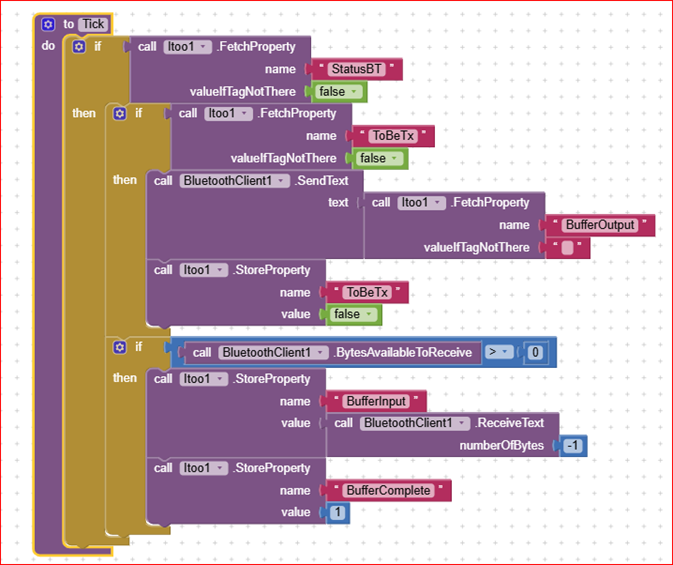
The second section is dedicated to the receiving of data (text data type). The method is the BT client standard one: if characters are available, then the client fetches the incoming data until it encounters a Linefeed character (the one set as terminator). Once the incoming data have been all collected (i.e. until the Linefeed), the BufferComplete property is set to True, to flag to the parsing procedure that data are available.

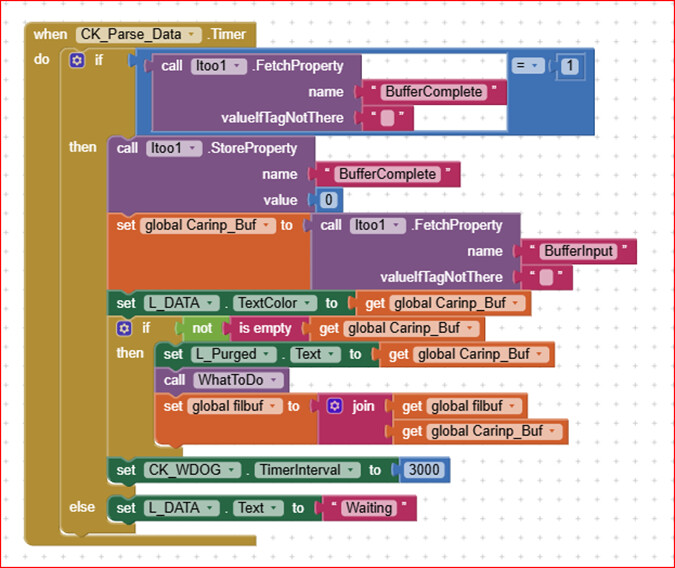
The Parsing procedure is activated every half time of the receiving in order to be sure to not miss any data frame. If a complete frame has been received by Tick, the flag BufferComplete is set to 1, therefore the frame is parsed to detect what are the data just received.
Otherwise, if a complete frame (i.e. terminated by a Linefeed) is not received, the procedure shows “Waiting” and exits immediately.
The input buffer is then moved from the Itoo property Buffer_Input to the global variable Carinp_Buf. The raw data is shown in a dedicated label (L_DATA), while the good frame (terminated by a Linefeed and not empty) is shown in another label (L_Purged): in this way in case of a corrupted frame received, it is anyway shown in the L_DATA label, to allow helping in the corruption reason detection.
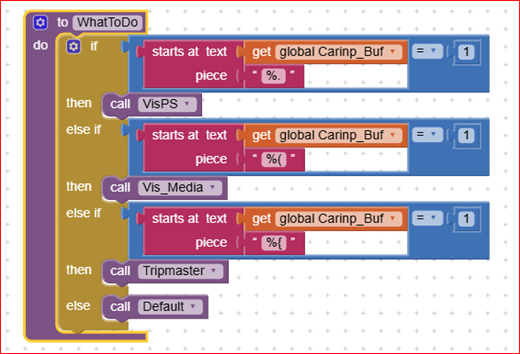
A the end, the WhatToDo procedure is basically a “switch...case” structure that allows to execute different tasks in relation to the received frame. Whenever a good frame has been received the WDOG clock is retriggered with a time constant of 3 seconds
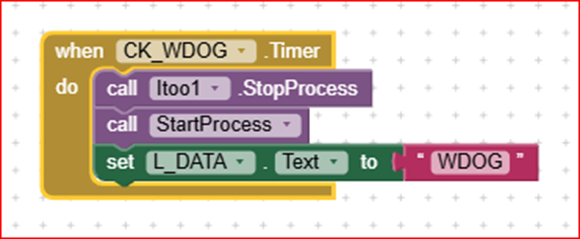
The Watchdog procedure is retriggered every time a good frame is received or every time a character, or a frame, is transmitted. If none of these two conditions happen (good Rx or a Tx) the watchdog is not retriggered, therefore its .Timer event is raised, which produces a stop process, and retarts Itoo again. In this way the BT client is reset also, and a clean, new communication restarts.
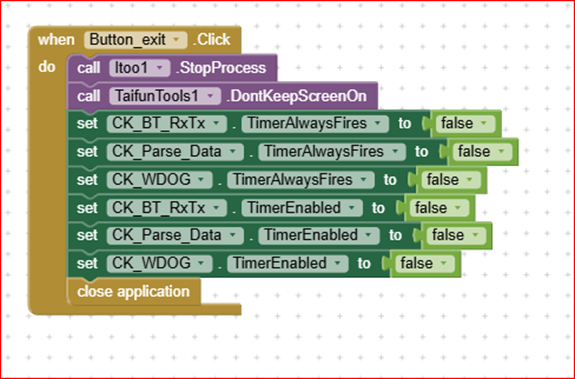
To be sure that, when exiting the app, the Itoo background process is terminated correctly, the process is stopped, and all clocks are deactivated as well.
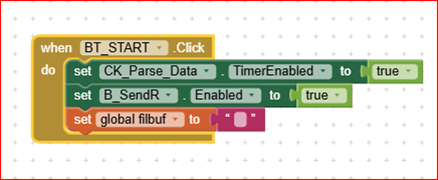
The Button BT_START (re)enables the Parse_Data clock, enables the SendR button (without particular use) and clears the data buffer for the file storage. The Filbuf buffer contains all the messages received by the app, until the button B_Logdump is hit.
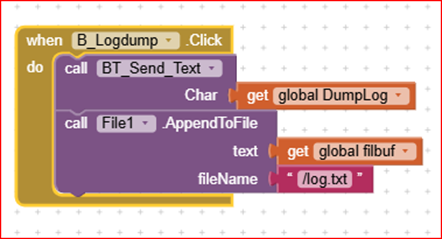
When the B_Logdump button is hit, a Character is sent to the ESP32, and the entire filbuf buffer is stored into the file named log.txt into the ASD. This is only for debugging purpose: by storing everything has been received, one can detect any “weird” nessage could have been received.
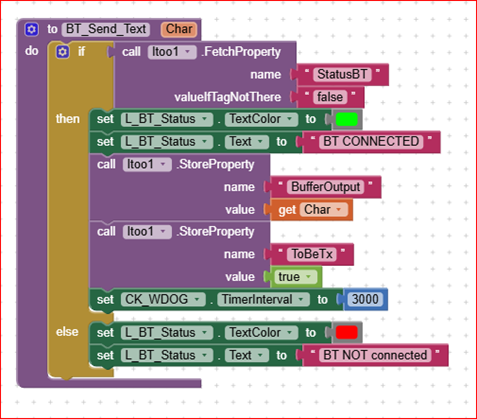
The Send_Text procedure is a foreground one, and is called whenever the foreground wants to send a text (one char or string). It operates only if the BT_Status is True. The data to be transmitted is received through the Char parameter, then is stored into the Buffer_Output property, from which the Tick procedure will fetch the contents. To allow the transmission the flag ToBeTx is set to True and it is reset to False, after the transmission, by the Tick background procedure.
After all this has been done, to maintain silent the watchdog, it is retriggered by loading the time constant to its default (3 seconds) value. This is necessary because if the transmission of one, or more texts last more than the standard 3 seconds, the watchdog can erroneously fire even though the transmission is in progress.
The WhatToDo procedure is like a switch…case structure intended to start specific tasks depending on the message being received. The Heading characters of the message are used to discriminate the task. In this example the tasks are just for information only (i.e. they are empty). The sample ESP32 code supplied with this demo, sends to the app three types of strings. This is intended to show the capability to discriminate the headers and therefore the “Phase” label is set accordingly while the app is running.
Rally_BT_Bkg_1.aia (208.4 KB)
ESP32_ClassicBT_AI2.ino (1.7 KB)

Itoo_and_BTclassic.pdf (430.3 KB)
4 Likes

(added to FAQ)

1 Like

Hello Uskiara,

I’m using Itoo v4.5.0 and that is a bit different from the version of your example above (for example, there is no RegisterEvent() function anymore) and I simply can’t make the Bluetooth work as I lack the complete understanding on how ForegroundService works on Android. Since you gave me the link to this topic, I’m wondering if you are interested and would be so kind to look to my code.

My approach is different than yours. I only want to use Itoo background process to discover if the bluetooth device is nearby. The background process should continuously “polling” (in other words, run BluetoothClient1.Connect() and when it succeed, it simply send a notification to the foreground process that it is time to connect). I don’t want to implement the RX-TX in the background and I have a reason for that (and, as you will see, it is not a problem, or at least not just yet).

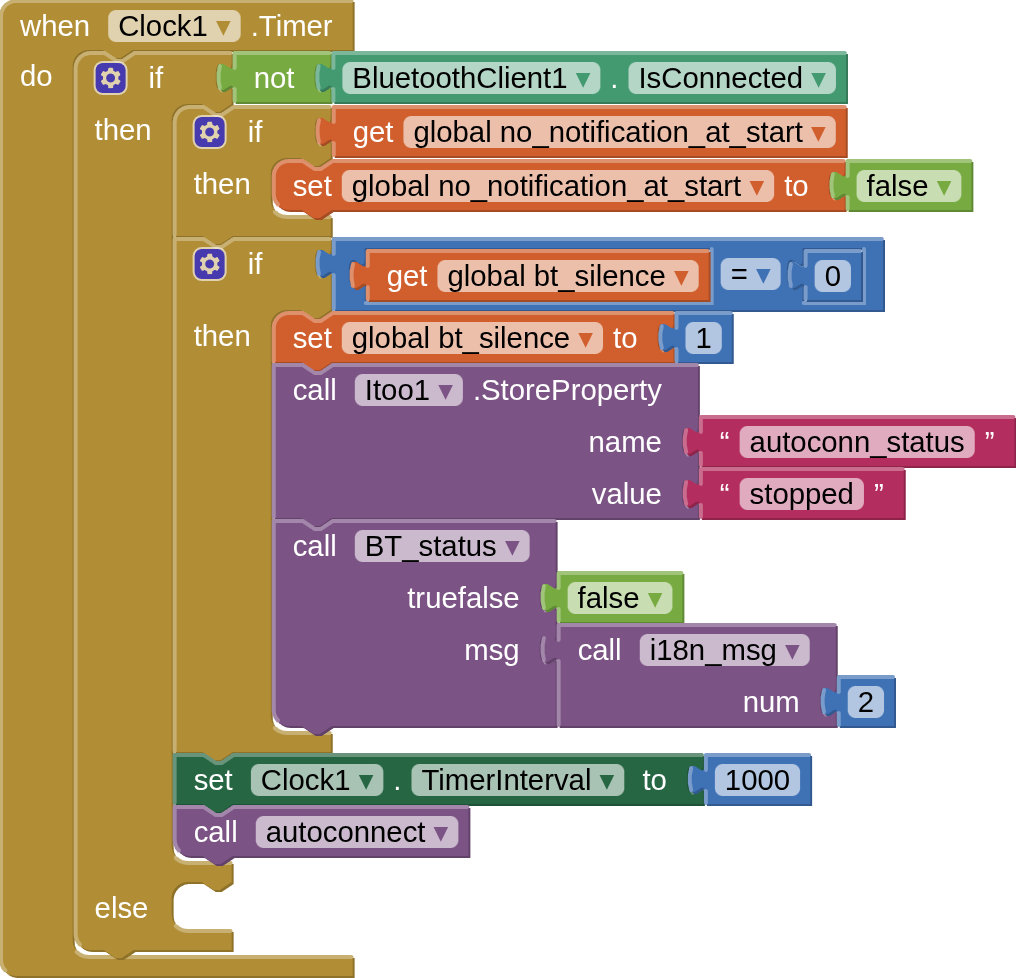
So far, nothing fancy. I have only one Clock and one BluetoothClient. There is only very few examples on how to use the newest version of Itoo, so I thought it’s best if I call Itoo.createProcess() scheduled, only if it isn’t running already.

Don’t mind the BT_status(), it only show the BT connectivity status to the User. The “else” part is where I handle the send - receive part, but it is irrelevant for now. Clock1.Timer() calls autoconnect() on every second.

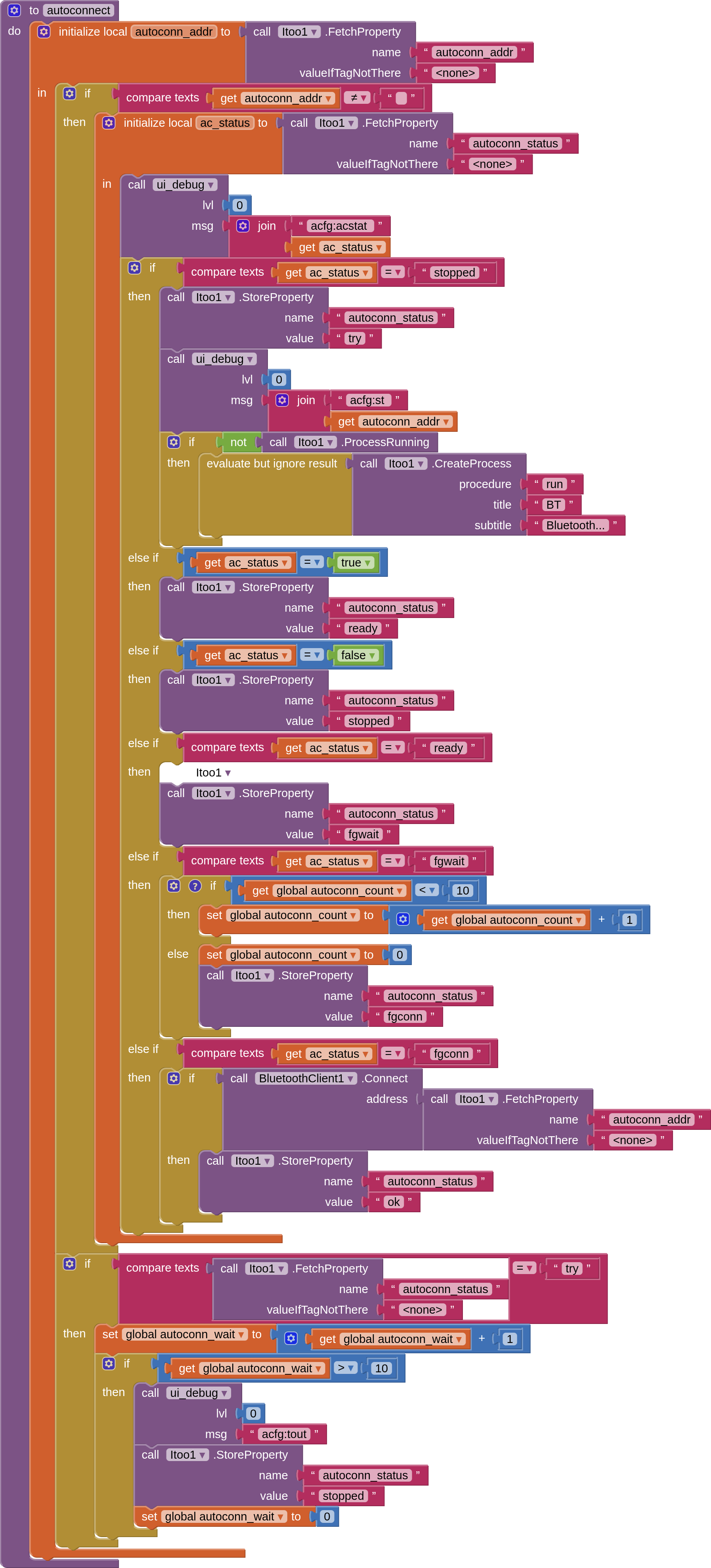
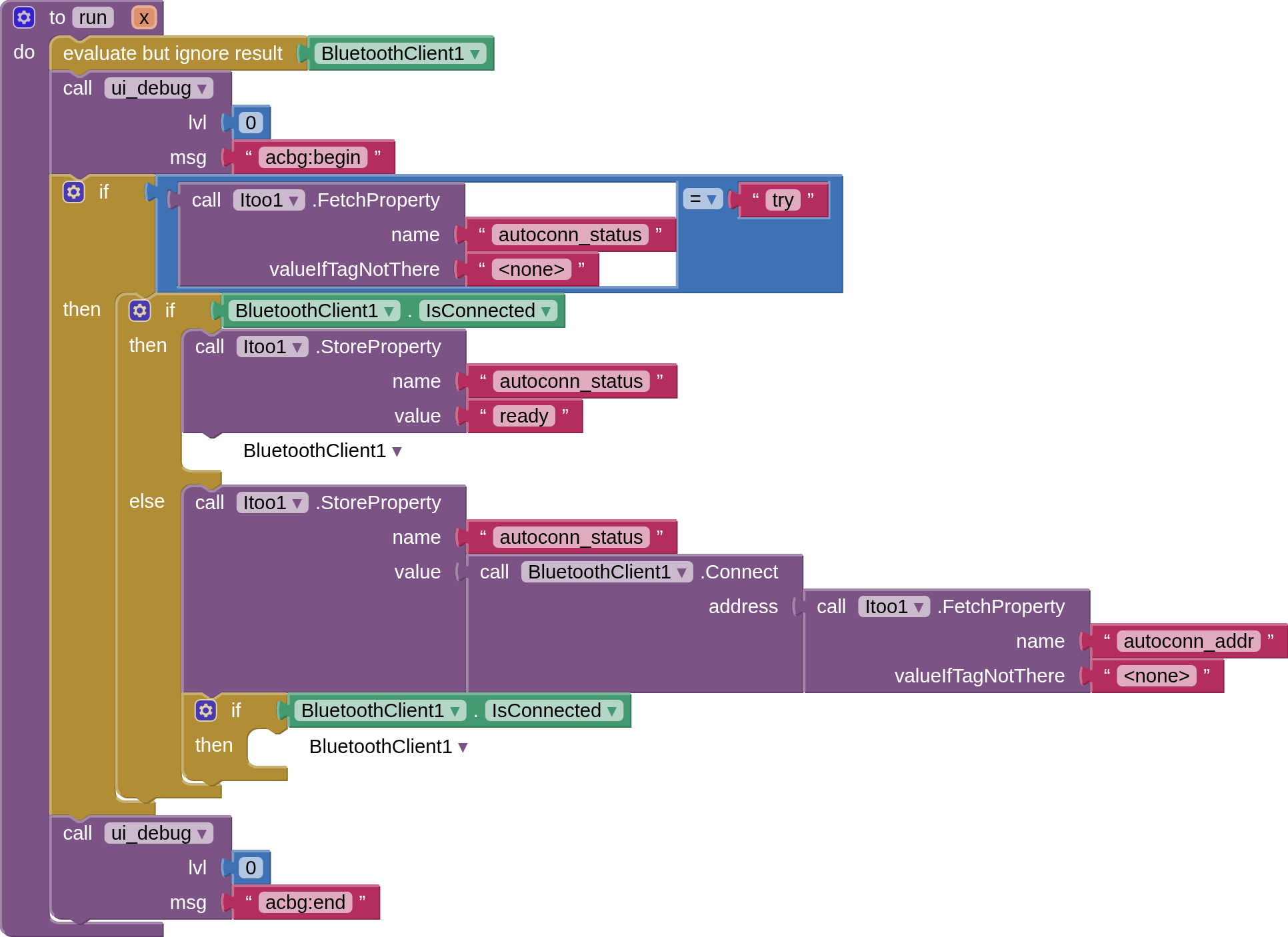
The autoconnect() is a state machine, that sets and follows the changes of autoconn_status and ultimately, start Itoo with CreateProcess(). It goes through states “stopped” => “try” => “wait” => “connected” or “timeout” => “stopped”. When the state equals “try”, the background process should be triggered and it should set the state to True or False. The problem is that it does not run.

(Note that the “wait” state is because the Itoo process need to disconnect from the BT device, then it needs ~1 second to prepare for the new connection that my autoconnect() will do.)

From Itoo version v4.4, it can change some GUI elements so it should be able to make debug log. The ui_debug() function only add one new line to a label element on the screen.

The thing is, “acbg:begin” never appears in the debug, and the autoconn_status always stuck to the try…try…try…stopped states as it timed out after 10 seconds.

It is just like the background process would never be executed. However, sometimes my phone (Android 14) shows a message: “This application always stops” and suggests closing the application. That must have some connection with Itoo.

Also, after 3-4 minutes of trying, there is a Runtime Error:

“startForegroundService() not allowed due to mAllowStartForeground false: service appinventor.ai_atomgape3.bttest/xyz.kumaraswamy.itoo.ItooService.”

An important detail is that “acbg:st” only appears once, so the Itoo.ProcessRunning() test must work and it detects like the Itoo background process would start.

I hope the above make sense to you. Could you please explain how I should call Itoo, because how I’m doing is somehow faulty?

Thank you much!

Dear @Atomgep, sorry to respond you so late, but I'm in a location where internet is really a nightmare.
Therefore It's really difficult for me, for the time being, to read carefully what you've said and to try to make AI2 to work as well.
Please apologise.
Best wishes.

Hello Uskiara,

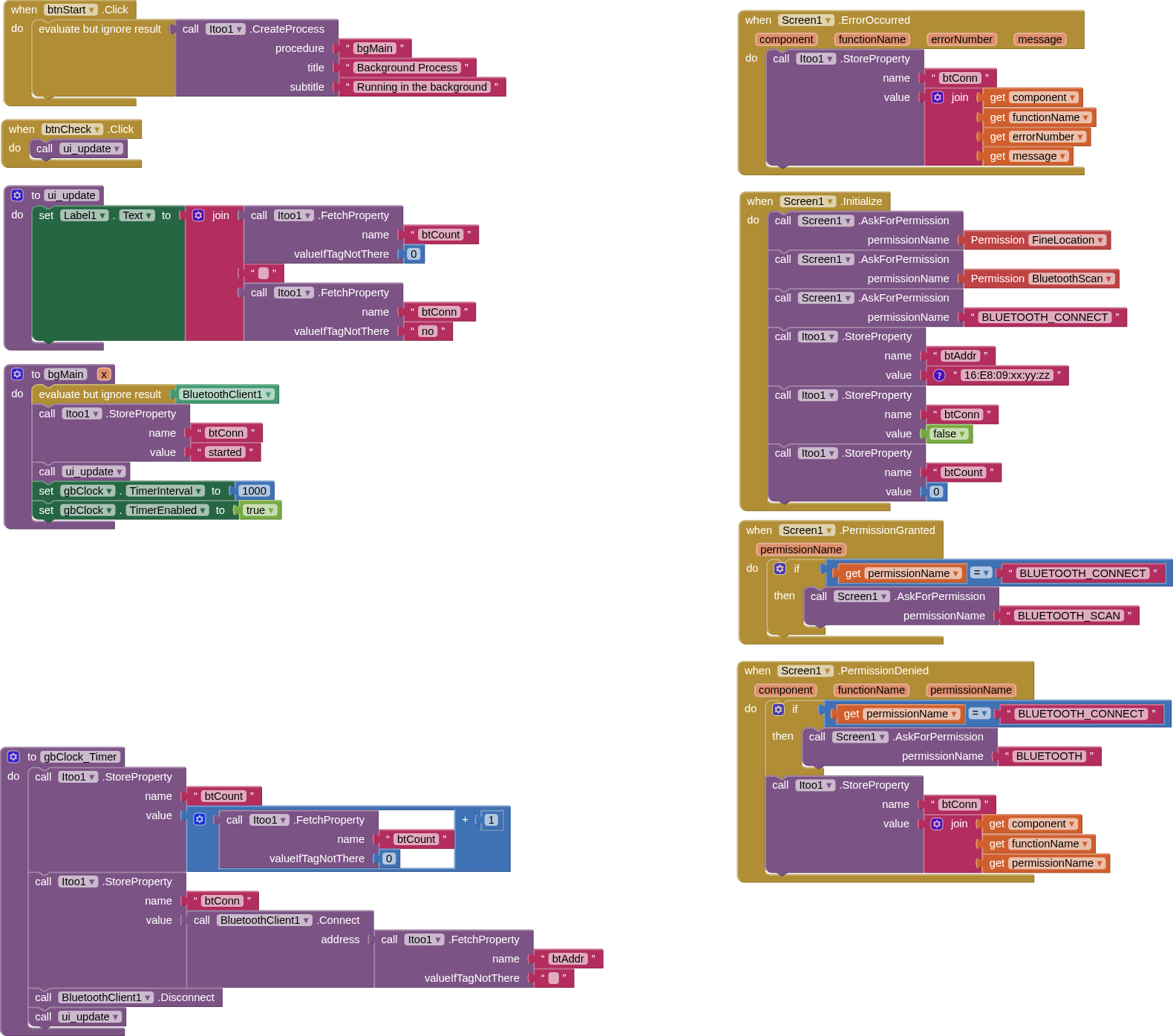
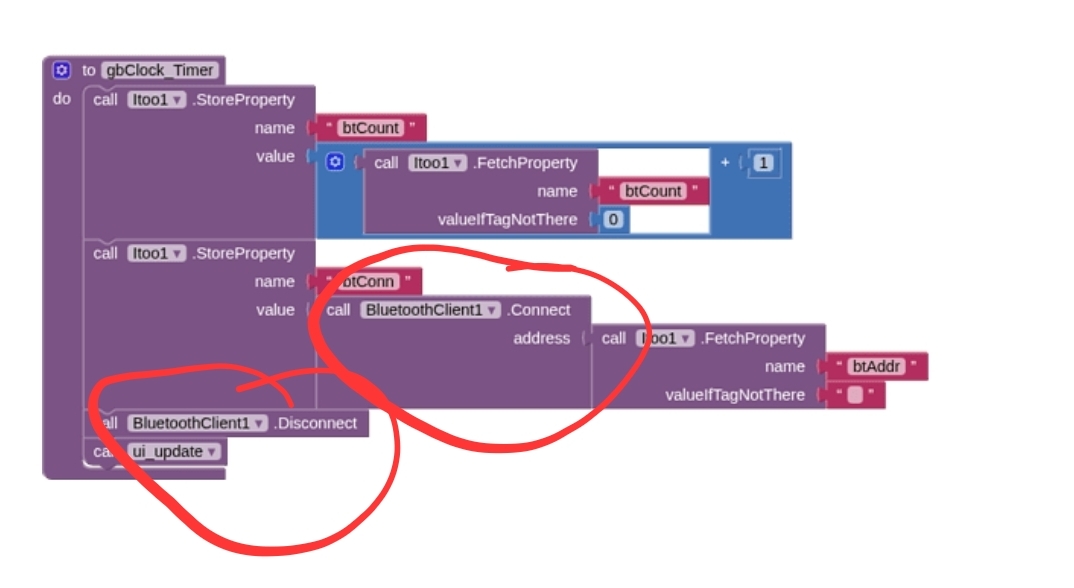
no problem at all, take your time. In the meantime, I update this case. :slight_smile: I tried to use CallBackgroundProcedure() instead, I separated the code from the run(x) procedure to a new one. I call run(x) in Screen.Initialize() and from run(x) I do CallBackgroundProcedure(“autoconnectbg“, ). Also, I changed the autoconnect() function to use CallBackgroundProcedure(“autoconnectbg“, ) instead of CreateProcess(“run”, “blahblah”, “blah”). Still it seems the autoconnectbg() process is never called.
I have seen that AppInventor was upgraded on the 19th of July, maybe something has changed and Itoo became incompatible? I haven’t seen any reports on the Itoo page, though.

Best regards

Use method Notifier.LogInfo for debugging and logcat to check what happens

Also once BluetoothClient.IsConnected is true is will stay true also after the connection is lost. As the bluetooth protocol was designed, there is no way to detect, if a connection still is alive, therefore you have to send regularly (i.e. poll) some data to the device. And if you get an error, then you know, that the connection was lost...

Taifun

1 Like

If you want to check in the background if you can connect to a certain bt device you can do as in the attached example.

But I think that if you have a background process that continuously connects and disconnects from bt… prevents you from using the bt in the foreground.

I mean having two asynchronous processes using the same peripheral does not sound good.

P.S.

Also note that if the bt device is not in-range ( or at the limit ) the connect can take up to roughly 10 seconds ( at least on my phone )

itoo03.aia (84.9 KB)

1 Like

Hello Davidefa & All,

thank you very much for spending the time on this. I expanded the code with getting all BT permissions I think is necessary, and tested it with Android 15 and Android 16.

When I clicked on the “Start background process”, it immediately popped up the message “This application always crash” (or something similar, I use non-English language on my phone).

I thought if it stops immediately, then indeed it must be a permission issue. So I went to Itoo settings and enabled “ConnectedDeviceUsage” and “DataSyncUsage”. When I clicked to the “Start background process” button again, there was a different error message “There was an issue with application itoo3. itoo3 has closed, because there is an error in it. You can try to update after the developer provide a fix.”

I enabled everything in Itoo settings, but of course that didn’t change things.

I’m having a Samsung S22 and the USB port does not work for ages (I use wireless charger) so I can’t immediately debug with adb - the other phone with Android 15 is my wife’s company phone and I don’t want to risk to enable ADB (even if it’s possible). So ADB is not very straighforward, I’ll get some device that has older Android and re-test.

The status stays “Not started” and when I click on “Check” button, it says “0 false” (as expected if the background process could not start).

Ask for the permissions one by one and use logcat as mentioned earlier

Taifun

Also you are Connecting and immediately after that Disconnecting again and you are repeating this each second again and again
This does not really make sense

Taifun

At first, the only goal is to detect if the bluetooth device is nearby. If the connection succeed, there is nothing to do but dsconnect and keep counting how many times the connections succeed. Isn’t this make sense to you, considering the defined goal? So what do you recommend to do, I’m really curious and appreciate your wise words?

Also I explained here that the USB port does not work on my phone and you keep advising logcat that is only possible via USB, if I’m not mistaken. So I don’t know how could I proceed with your proposal? I’m going to update here if I can get my hand to another phone where I can use adb.

All permissions were requested, one by one. No hit on Screen1.PermissionDenied() so I am confident as much as I can in my level of expertise that all Bluetooth permission was given, at least to the foreground process. As I learnt, Itoo X creates a virtual App Inventor environment for the “background” process, I assume if App Inventor got all permissions, it does not matter whether it’s a foreground or the “backgound” process.

Kind regards,

Hello All,

I could make adb logging work, and from this, the problem seems to be obvious even for me.

--------- beginning of crash
07-26 19:40:41.058 13875 13875 E AndroidRuntime: FATAL EXCEPTION: main
07-26 19:40:41.058 13875 13875 E AndroidRuntime: Process: appinventor.ai_atomgape3.itoo03:doraemon, PID: 13875
07-26 19:40:41.058 13875 13875 E AndroidRuntime: java.lang.RuntimeException: Unable to start service xyz.kumaraswamy.itoo.ItooService@c2577ae with Intent { xflg=0x4 cmp=appinventor.ai_atomgape3.itoo03/xyz.kumaraswamy.itoo.ItooService }: java.lang.IllegalArgumentException: foregroundServiceType 0x00000011 is not a subset of foregroundServiceType attribute 0x00000010 in service e
lement of manifest file
07-26 19:40:41.058 13875 13875 E AndroidRuntime: at android.app.ActivityThread.handleServiceArgs(ActivityThread.java:6105)
07-26 19:40:41.058 13875 13875 E AndroidRuntime: at android.app.ActivityThread.-$$Nest$mhandleServiceArgs(ActivityThread.java:0)
07-26 19:40:41.058 13875 13875 E AndroidRuntime: at android.app.ActivityThread$H.handleMessage(ActivityThread.java:2974)
07-26 19:40:41.058 13875 13875 E AndroidRuntime: at android.os.Handler.dispatchMessage(Handler.java:110)
07-26 19:40:41.058 13875 13875 E AndroidRuntime: at android.os.Looper.loopOnce(Looper.java:273)
07-26 19:40:41.058 13875 13875 E AndroidRuntime: at android.os.Looper.loop(Looper.java:363)
07-26 19:40:41.058 13875 13875 E AndroidRuntime: at android.app.ActivityThread.main(ActivityThread.java:10060)
07-26 19:40:41.058 13875 13875 E AndroidRuntime: at java.lang.reflect.Method.invoke(Native Method)
07-26 19:40:41.058 13875 13875 E AndroidRuntime: at com.android.internal.os.RuntimeInit$MethodAndArgsCaller.run(RuntimeInit.java:632)
07-26 19:40:41.058 13875 13875 E AndroidRuntime: at com.android.internal.os.ZygoteInit.main(ZygoteInit.java:975)
07-26 19:40:41.058 13875 13875 E AndroidRuntime: Caused by: java.lang.IllegalArgumentException: foregroundServiceType 0x00000011 is not a subset of foregroundServiceType attribute 0x00000010
in service element of manifest file
07-26 19:40:41.058 13875 13875 E AndroidRuntime: at android.os.Parcel.createExceptionOrNull(Parcel.java:3358)
07-26 19:40:41.058 13875 13875 E AndroidRuntime: at android.os.Parcel.createException(Parcel.java:3338)
07-26 19:40:41.058 13875 13875 E AndroidRuntime: at android.os.Parcel.readException(Parcel.java:3321)
07-26 19:40:41.058 13875 13875 E AndroidRuntime: at android.os.Parcel.readException(Parcel.java:3263)
07-26 19:40:41.058 13875 13875 E AndroidRuntime: at android.app.IActivityManager$Stub$Proxy.setServiceForeground(IActivityManager.java:7539)
07-26 19:40:41.058 13875 13875 E AndroidRuntime: at android.app.Service.startForeground(Service.java:863)
07-26 19:40:41.058 13875 13875 E AndroidRuntime: at xyz.kumaraswamy.itoo.ItooService.foregroundInit(ItooService.java:170)
07-26 19:40:41.058 13875 13875 E AndroidRuntime: at xyz.kumaraswamy.itoo.ItooService.onStartCommand(ItooService.java:112)
07-26 19:40:41.058 13875 13875 E AndroidRuntime: at android.app.ActivityThread.handleServiceArgs(ActivityThread.java:6087)
07-26 19:40:41.058 13875 13875 E AndroidRuntime: ... 9 more
07-26 19:40:41.058 13875 13875 E AndroidRuntime: Caused by: android.os.RemoteException: Remote stack trace:
07-26 19:40:41.058 13875 13875 E AndroidRuntime: at com.android.server.am.ActiveServices.setServiceForegroundInnerLocked(qb/109481142 1546a9734dad02b921647d19a3e9c77407869b4e36bc91ad8
fcbd952833353de:26)
07-26 19:40:41.058 13875 13875 E AndroidRuntime: at com.android.server.am.ActiveServices.setServiceForegroundLocked(qb/109481142 1546a9734dad02b921647d19a3e9c77407869b4e36bc91ad8fcbd9
52833353de:51)
07-26 19:40:41.058 13875 13875 E AndroidRuntime: at com.android.server.am.ActivityManagerService.setServiceForeground(qb/109481142 1546a9734dad02b921647d19a3e9c77407869b4e36bc91ad8fcb
d952833353de:13)
07-26 19:40:41.058 13875 13875 E AndroidRuntime: at android.app.IActivityManager$Stub.onTransact$setServiceForeground$(IActivityManager.java:12817)
07-26 19:40:41.058 13875 13875 E AndroidRuntime: at android.app.IActivityManager$Stub.onTransact(IActivityManager.java:3673)
07-26 19:40:41.058 13875 13875 E AndroidRuntime:

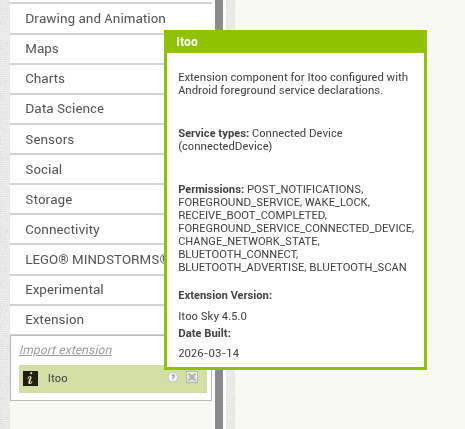
The permissions are enabled and Itoo should own the necessary rights:

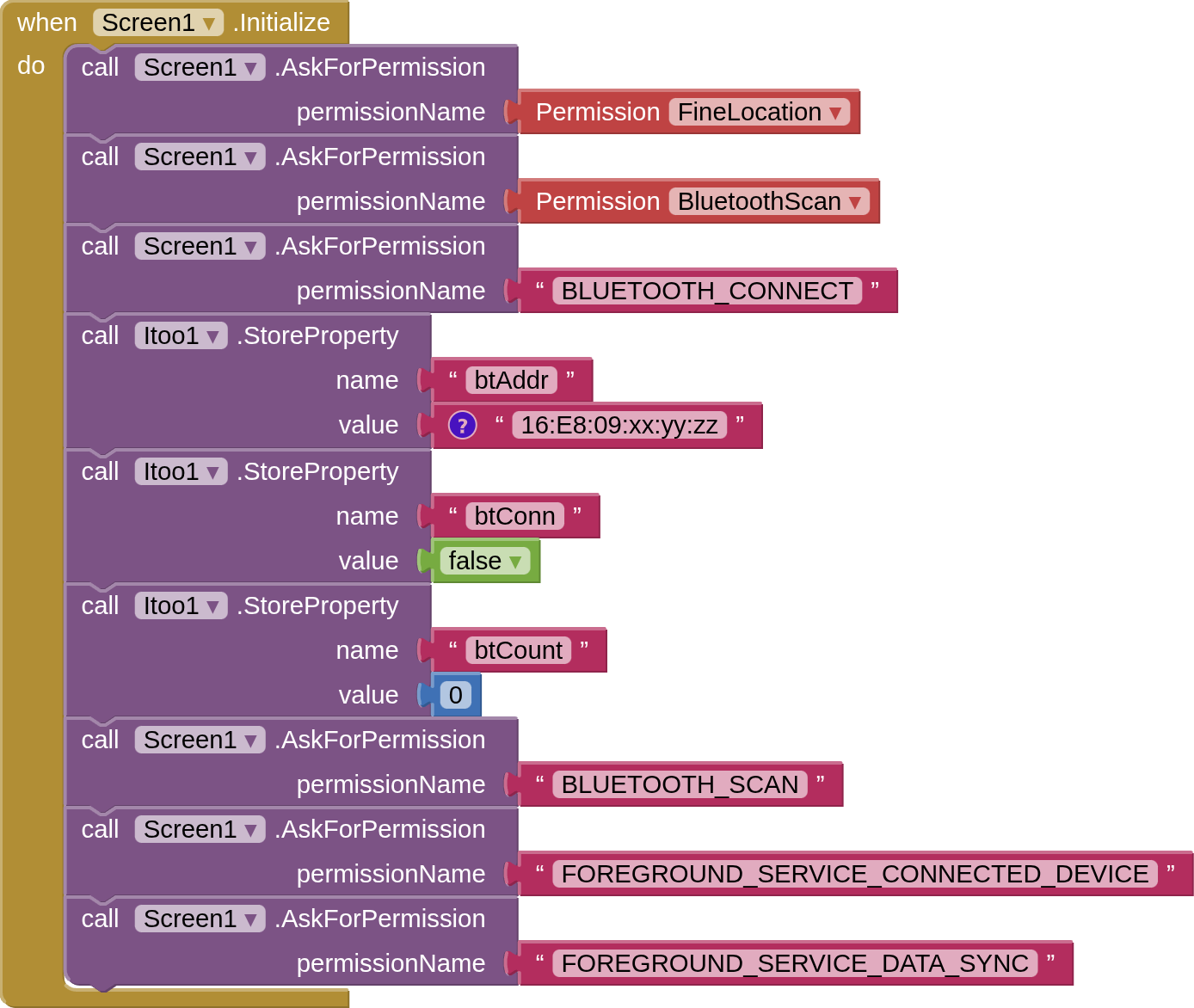
I desperately tried to requested these permissions, hoping they got to the Manifest.xml:

I did not get the permission FOREGROUND_SERVICE_DATA_SYNC (Screen.PermissionDenied() was fired) and I got a different error message in adb log:

07-26 20:26:47.521  9108  9108 E AndroidRuntime: java.lang.RuntimeException: Unable to start service xyz.kumaraswamy.itoo.ItooService@c2577ae with Intent { xflg=0x4 cmp=appinventor.ai_atomgape3.itoo03/xyz.kumaraswamy.itoo.ItooService }: java.lang.IllegalArgumentException: foregroundServiceType 0x40000411 is not a subset of foregroundServiceType attribute 0x00000010 in service element of manifest file

I heard that there is an apktool to decompile and compile the .apk file but I don’t feel myself too comfortable to use such tools. I assume App Inventor should add the necessary permissions to the Manifest file if I enable them in Itoo properties?

Kind regards,

What about following the watchdog idea which has been presented by @uskiara in this thread?

I now asked Gemini for you. See the answer below

Taifun


Here's my take: the most reliable strategy in App Inventor is Active Heartbeat Pinging using a Clock timer combined with error handling

The Strategy: Active Heartbeat Ping

To detect presence accurately, your app must actively test the connection on a regular interval (e.g., every 2–5 seconds).

1. Set Up a Clock Component

  • Set TimerInterval to 3000 (3 seconds).
  • Set TimerEnabled to True once connected to the Bluetooth device.

2. Send or Request a Ping in the Clock.Timer Event

Every time the timer fires:

  • If your micro-controller (Arduino/ESP32) sends data continuously: Check BluetoothClient.BytesAvailableToReceive. If no data has arrived after a set timeout (e.g., 3 consecutive timer ticks), treat the device as disconnected.
  • If your app controls the communication: Call BluetoothClient.Send1ByteNumber (e.g., sending 255 or 0x00 as a dummy ping byte) or BluetoothClient.SendText with a heartbeat character like "?".

3. Catch the Disconnection via Screen1.ErrorOccurred

When the Bluetooth device goes out of range and your app attempts to send or read data, Android throws a socket error (typically Error 515 or Error 516).

  • Add the Screen1.ErrorOccurred event block.
  • Check if errorNumber equals 515 (Unable to write) or 516 (Unable to read).
  • Inside the error block:
    1. Set your internal isConnected variable to false.
    2. Call BluetoothClient.Disconnect.
    3. Update your UI (e.g., change status label to "Disconnected" or disable control buttons).
    4. Turn off or adjust the timer.

Strategy Summary Checklist

Method Reliability Notes
BluetoothClient.IsConnected alone :cross_mark: Low Gives false true results when out of range.
Periodic Bluetooth Re-scanning :cross_mark: Poor Breaks active RFCOMM connections and takes 10–12 seconds.
Active Heartbeat Ping + Error Handling :white_check_mark: High Detects loss within 3–5 seconds without freezing the UI.
1 Like

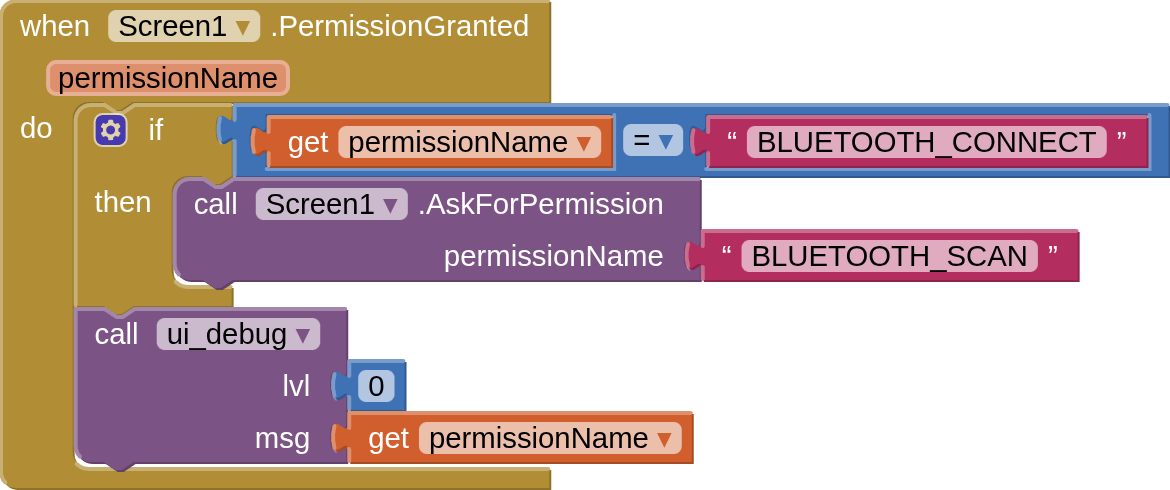
This

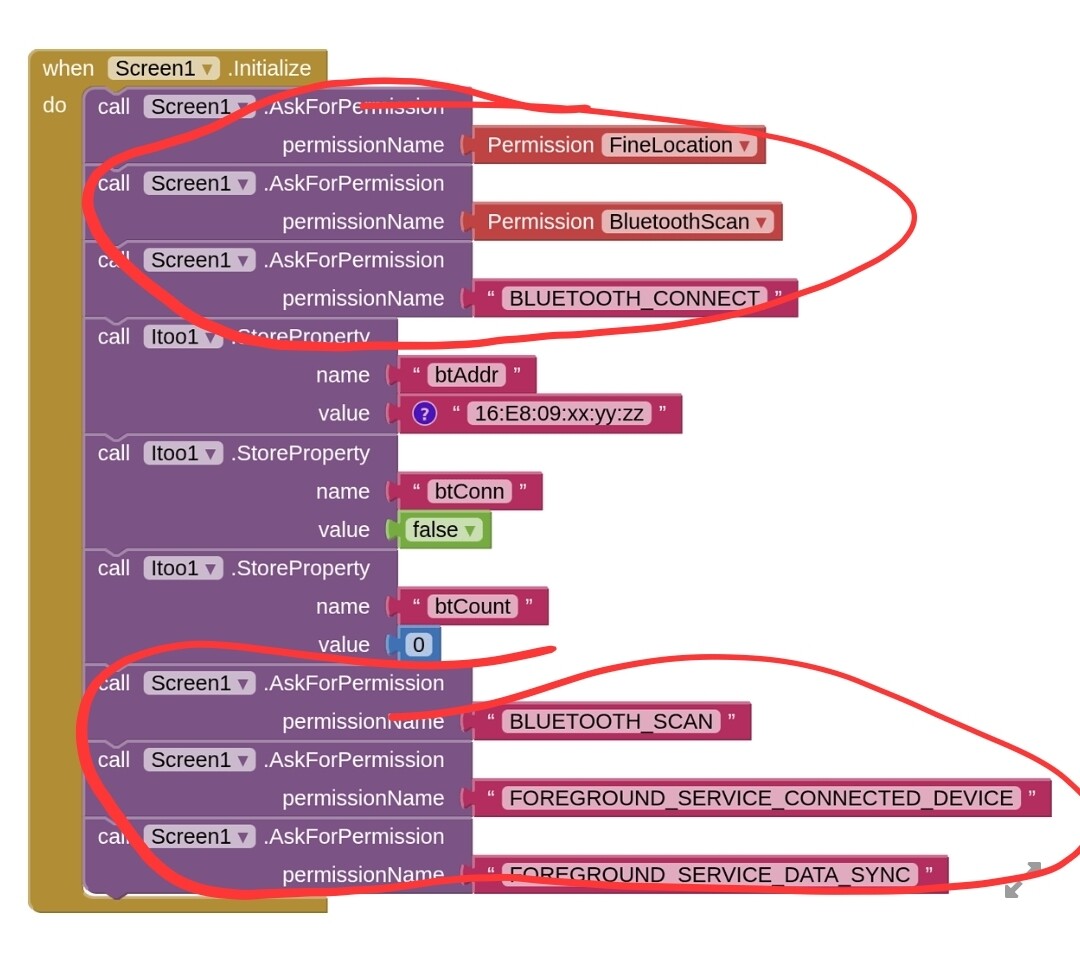
means asking for several permissions at the same time.

To do it seperately you have to check in event PermissionGranted if a permission has been granted and then ask for the next permission. Alternatively use a clock.

EDIT: the second batch of asking for permissions you can remove completely. See my answer below concerning how to get a customized itoo extension.

Taifun

I assume App Inventor should add the necessary permissions to the Manifest file if I enable them in Itoo properties?

No. Asking for permissions does not modify the manifest.

You need a customized itoo extension. Go to theitoo.github.io. Then you have to customise your foreground service types (as required by google play policies) to download your extension.

Taifun