WebSocketExt: a WebSocket client

I created this extension for one of my projects, where I use it together with my other extension AudioStream to send and receive audio between an ESP32 and a smartphone.

What it is for

WebSocketExt is a non-visible extension that opens a WebSocket connection: a persistent, bidirectional connection to a ws:// or wss:// server.

App Inventor’s Web component only makes single HTTP requests: the app asks, the server answers, and the connection ends. With a WebSocket the connection stays open, and both sides can send messages at any time. The server can notify the app as soon as something happens, without the app having to keep asking. This is useful for chats, real-time commands, server notifications, IoT device control and streaming.

The extension keeps the connection alive by sending a ping every 15 seconds.

Text messages and binary messages

Text: SendText sends any string, for example JSON. Incoming text messages fire TextMessageReceived.

Binary: binary messages follow a simple convention. The first byte of each message identifies its type:

  • 0x02 = audio chunk → AudioChunkReceived event; send one with SendAudioChunk

The type byte is added automatically when sending and removed when receiving, so the events only contain the data. Binary messages with any other first byte are ignored. To use binary messages, the server must follow the same convention.

Binary data is a list of numbers from 0 to 255. This is the same format AudioStream uses, so chunks can be passed between the two extensions without any conversion.

General usage

  1. Call Connect with the server address (ws://… or wss://…).
  2. When Connected fires, the connection is ready and you can start sending messages.
  3. Incoming messages arrive in TextMessageReceived, AudioChunkReceived and VideoFrameReceived.
  4. To close the connection, call Disconnect.
  5. Always handle Error, which also reports a lost connection.
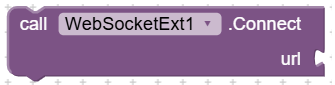
Connect
Opens a connection to the given address (ws:// or wss://). If a connection is already open, it is closed before the new one is opened. On success Connected fires, otherwise Error.

Disconnect
Closes the connection.

isConnected
Returns true if the connection is currently open.
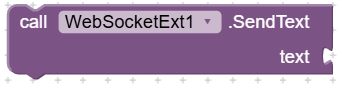
SendText
Sends a text message to the server, for example a command or a JSON object. If not connected, Error fires.
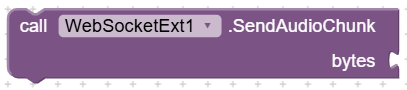
SendAudioChunk
Sends an audio chunk as a binary message. The bytes parameter is a list of numbers from 0 to 255; the 0x02 type byte is added automatically. It can be connected directly to AudioStream’s AudioChunkCaptured event. If not connected, Error fires.
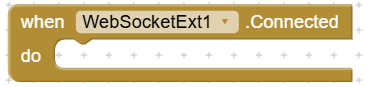
Connected
Fires when the connection is open and ready. This is the right place to send the first messages, for example an identification message to the server.
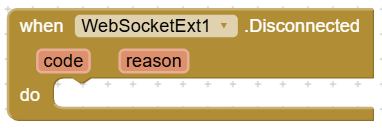

Fires when the connection is closed normally, by either side. code and reason are the WebSocket protocol close code and reason. If the connection drops because of a network problem, Error fires instead.
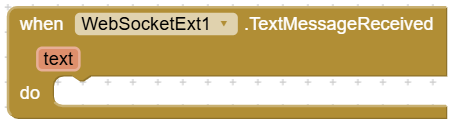

Fires for each text message received. text holds the message.
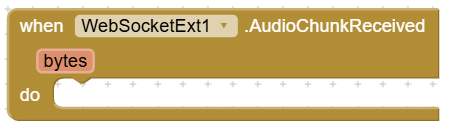

Fires for each audio chunk received (a binary message whose first byte is 0x02). bytes is a list of numbers from 0 to 255, without the type byte. It can be passed directly to AudioStream’s PlayChunk.
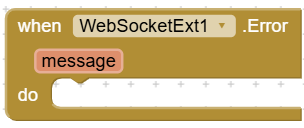

Fires when the connection fails, when it drops (network lost, server unreachable) and when you try to send while not connected. message describes the problem.

com.websocketext.aix (634.5 KB)

Example: two-way audio with AudioStream

  • Connect to the server; in Connected, call AudioStream’s StartPlayback and StartRecording.
  • AudioStream.AudioChunkCaptured → WebSocketExt.SendAudioChunk.
  • WebSocketExt.AudioChunkReceived → AudioStream.PlayChunk.
  • When finished: StopPlayback, StopRecording and Disconnect.

I hope you find useful

Best regards

Marco Perrone

1 Like

Could you provide some background on how and where one can setup a web socket server (ws:// or wss://) - and perhaps what a web socket is any why we need one - for use with this extension?

A WebSocket is a network connection between a client (here, your app) and a server that stays open after it is created. Once it’s open, both sides can send messages at any moment, in either direction, until one of them closes it.

With a WebSocket:

  • the server can push data to the app the moment something happens;
  • data can flow continuously, which is what you need for streaming audio;
  • there is no overhead of opening a new connection for every message.

ws:// is a plain connection; wss:// is the encrypted version (like http:// vs https://). Use wss:// for anything going over the internet.

Why do we need a server?

The extension is a WebSocket client: it connects to something, so there must be a server on the other end. A server is also the usual way to connect two devices that can’t reach each other directly.

Where can you run a WebSocket server?

  1. On your PC. A few lines of Node.js are enough (see below). Good for experimenting on the local network.
  2. On a cloud hosting service. For access from anywhere. Many platforms can run a small Node.js app and give it a public wss:// address with the certificate already handled. In my project I used Render (free tier): you put the server code in a GitHub repository and Render builds and runs it. Note that free instances go to sleep after a period of inactivity and take a while to wake up on the next connection.

Setting up a local WebSocket server (Windows)

This creates a small relay server on your PC: every message received from one client is forwarded to all the other connected clients. It’s enough to test WebSocketExt and AudioStream with two phones on the same Wi-Fi network.

1. Install Node.js

Download and install the LTS version from nodejs.org, keeping the default options.

2. Create the server

Create a folder, for example C:\WebSocket, and save this code in it as server.js:

const WebSocket = require('ws');

const wss = new WebSocket.Server({ port: process.env.PORT || 8080 });

wss.on('connection', (socket) => {
socket.on('message', (data, isBinary) => {
wss.clients.forEach((client) => {
if (client !== socket && client.readyState === WebSocket.OPEN) {
client.send(data, { binary: isBinary });
}
});
});
});

3. Install the WebSocket library

Open a Command Prompt in that folder and run:

npm init -y
npm install ws

4. Start the server

only if Port 8080 is not available use port 9000 for example :

set PORT=9000

then to start the server:

node server.js

now the server is running.

Install the app on two phones. In Server IP, enter the IP address of the PC where server.js is running, and in Port the port the server is listening on. Then press Connect on both phones and start speaking.
WebSocketTest.aia (646.9 KB)

1 Like

Could you provide a minimal arduino code to interact with your websocket client?
Tried with the following code ( form randomnerdstutorials ), I'm using and esp32 dev kit but it does not connect, the error returned is:

Expected HTTP 101 response but was '404 Not Found'

While it connects and sends/receive text correctly with ws://echo.websocket.org

ws01.aia (635.6 KB)
ESP32_WebSocket_Server.ino (6.1 KB)

Hi @davidefa,
in your ws01.aia
on Connect url write: ws://192.168.1.125/ws
and SendText on Text write: toggle

Try and tell me if it works
Ciao
Marco

Thanks, it works

ws01.aia (635.5 KB)
ESP32_WebSocket_Server.ino (6.1 KB)
