Introduction
Ever needed to integrate your phone's camera with an HTML page inside MIT App Inventor? Or wanted to create an app where users can take photos and then manipulate them with simple tools like zoom and brightness, all within a WebView?
In this tutorial, I'll show you step by step how to create bidirectional communication between App Inventor and a web page where:
- An HTML button opens the native phone camera
- App Inventor captures the photo and sends it back to the WebView
- The image is displayed in the HTML page
- Simple tools let you zoom and adjust brightness
The Concept
The magic happens through App Inventor's WebView component and its WebViewString property. When users click the "Open Camera" button on our web page, we send a JSON command to App Inventor, which then:
- Opens the native camera
- Captures the photo
- Sends the image path back to the WebView
- The web page displays the image and allows manipulation
All of this without leaving the WebView and with a smooth user experience!
What You'll Learn
 Create an HTML page with a camera button
Use WebViewString for bidirectional communication
Send JSON commands from JavaScript to App Inventor
Receive captured images in WebView
Implement simple editing tools (zoom and brightness)
Structure organized, reusable code
Technologies Used
- MIT App Inventor - for native app logic
- HTML5 / CSS3 - for WebView interface
- Pure JavaScript - for page logic and image manipulation
- WebViewString - for communication between parts
Prerequisites
- Basic knowledge of MIT App Inventor
- Familiarity with HTML, CSS, and JavaScript
- An Android device for testing (or emulator)
The Final Result
By the end of this tutorial, you'll have a functional app where:
- A styled button opens the phone's camera
- The captured photo appears automatically in the WebView
- Zoom in/out buttons let you enlarge the image
- A brightness button adjusts luminosity
- Everything includes visual feedback and error handling
Ready to start coding? Let's dive into the code! 
This concise introduction gives readers:
- Clear understanding of the problem
- What they'll build
- Technologies involved
- Prerequisites
- Expected outcome
index.html
<!DOCTYPE html>
<html lang="en">
<head>
    <meta charset="UTF-8">
    <meta name="viewport" content="width=device-width, initial-scale=1.0">
    <title>Image Viewer with Camera Control</title>
    <link rel="stylesheet" href="styles.css">
</head>
<body>
    <div class="container">
        <h1>📸 Image Viewer</h1>

        <!-- Camera control button -->
        <button class="camera-btn" onclick="openCamera()">
            📷 Open Camera
        </button>

        <!-- Image area -->
        <div class="image-container">
            <img id="imageDisplay" src="" alt="Captured image">
            <p id="noImageText">No image captured yet</p>
        </div>

        <!-- Simple tools -->
        <div class="tools">
            <button onclick="zoomIn()">➕ Zoom In</button>
            <button onclick="zoomOut()">➖ Zoom Out</button>
            <button onclick="resetZoom()">🔄 Reset</button>
            <button onclick="toggleBrightness()">☀️ Brightness</button>
        </div>

        <!-- Status -->
        <div class="status" id="status">Ready. Click "Open Camera" button.</div>

        <!-- WebViewString display (for debugging) -->
        <div class="webview-debug" id="webviewDebug"></div>
    </div>

    <script src="main.js"></script>
</body>
</html>
styles.css
* {
    margin: 0;
    padding: 0;
    box-sizing: border-box;
}

body {
    font-family: Arial, sans-serif;
    background: #f0f0f0;
    display: flex;
    justify-content: center;
    align-items: center;
    min-height: 100vh;
}

.container {
    background: white;
    padding: 20px;
    border-radius: 15px;
    box-shadow: 0 4px 10px rgba(0,0,0,0.1);
    width: 90%;
    max-width: 500px;
    text-align: center;
}

h1 {
    color: #333;
    margin-bottom: 20px;
    font-size: 24px;
}

.camera-btn {
    background: #28a745;
    color: white;
    border: none;
    padding: 15px 30px;
    border-radius: 50px;
    font-size: 18px;
    font-weight: bold;
    cursor: pointer;
    margin-bottom: 20px;
    transition: all 0.3s;
    box-shadow: 0 4px 6px rgba(0,0,0,0.1);
    width: 100%;
}

.camera-btn:hover {
    background: #218838;
    transform: translateY(-2px);
    box-shadow: 0 6px 12px rgba(0,0,0,0.15);
}

.camera-btn:active {
    transform: translateY(0);
}

.image-container {
    background: #fafafa;
    border: 2px dashed #ccc;
    border-radius: 10px;
    padding: 10px;
    margin-bottom: 20px;
    min-height: 250px;
    display: flex;
    justify-content: center;
    align-items: center;
}

#imageDisplay {
    max-width: 100%;
    max-height: 300px;
    object-fit: contain;
    transition: transform 0.2s, filter 0.2s;
}

#noImageText {
    color: #999;
    font-size: 14px;
}

.tools {
    display: flex;
    gap: 10px;
    justify-content: center;
    flex-wrap: wrap;
    margin-bottom: 20px;
}

button {
    padding: 10px 15px;
    border: none;
    border-radius: 8px;
    background: #007bff;
    color: white;
    font-size: 14px;
    cursor: pointer;
    transition: background 0.2s;
    min-width: 80px;
}

button:hover {
    background: #0056b3;
}

.status {
    padding: 10px;
    background: #e9ecef;
    border-radius: 8px;
    color: #666;
    font-size: 14px;
    margin-top: 15px;
}

.webview-debug {
    margin-top: 10px;
    padding: 5px;
    font-size: 11px;
    color: #999;
    word-break: break-all;
}
main.js
// ============================================
// OBJECTIVE: HTML button that sends "open_camera" command
// via WebViewString to MIT App Inventor
// ============================================

// Control variables
let currentZoom = 1;
let brightnessEnabled = false;
const MAX_ZOOM = 3;
const MIN_ZOOM = 0.5;

// DOM elements
const imageDisplay = document.getElementById('imageDisplay');
const noImageText = document.getElementById('noImageText');
const statusDiv = document.getElementById('status');
const webviewDebug = document.getElementById('webviewDebug');

// ============================================
// FUNCTION TO OPEN CAMERA VIA WEBVIEWSTRING
// Called by HTML button
// ============================================
function openCamera() {
    console.log('📸 openCamera() called - sending command to App Inventor');

    // Create command object
    const command = {
        action: 'open_camera',
        timestamp: Date.now(),
        source: 'webview_button'
    };

    // Convert to JSON string
    const commandString = JSON.stringify(command);

    // Update status
    statusDiv.textContent = '📷 Opening camera...';
    statusDiv.style.background = '#fff3cd';
    statusDiv.style.color = '#856404';

    // Show in debug
    webviewDebug.textContent = 'Sending: ' + commandString;

    // SEND TO APP INVENTOR VIA WEBVIEWSTRING
    // This is the key part - it sets the WebViewString that App Inventor can read
    if (window.AppInventor) {
        // Method 1: If AppInventor object exists
        window.AppInventor.setWebViewString(commandString);
        console.log('✅ Command sent via AppInventor.setWebViewString');
    } else {
        // Method 2: Set the webViewString property (App Inventor reads this)
        window.webViewString = commandString;
        console.log('✅ Command sent via window.webViewString');

        // Also trigger the onWebViewStringChange event manually
        if (window.onWebViewStringChange) {
            window.onWebViewStringChange(commandString);
        }
    }

    // Method 3: Use prompt for older versions (App Inventor can read this)
    // prompt(commandString);

    return commandString;
}

// ============================================
// FUNCTION TO RECEIVE IMAGE FROM APP INVENTOR
// App Inventor calls this via runJavaScript
// ============================================
function displayImageFromAppInventor(imageUrl) {
    console.log('📱 displayImageFromAppInventor called with:', imageUrl);

    if (imageUrl && imageUrl !== '') {
        // Show the image
        imageDisplay.src = imageUrl;
        imageDisplay.style.display = 'block';
        noImageText.style.display = 'none';

        // Reset zoom and brightness
        resetZoom();
        brightnessEnabled = false;
        imageDisplay.style.filter = 'brightness(1)';

        // Update status
        statusDiv.textContent = '✅ Image loaded successfully!';
        statusDiv.style.background = '#d4edda';
        statusDiv.style.color = '#155724';

        // Debug
        webviewDebug.textContent = 'Received: ' + imageUrl;

        console.log('✅ Image displayed successfully');
    } else {
        statusDiv.textContent = '❌ Invalid image URL';
        statusDiv.style.background = '#f8d7da';
        statusDiv.style.color = '#721c24';
        console.error('❌ Invalid image URL received');
    }
}

// ============================================
// LISTENER FOR WEBVIEWSTRING CHANGES
// This is triggered when App Inventor changes the WebViewString
// ============================================
window.onWebViewStringChange = function(newString) {
    console.log('🔄 WebViewString changed:', newString);

    webviewDebug.textContent = 'Received: ' + newString;

    try {
        // Try to parse as JSON
        const data = JSON.parse(newString);

        // Handle different commands from App Inventor
        if (data.action === 'image_captured' && data.imageUrl) {
            displayImageFromAppInventor(data.imageUrl);
        } else if (data.status === 'camera_opened') {
            statusDiv.textContent = '📷 Camera opened, take a photo...';
            statusDiv.style.background = '#fff3cd';
            statusDiv.style.color = '#856404';
        } else if (data.status === 'camera_closed') {
            statusDiv.textContent = 'Camera closed';
            statusDiv.style.background = '#e9ecef';
            statusDiv.style.color = '#666';
        } else if (data.error) {
            statusDiv.textContent = '❌ Error: ' + data.error;
            statusDiv.style.background = '#f8d7da';
            statusDiv.style.color = '#721c24';
        }
    } catch (e) {
        // If not JSON, maybe it's just a URL
        if (newString.startsWith('file://') || newString.startsWith('content://') || newString.startsWith('http')) {
            displayImageFromAppInventor(newString);
        } else {
            console.log('Non-JSON message:', newString);
        }
    }
};

// ============================================
// POLLING FOR WEBVIEWSTRING CHANGES (FALLBACK)
// Some App Inventor versions need polling
// ============================================
let lastWebViewString = window.webViewString || '';

function checkWebViewString() {
    if (window.webViewString && window.webViewString !== lastWebViewString) {
        lastWebViewString = window.webViewString;
        window.onWebViewStringChange(lastWebViewString);
    }
    setTimeout(checkWebViewString, 500); // Check every 500ms
}

// Start polling
checkWebViewString();

// ============================================
// IMAGE MANIPULATION FUNCTIONS
// ============================================
function zoomIn() {
    if (currentZoom < MAX_ZOOM) {
        currentZoom += 0.25;
        applyTransform();
        updateStatus(`Zoom: ${Math.round(currentZoom * 100)}%`);
    }
}

function zoomOut() {
    if (currentZoom > MIN_ZOOM) {
        currentZoom -= 0.25;
        applyTransform();
        updateStatus(`Zoom: ${Math.round(currentZoom * 100)}%`);
    }
}

function resetZoom() {
    currentZoom = 1;
    applyTransform();
    updateStatus('Zoom reset');
}

function applyTransform() {
    imageDisplay.style.transform = `scale(${currentZoom})`;
}

function toggleBrightness() {
    brightnessEnabled = !brightnessEnabled;
    if (brightnessEnabled) {
        imageDisplay.style.filter = 'brightness(1.3)';
        updateStatus('Brightness: High');
    } else {
        imageDisplay.style.filter = 'brightness(1)';
        updateStatus('Brightness: Normal');
    }
}

function updateStatus(message) {
    statusDiv.textContent = message;
}

// Expose functions globally
window.openCamera = openCamera;
window.displayImageFromAppInventor = displayImageFromAppInventor;
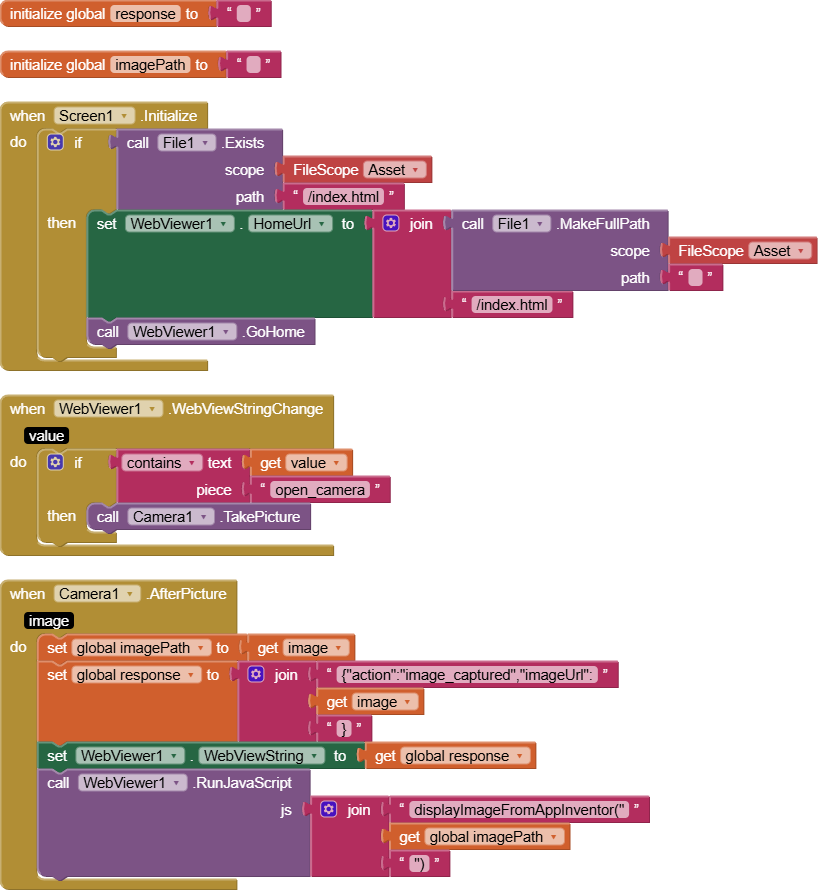
App Inventor Blocks Code
1. When WebViewString Changes (Receive command from HTML)
when WebView1.WebViewStringChanged
   // Get the command from HTML
   set command to WebView1.WebViewString

   // Parse JSON
   set json to call JsonTextDecode command

   // Check if it's open_camera command
   if get json["action"] = "open_camera"
      then
         // Open the camera
         call Camera1.TakePicture

         // Update status
         set Label1.Text to "Opening camera from web..."

         // Optional: Send confirmation back to web
         set response to join "{\"status\":\"camera_opened\"}"
         set WebView1.WebViewString to response
2. After Taking Photo (Send image back to HTML)
when Camera1.AfterPicture(image)
   // Store the image
   set Image1.Picture to image

   // Get the image path
   set imagePath to Image1.Picture

   // Send back to WebView via WebViewString
   set response to join "{\"action\":\"image_captured\",\"imageUrl\":\"" imagePath "\"}"
   set WebView1.WebViewString to response

   // Alternative: Use runJavaScript to display directly
   call WebView1.runJavaScript
      script: join "displayImageFromAppInventor('" imagePath "')"
3. Complete App Inventor Blocks Structure
// Initialize
when Screen1.Initialize
   do set WebView1.HomeUrl to "file:///android_asset/index.html"

// When HTML button sends command
when WebView1.WebViewStringChanged
   do set global command to WebView1.WebViewString
      set global json to call JsonTextDecode global command

      if get global json["action"] = "open_camera"
         then
            set Label1.Text to "Opening camera..."
            call Camera1.TakePicture

// After photo is taken
when Camera1.AfterPicture(image)
   do set Image1.Picture to image
      set global imagePath to Image1.Picture

      // Method 1: Send via WebViewString
      set global response to join "{\"action\":\"image_captured\",\"imageUrl\":\"" get global imagePath "\"}"
      set WebView1.WebViewString to global response

      // Method 2: Also call display function directly via runJavaScript
      call WebView1.runJavaScript
         script: join "displayImageFromAppInventor('" get global imagePath "')"

      set Label1.Text to "Image sent to WebView!"
How it works:
- User clicks "Open Camera" button in HTML
- JavaScript creates JSON command:
{"action":"open_camera","timestamp":123456789} - Sets WebViewString via
window.webViewString = commandString - App Inventor detects WebViewStringChanged and reads the command
- App Inventor opens camera with
Camera1.TakePicture - After photo, App Inventor sends image URL back via WebViewString
- HTML detects WebViewString change and displays the image
 ):
):