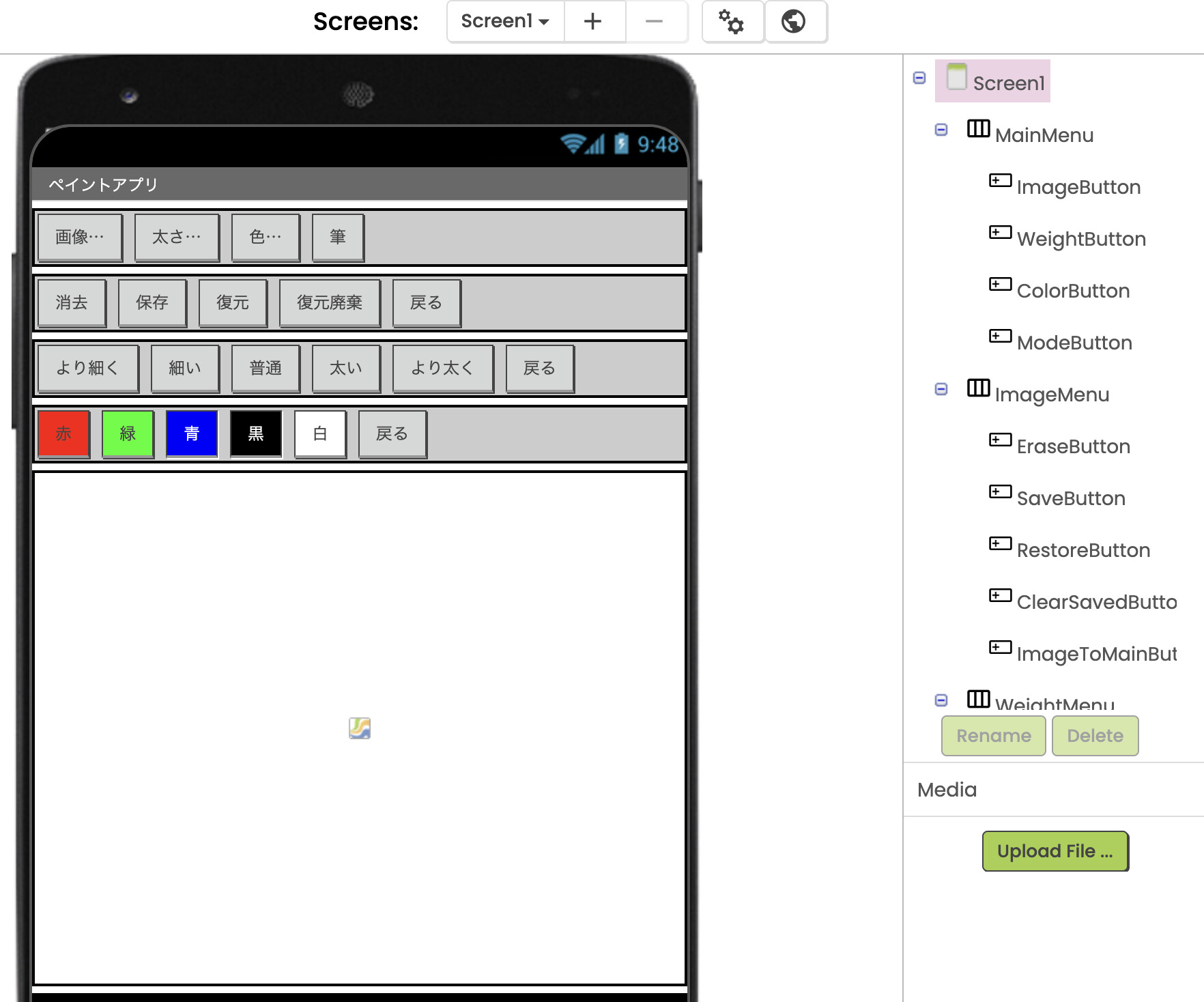
On Android, when I execute ‘call .SaveAsFileName’, the HorizontalArrangement of the currently displayed layout disappears unexpectedly, causing the app to stop working.
As a workaround, I hide the HorizontalArrangement before executing ‘call .SaveAsFileName’ and then display it again after the operation is complete.
This worked fine on iOS and in earlier versions of the MIT AI2 Companion for Android.
Dear @akiyoshif, I don't know whether you've already solved or not, but you can probably overcome this issue by using the same method that I did in the past. When saving a canvas to a file, the layout where the canvas is located (let's call it the "host") must stay visible on the screen, otherwise the saving operation doesn't work properly. To avoid this, before hiding the host layout, I start a clock, that fires after (for example) 500 ms , thus leaving the time to the Android OS to perform corerctly the file saving, When the clock elapses the host layout can be hidden. and the clock disables itself to avoid future ticks. This "trick" works for apk's running on the target device (I haven't tested it on Companion).
I haven't encountered the exact same issue, but unexpected layout behavior after calling a save function can be quite frustrating to debug. It's interesting that the workaround works on Android while earlier versions behaved differently.
I'd be interested to know whether others are seeing this only with the latest Companion version or across multiple Android devices as well.
Dear @wise (David),
since the behaviour of the Companion often differs from the one of the real device (mainly when timings are concerned) I usually compile the .apk and I download it on the target device to avoid encountering "weird things". For this reason I suggest to try the app on the real device before getting crazy with the companion. Generally speaking it is better to 1) allow some time before attemping to use the read data or, 2) wait a while before to proceed with the app execution, when writing. To implement this, typically I use clocks or splash screens, with messages like "Please wait while reading/writing data".
All the best.
Dear @akiyoshif, this is a strange behaviour but, as @TIMAI2 has already said, why not trying to put the canvas into an arrangement ? And then apply the "clock delay" before hiding the arrangment (if you want to hide it, otherwise you can leave it on the screen).Last, but not least: the canvas shall remain "visible" for the time required to write, and only after a certain amount of milliseconds it can be hidden.
Dear @uskiara , Since this is a teaching exercise designed to be completed within a few hours even by those with no programming experience, I can’t make it too complex.
That said, I appreciate your valuable feedback. I’ll try placing the Canvas and other elements in a Vertical Arrangement.