Hi Community! 
Many of you know my previous extension for Google Sign-In. It worked great, but Google is cracking down on "WebView" logins (Error 403: Disallowed User Agent).
So, I built something completely new.
Introducing SigningWithGoogleNative — a rock-solid, native implementation using the official Google Play Services SDK.
 SigningWithGoogleNative
Native Google Sign-In & Firebase Sync for App Inventor






 Android Compatibility
| Support Level | Version | API Level |
|---|---|---|
| Minimum | Android 5.0 (Lollipop) | API 21 |
| Target | Android 14+ | API 34+ |
| Architecture | Universal | arm, x86 |
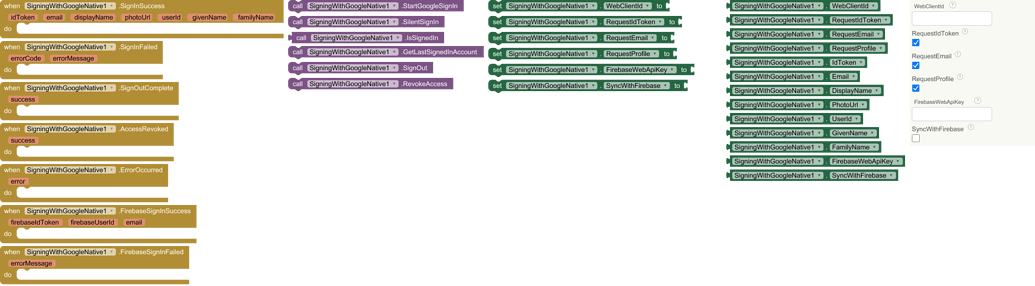
Blocks

preview

Setup
 Phase 1: The Foundation (Firebase & Google Cloud)
Before touching App Inventor, we need to tell Google "This app is allowed to sign people in."
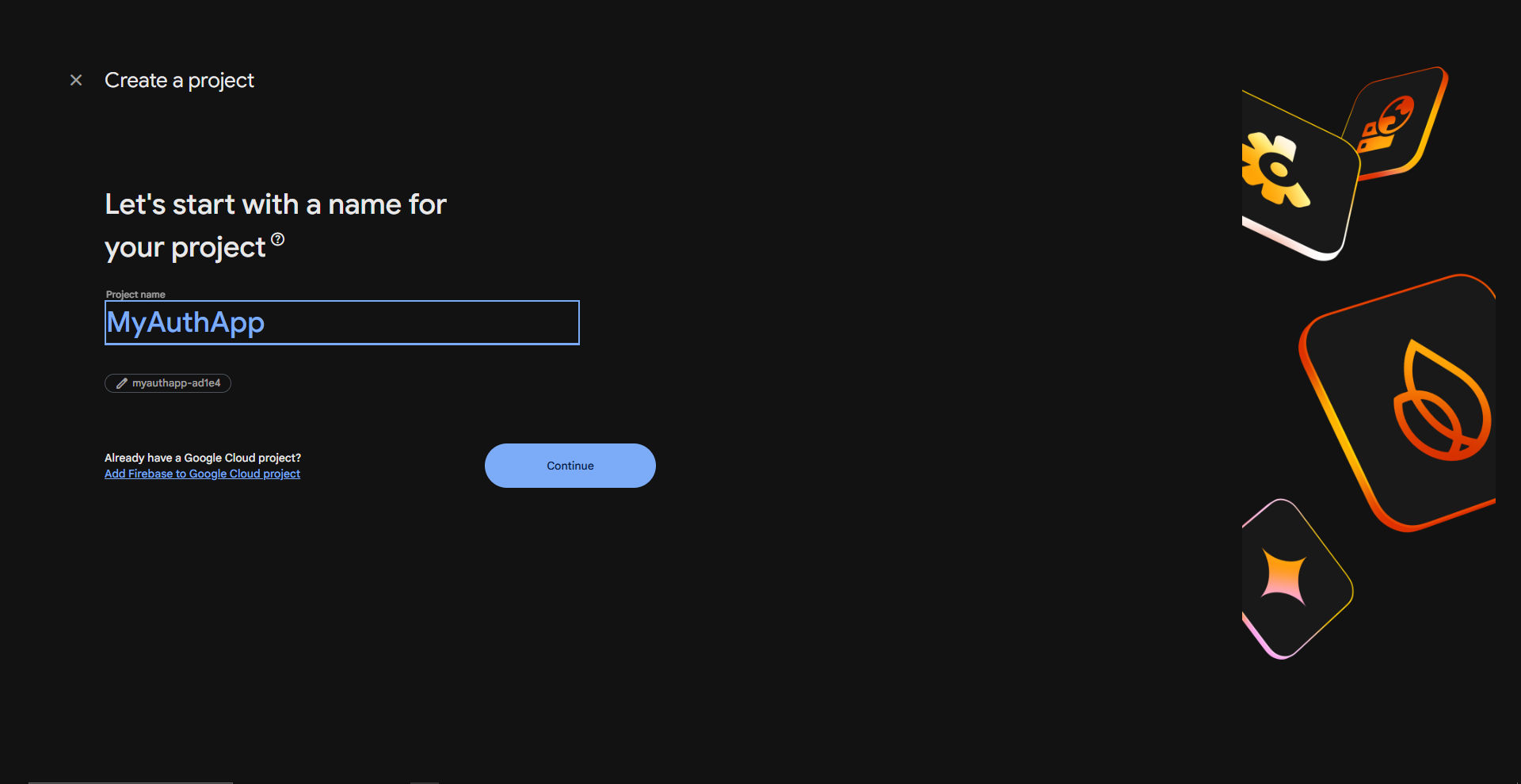
Step 1: Create a Firebase Project
- Go to console.firebase.google.com.
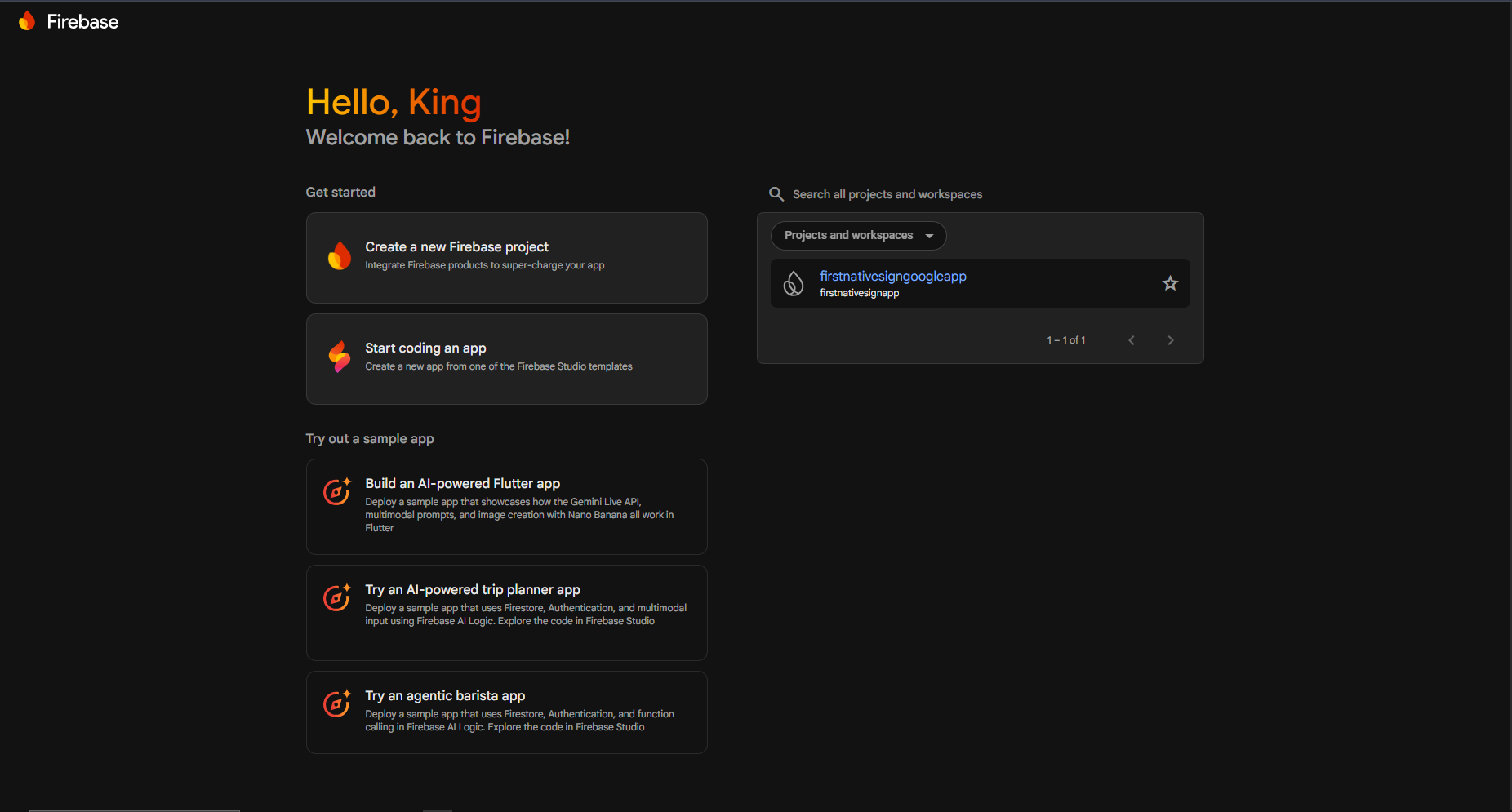
- Click "Add Project" → Name it (e.g.,
MyAuthApp).
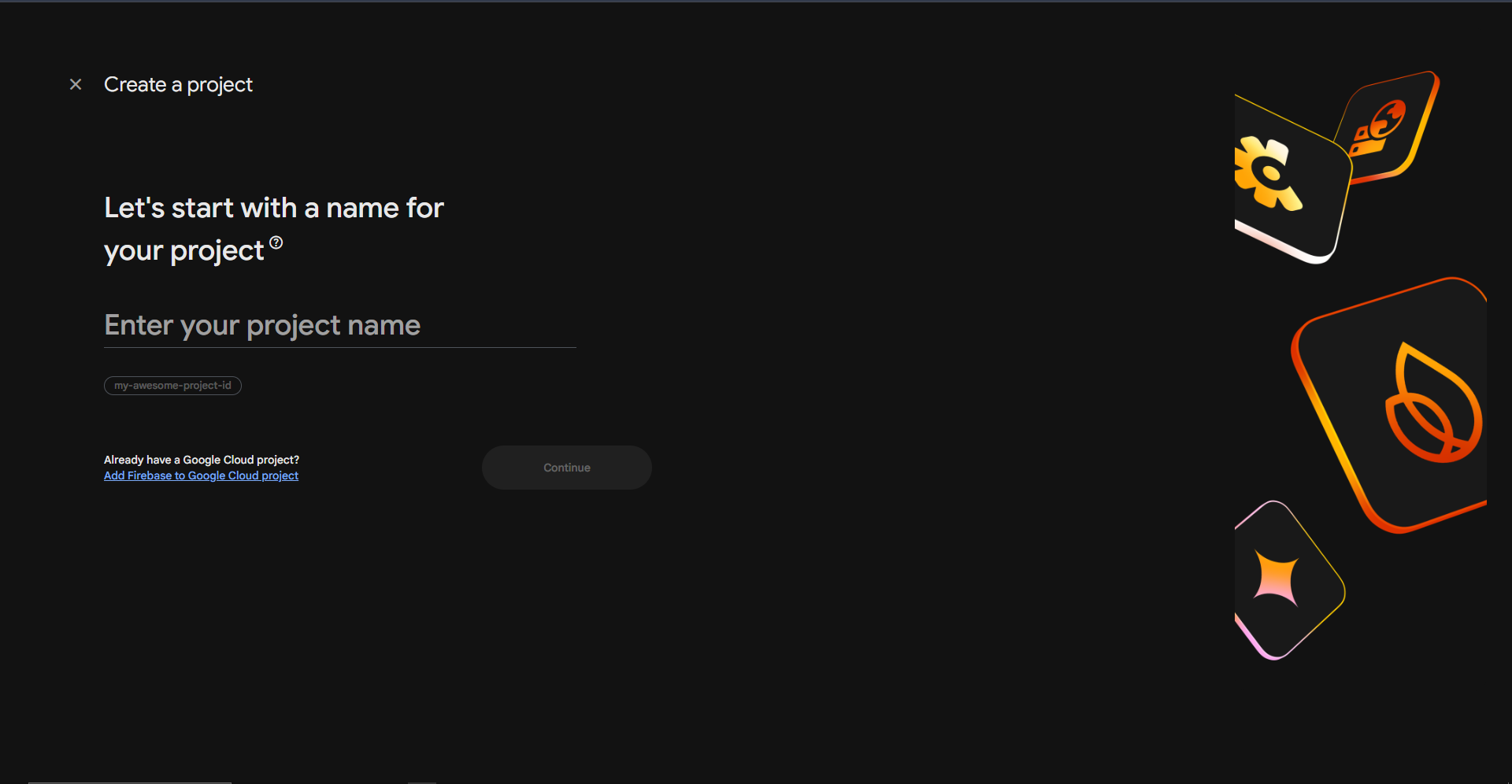
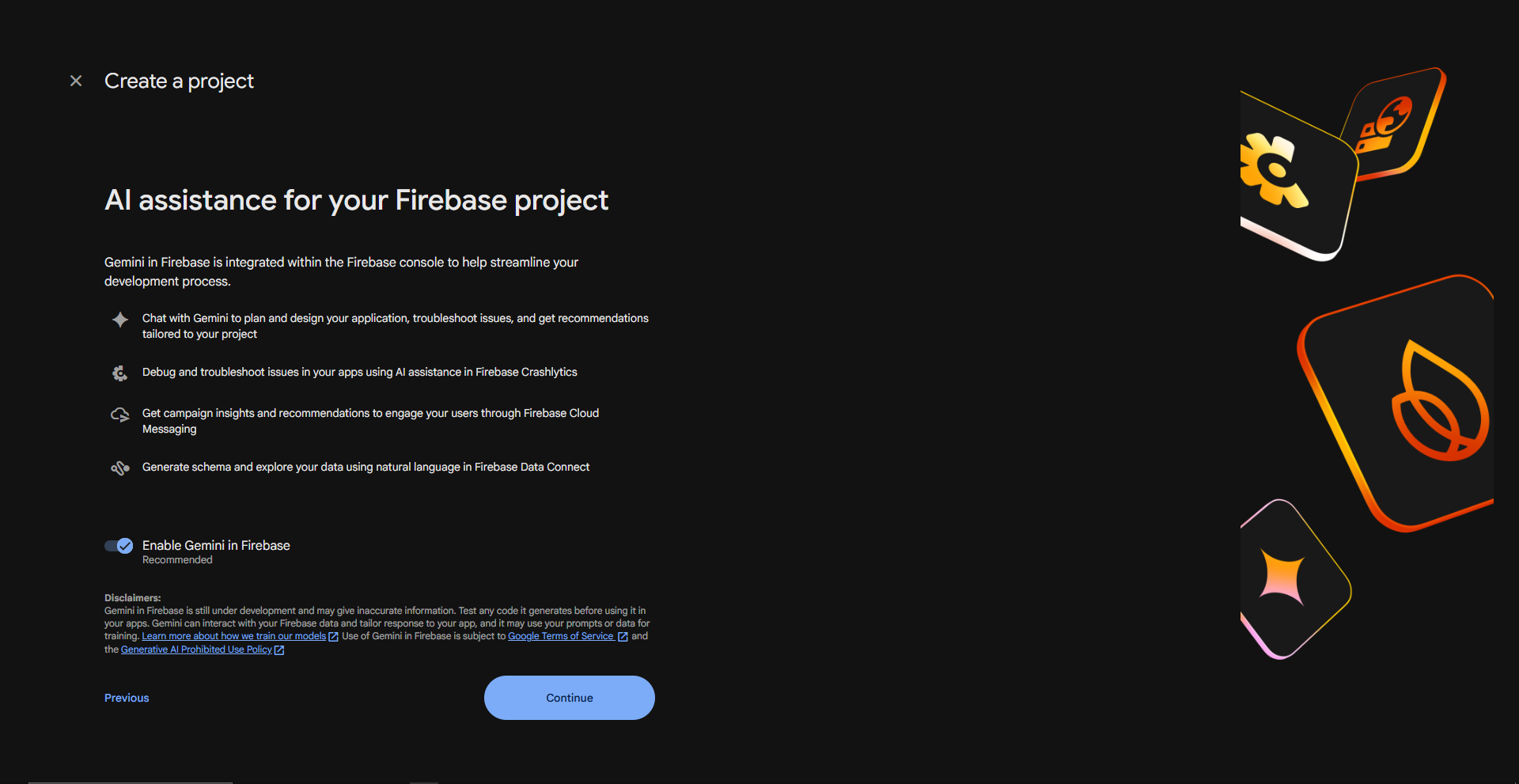
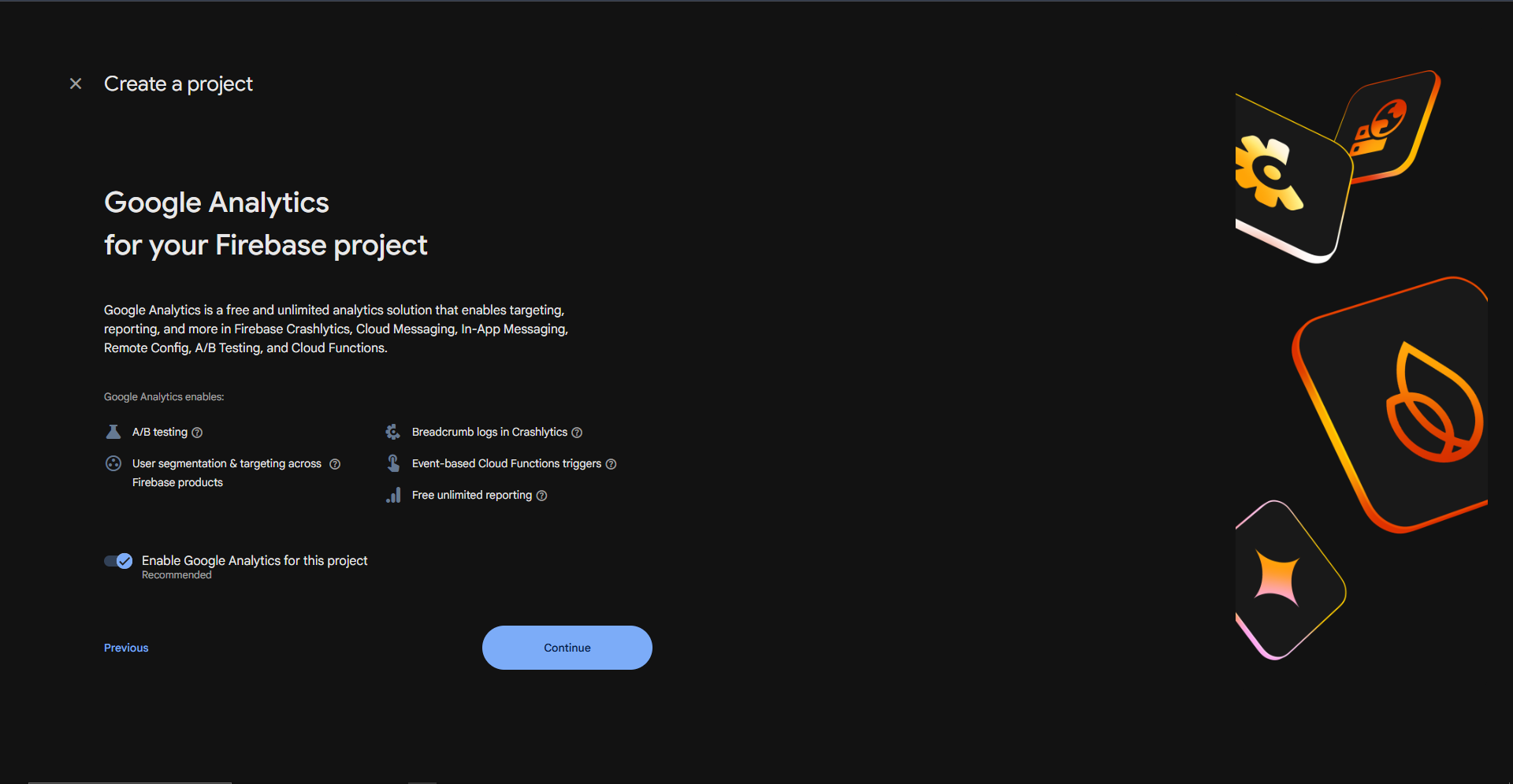
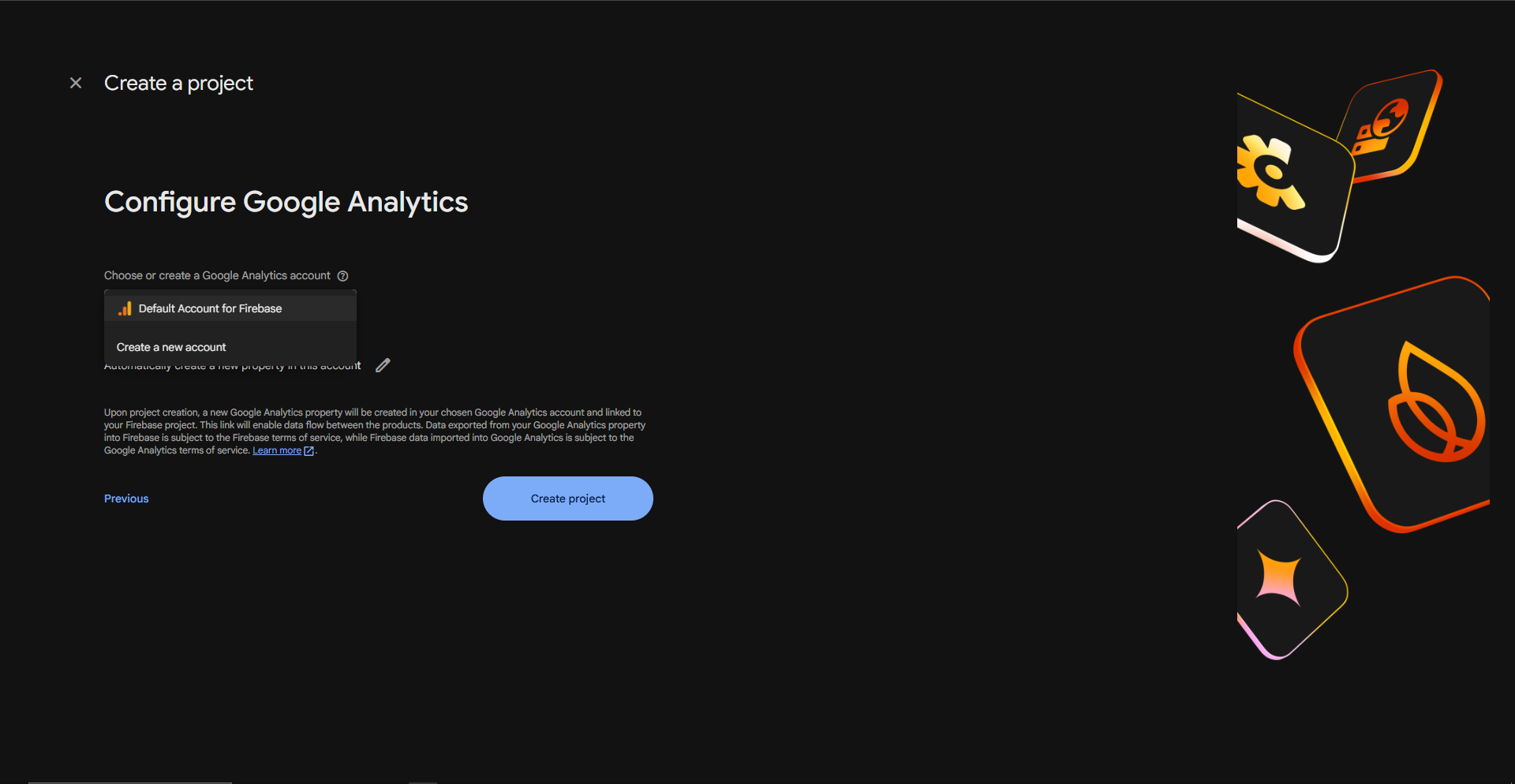
- Click Continue until it's created.

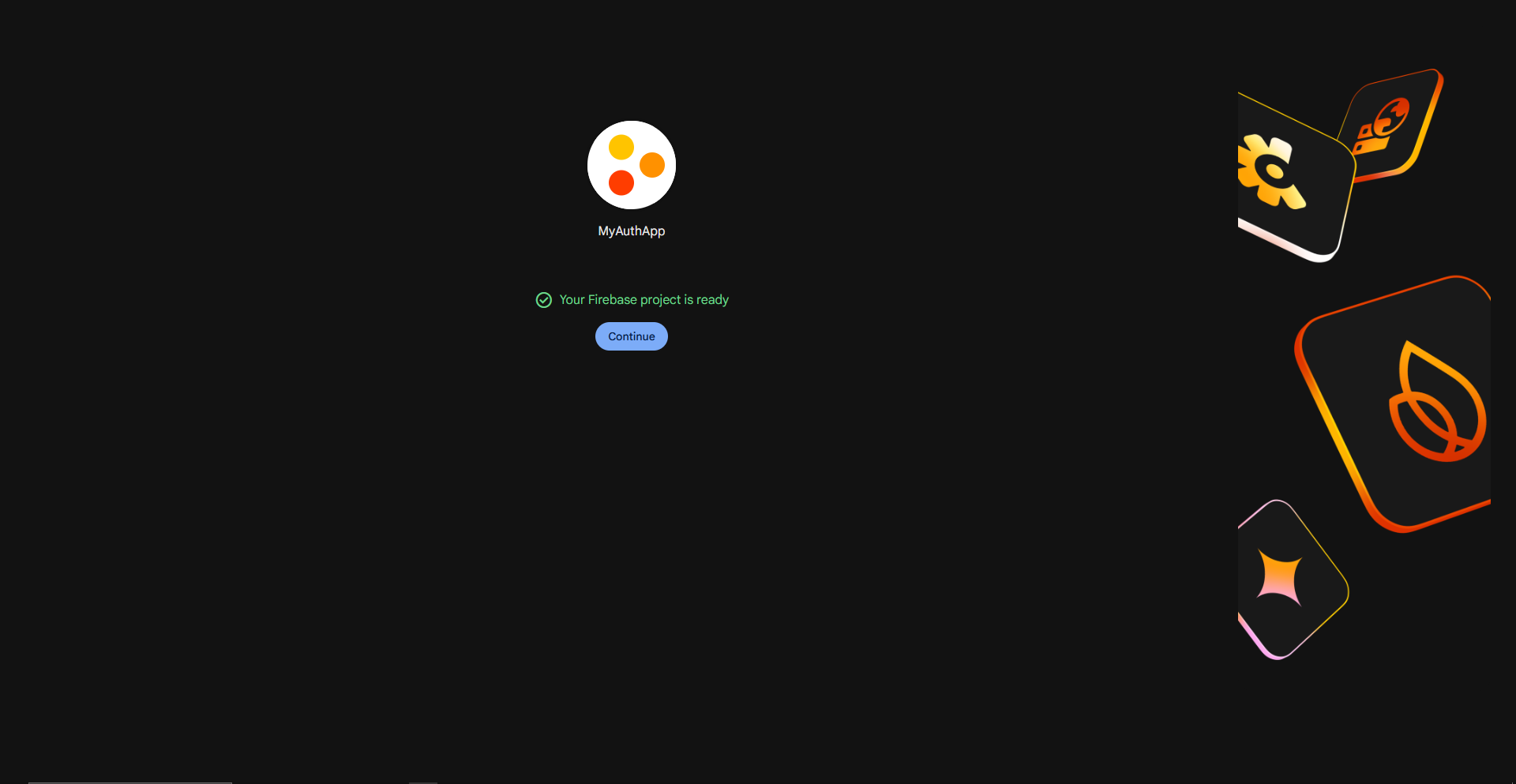
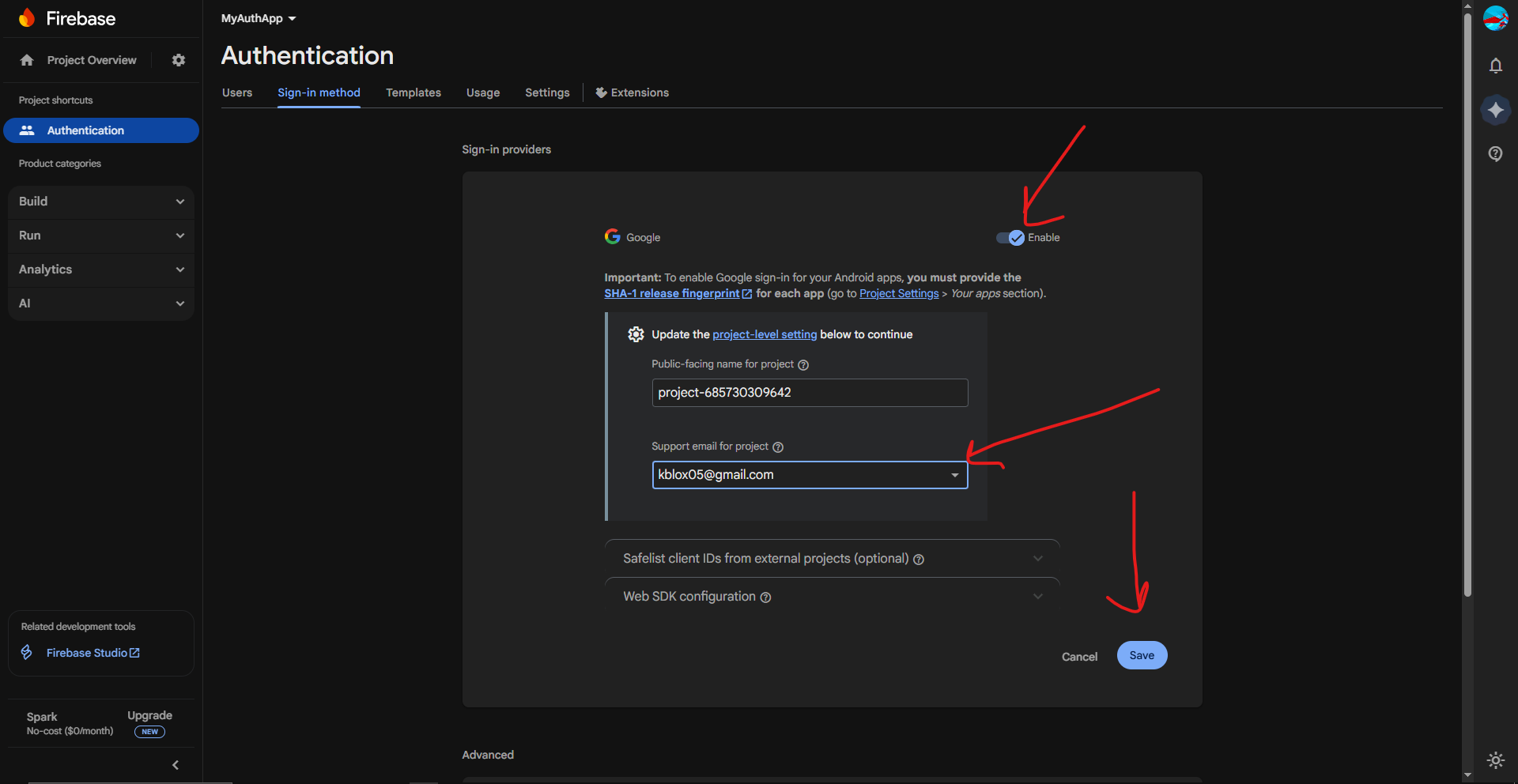
Step 2: Enable Google Sign-In
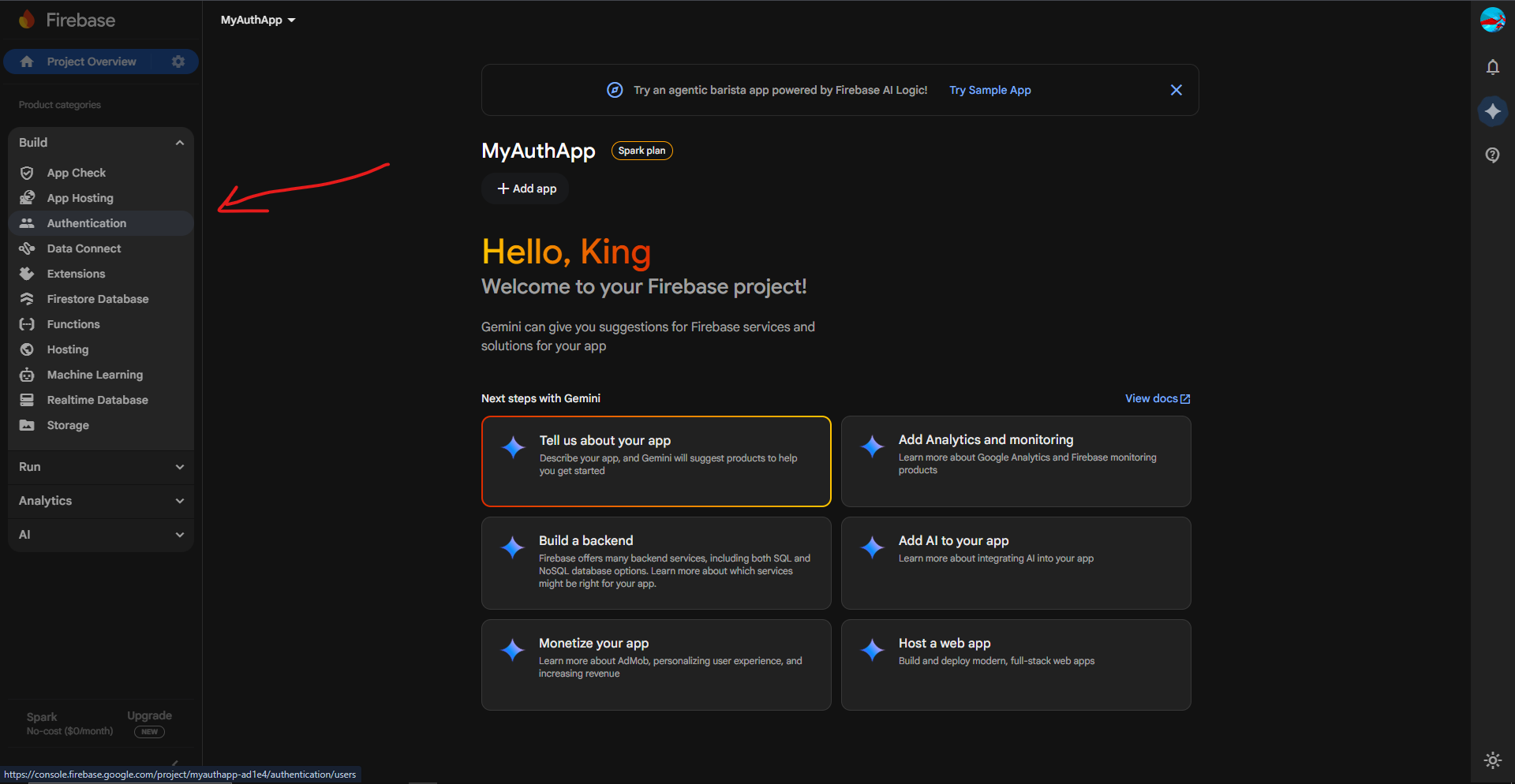
- In your new project, go to Build (left menu) → Authentication.
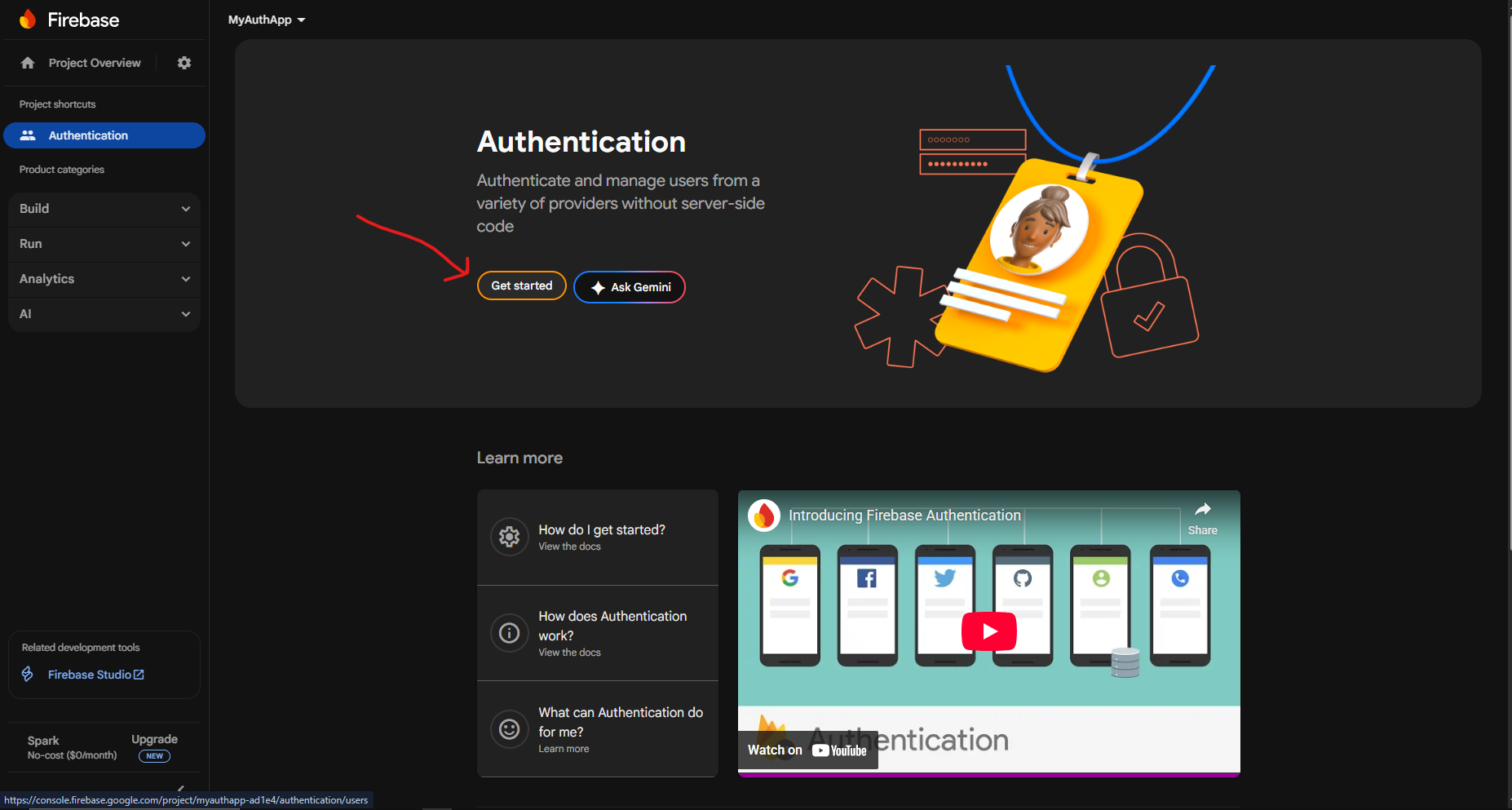
- Click "Get Started".
- Select "Google" from the list.
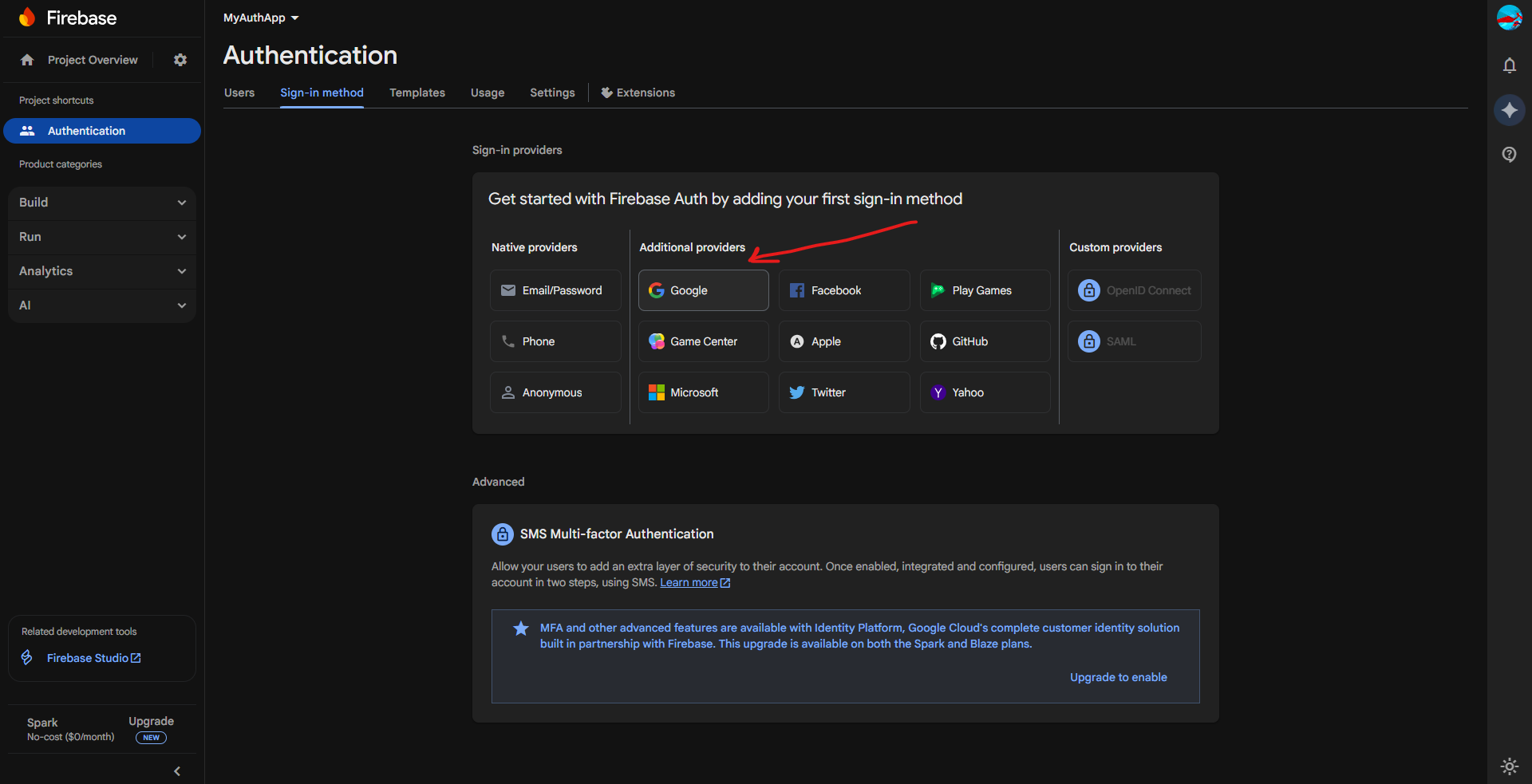
- Switch Enable to ON.
- Select your email for "Project support email".
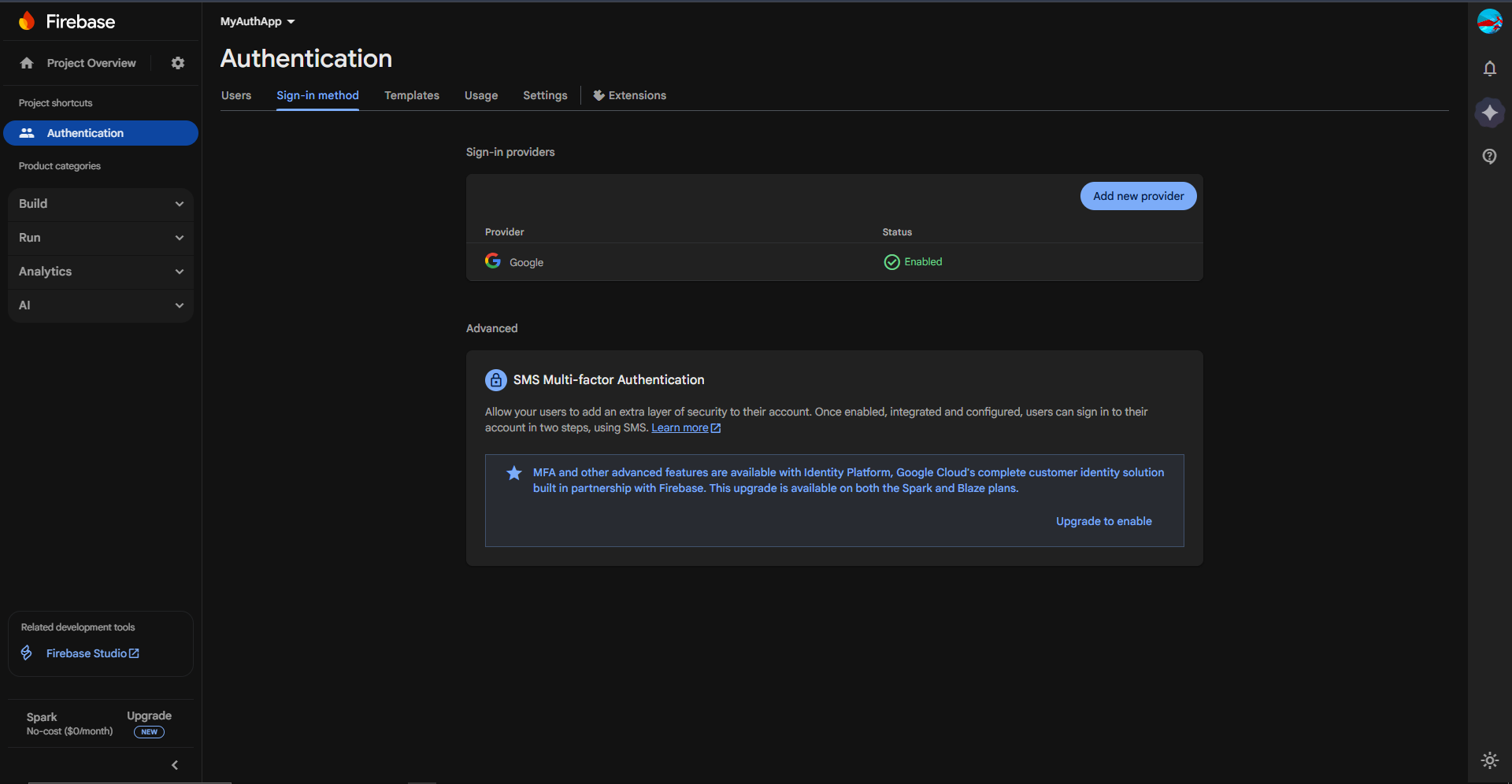
- Click Save.
Step 3: Get the Web Client ID (Critical!)
Google automatically created this for you in Step 2. We just need to find it.
- Go to Project Settings (
 Gear icon next to "Project Overview").
 - Scroll down to the bottom. You won't see an Android app yet. That's fine.
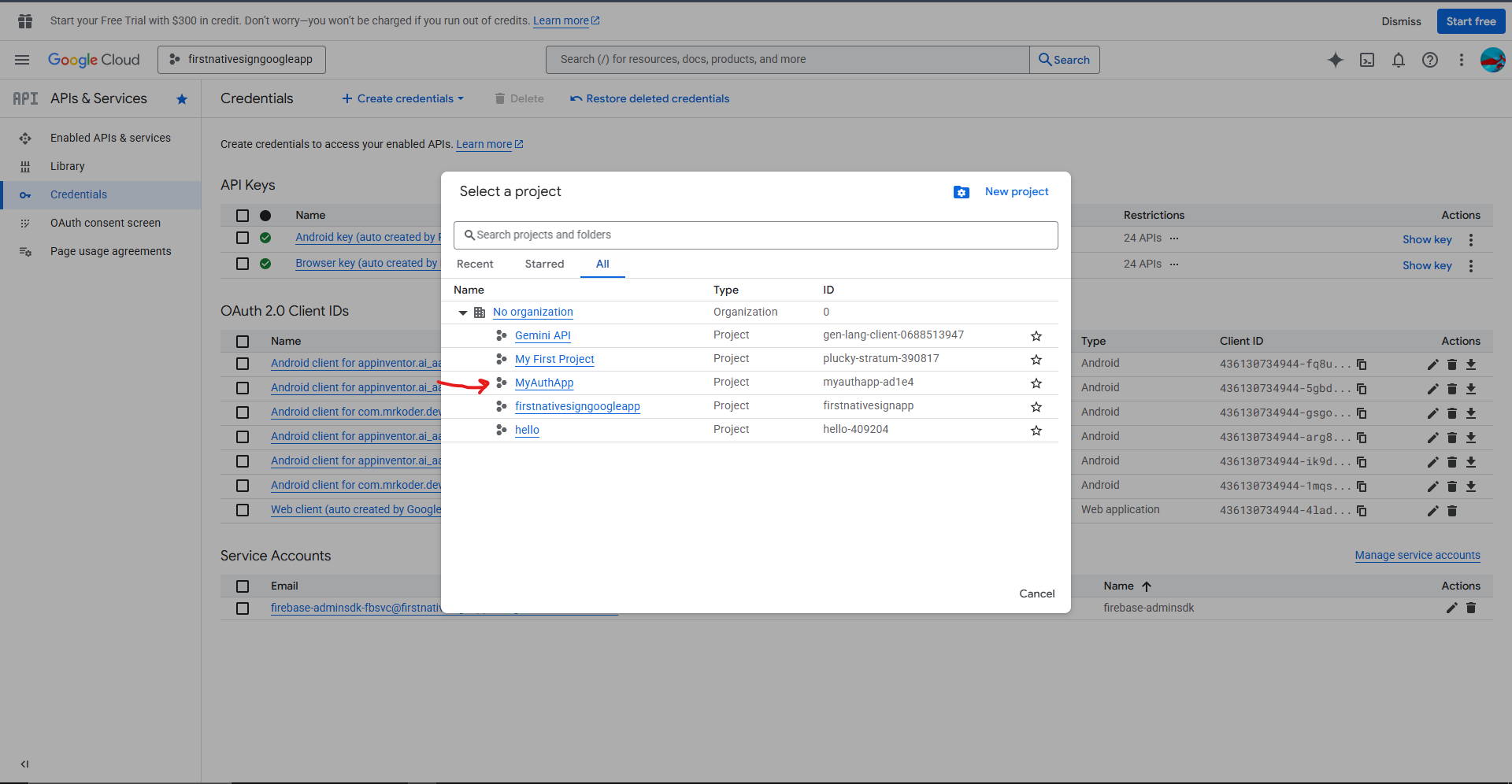
- Go to console.cloud.google.com/apis/credentials (Make sure you select your Firebase project at the top!).
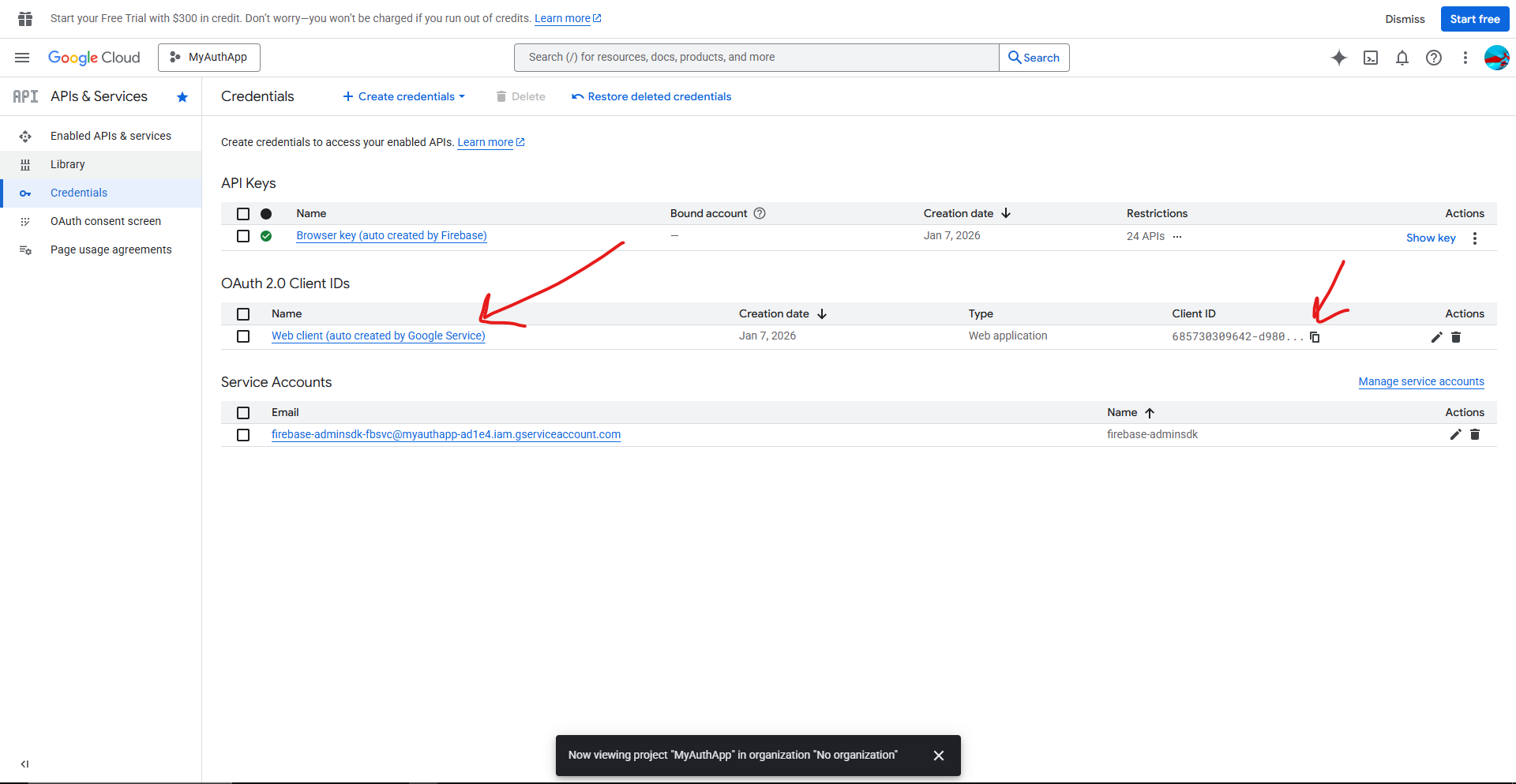
- Look for "OAuth 2.0 Client IDs".
- Find the one named "Web client (auto created by Google Service)".
- Copy the Client ID. It ends in
.apps.googleusercontent.com
 Phase 2: The Handshake (Linking Your App)
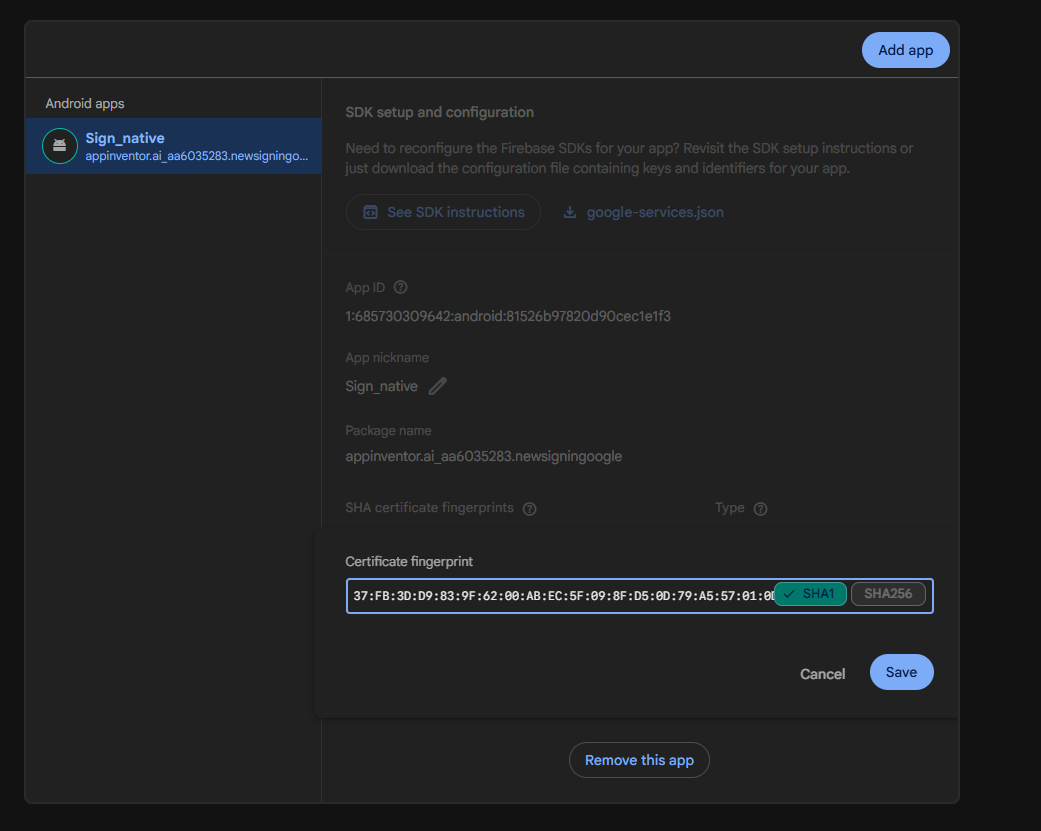
Google needs to know your specific App Inventor app is the one asking for access. It uses a "fingerprint" called SHA-1.
Step 4: Get Your SHA-1 Fingerprint
The "Identity Card" of your app depends on where you build it.
Step 4: Get Your SHA-1 Fingerprint (Easier Method)
We recommend using Keystore Explorer to avoid typing commands.
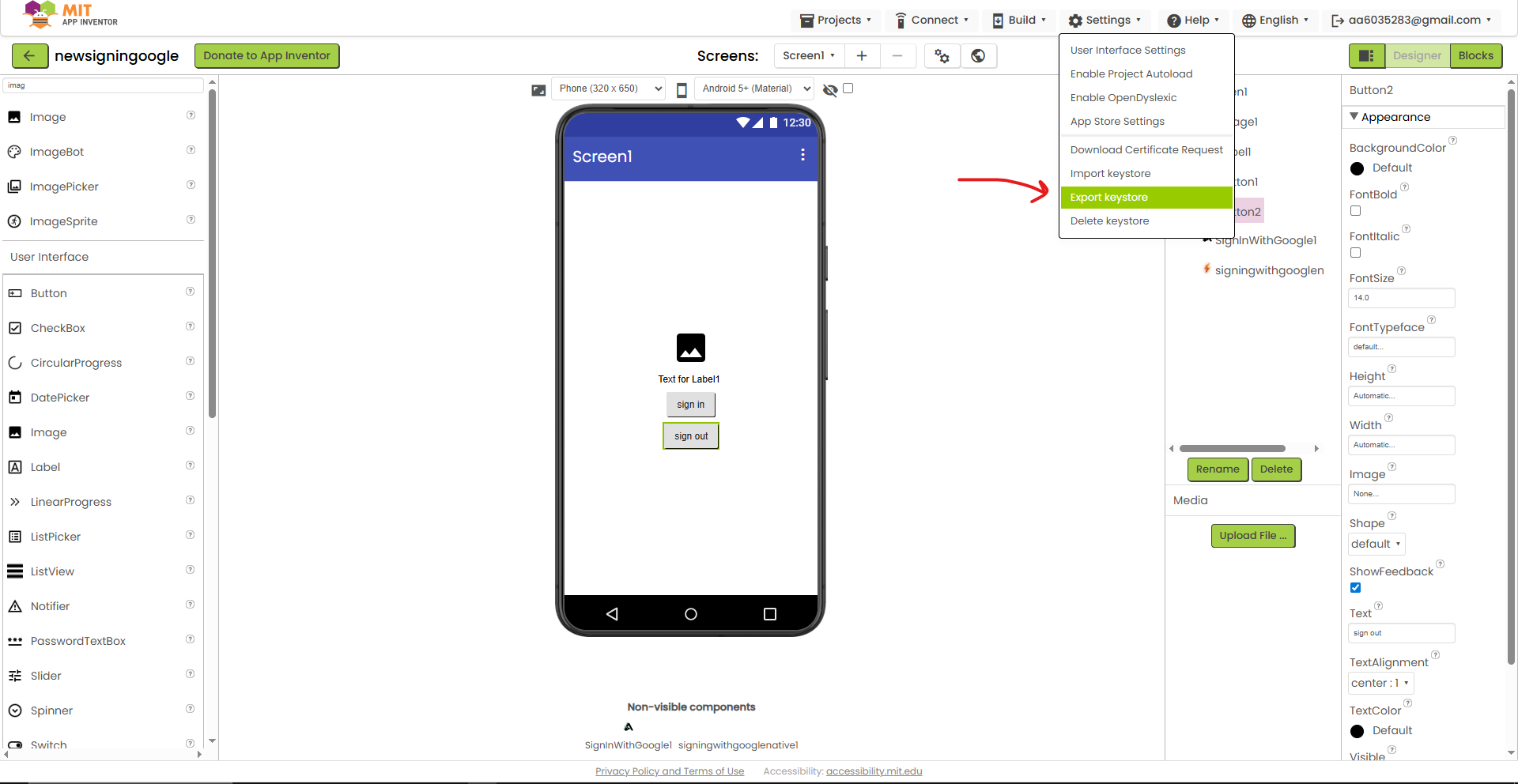
- Open Keystore Explorer.
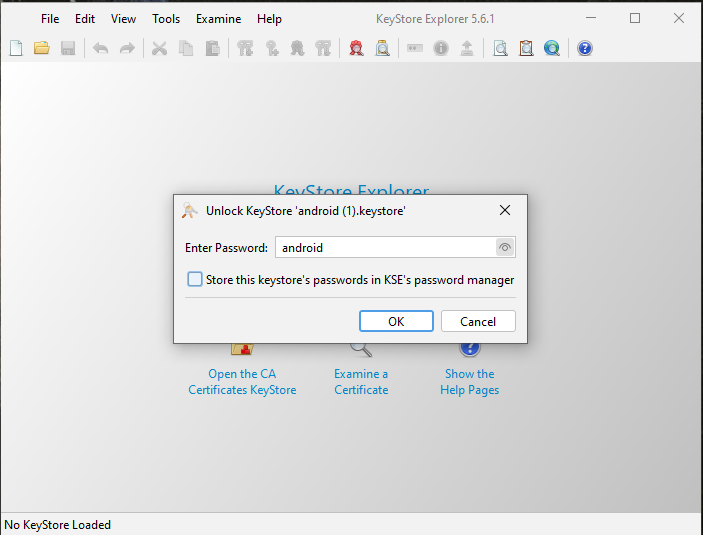
- Click "Open an existing KeyStore".
- Select your
android.keystorefile (downloaded from App Inventor).
- Password is usually:
android
-
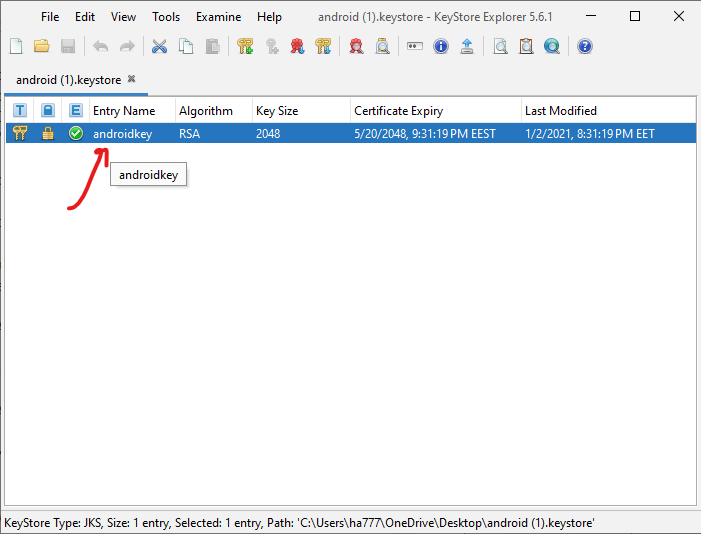
Double-click the key entry (
androidkey).
-
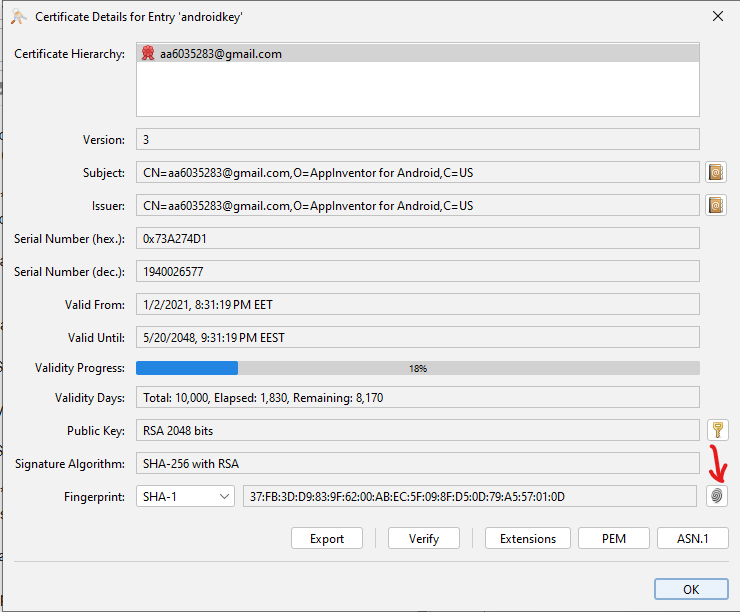
Look for "SHA-1 Fingerprint".
-
Copy it (e.g.,
37:FB:3D...).
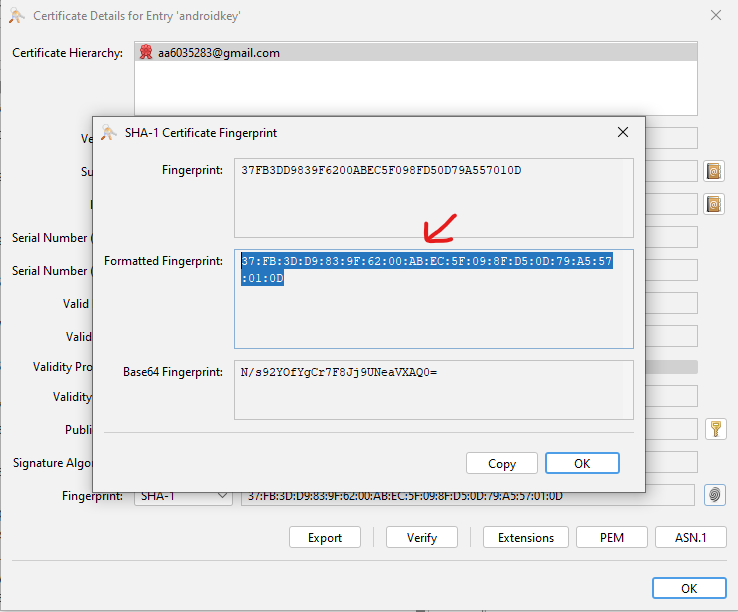
Step 5: Register App in Firebase
-
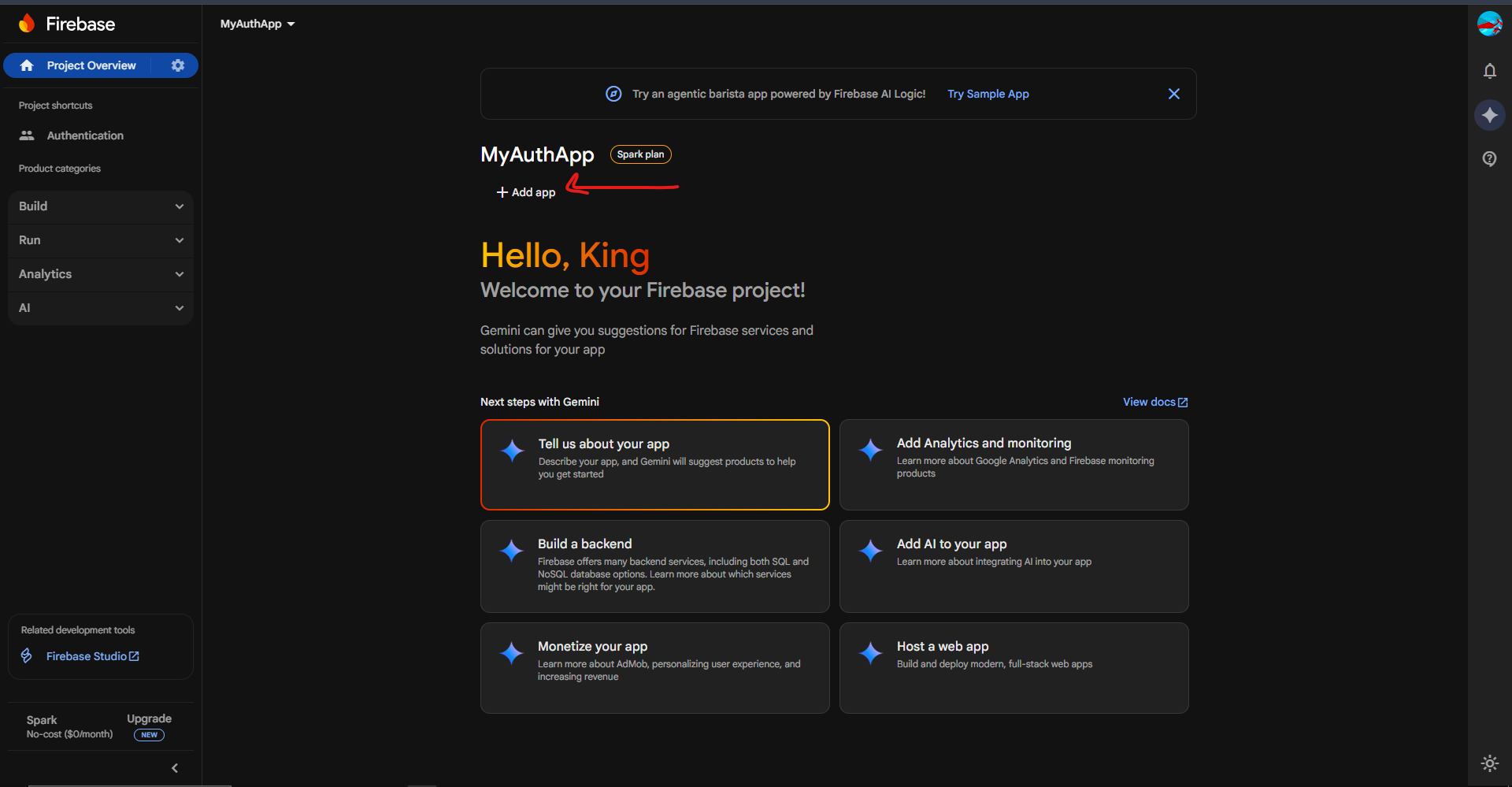
Back in Firebase Console → Project Settings.
-
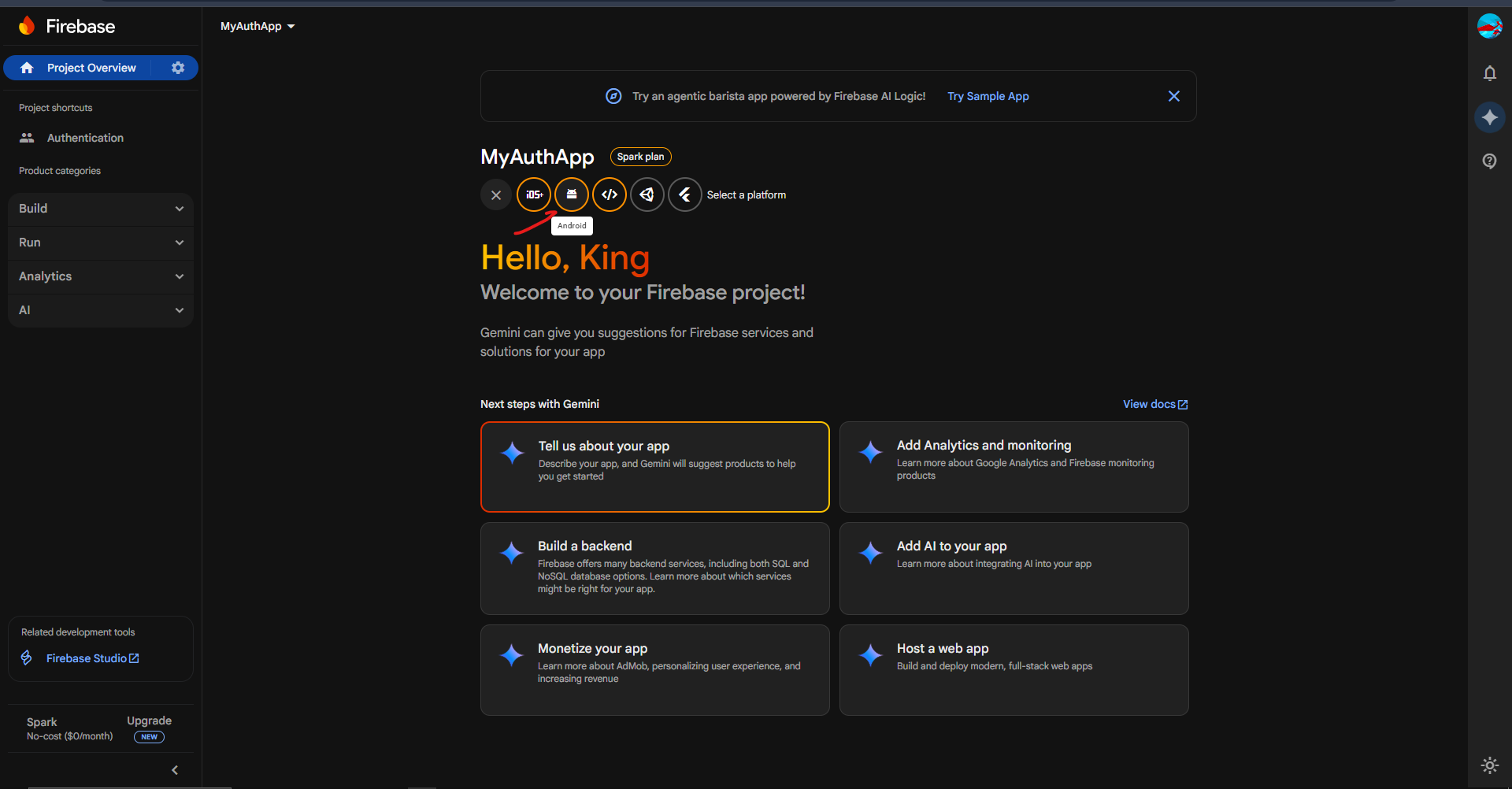
Scroll to "Your apps". Click the Android icon (
 ).
). -
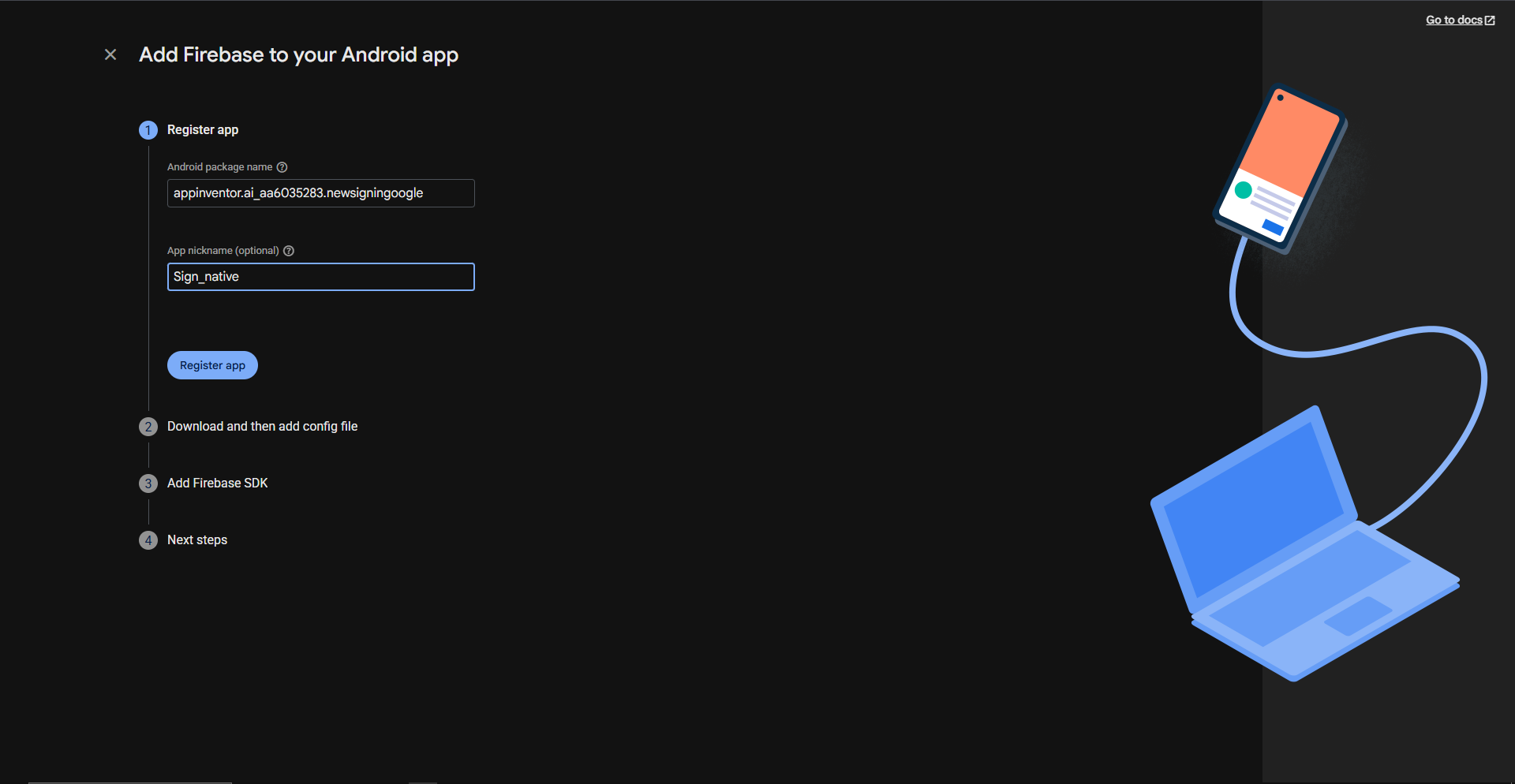
Package name: Must match your App Inventor project (e.g.,
appinventor.ai_yourname.ProjectName).
myEmail is : aa6035283@gmail.com
myproject_name : newsigningoogle
so package name wil be : appinventor.ai_aa6035283.newsigningoogle -
App nickname: Anything you want.
- Debug signing certificate SHA-1: Paste the SHA-1 you got in Step 4.
- Click Register app.

 Phase 3: The Extension (App Inventor)
Now we connect the pieces.
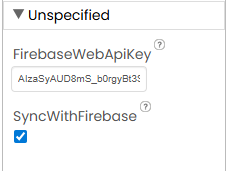
Step 6: Properties Setup
Import the extension and set these properties in the Designer:
| Property | Value | Why? |
|---|---|---|
| WebClientId | [Your Client ID from Step 3] |
Tells Google which server to talk to. |
| FirebaseWebApiKey | [From Firebase Settings] |
Allows the extension to talk to Firebase. |
| SyncWithFirebase | True |
Automatically logs the user into Firebase. |
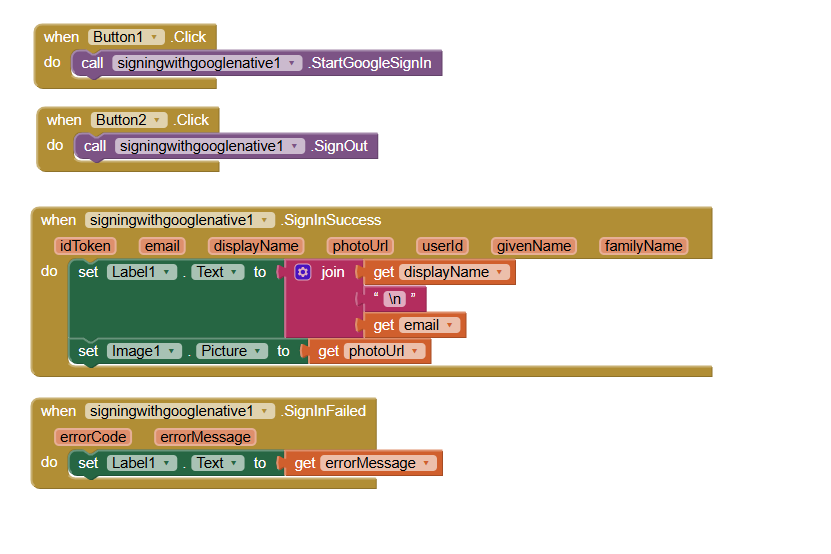
Step 7: The Blocks
Here is the exact logic you need.
1. Start Sign-In
Connect your "Sign In with Google" button to this block: 
2. Handle Success (Google)

This fires immediately after the user picks an account.
3. Handle Success (Firebase)
This fires a moment later, confirming they are logged into your database. !

(Use the firebaseUserId here to save user data to Realtime DB!)
4. The "Logout" Button
When they click "Log Out" :
Why use this?
-
 100% Native: Uses the standard Android "Account Picker" bottom sheet.
 -
Auto-Magic Firebase Sync: Just tick one box, and it logs the user into
Firebase Authentication automatically. No complex blocks needed!
-
One-Tap Login: If the user is on their phone, they just tap their name. No typing passwords.
-
Secure: Uses standard OAuth 2.0 flows supported by Google.
-
Easy Setup: Zero "WebView" errors.
Download
com.mrkoder.nativesignin.google.dev.signingwithgooglenative.aix (1.2 MB)
Difference from my old extension? My old extension used a browser window. This uses the system dialog. It is faster, safer, and looks 100x more professional.
 Support the Developer
If you find this extension helpful, you can buy me a coffee!
Let me know what you think!