🧩 Overview
Extension Name: RYCloudinaryPackage Name : com.ry.Cloudinary
Version Code : 1
Category : Non-Visible Component
Description:
RYCloudinary is a simple yet powerful extension that lets you upload any type of file— directly to your Cloudinary account using an unsigned upload preset. It supports both local file paths and direct URLs, auto-detects file type via Cloudinary’s auto/upload endpoint, and provides real-time progress with complete upload event handling.Appinventor aia :
Cloudinary.aia (34.4 KB)
Test Apk : https://shorturl.at/ZCVeJ
Extension : RYCloudinary.aix (12.9 KB)
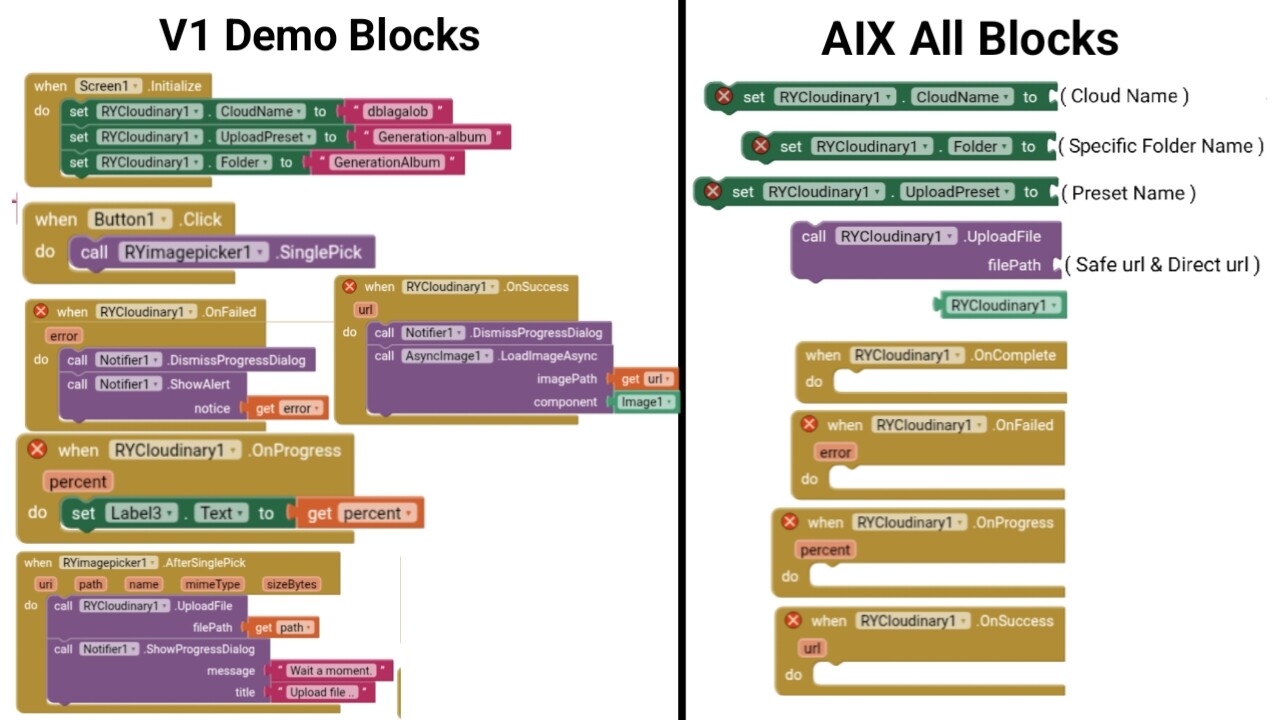
RYCloudinary V1
( V1 Work with Presetname, Cloudname )
Extension V1 : RYCloudinary.aix (12.9 KB)
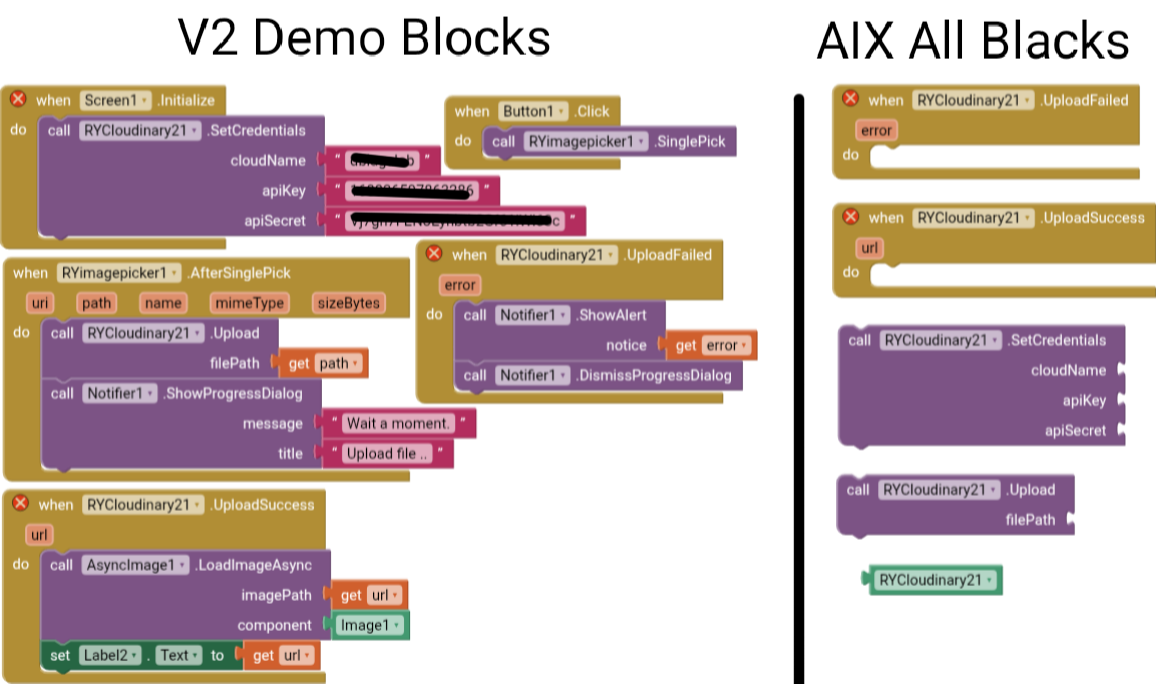
RYCloudinary V2
( V1 Work with Presetname, Cloudname )
Extension V1 : RYCloudinary2.aix (13.0 KB)
🔐 Optional Setup
You can set a custom folder name where files will be stored in your Cloudinary account. If left empty, uploads go to the root folder by default.🔧 Demo Video
⚙️ Key Features
✅ Upload images, videos, or any file to "Cloudinary"
✅ Works with both local file paths and direct URLs.
✅ Uploads are secured through your Cloudinary unsigned preset.
✅ Auto file type detection via Cloudinary’s auto/upload endpoint.
✅ Compatible with App Inventor, Kodular, Niotron, and other AI2-based builders.
✅ Shows "Progress" "Success" and Error events
✅ Works in background thread (no UI freeze).
✅ Option to upload inside a specific Cloudinary folder.
✅ No extra dependencies required — pure Java.
Example Backend:
Uses Cloudinary’s auto/upload API endpoint, which automatically detects and handles file types (image, video, audio, or raw) without needing manual setup.🚫 Limitations
●Requires a working internet connection.●You must have an active Cloudinary account.
●An unsigned upload preset is required (create it in Cloudinary dashboard).
●Upload progress may be slightly delayed on very large files.
●The extension doesn’t resize or transform files — it only uploads them as-is.
●If Cloudinary quota or storage limit is reached, upload will fail.
●Cloudinary free plan has a limit of 25 GB storage and bandwidth.
💬 Notes
●To create an unsigned preset in Cloudinary: Go to Settings → Upload → Upload presets → Add Upload Preset → Set to “Unsigned” and save it.●Internet permission is automatically handled by the extension.
●Works on Android 5.0 and above.
●Large files (100MB+) may take longer depending on network speed.
📦 Changelog
●v1.0 (Initial Release)●Added UploadUri method
●Added OnProgress, OnUploadSuccess, OnUploadError events
●Added support for signed & unsigned uploads
●AndroidX + Proguard enabled
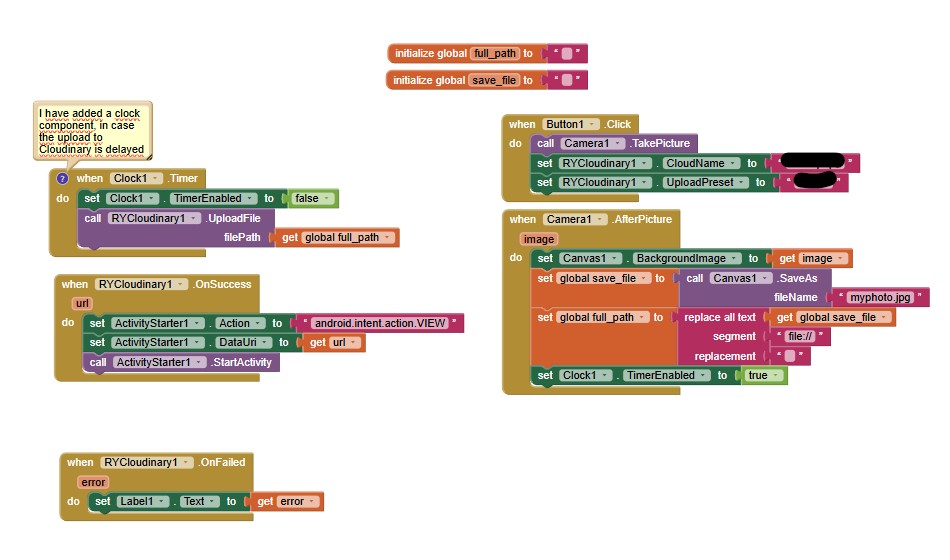
 . Edit: This approach is outdated and causes memory/size issues. See TIMAI2's reply below for the correct method using extensions.