Camera
Displays the camera to take photos and record videos in an Arrangement.
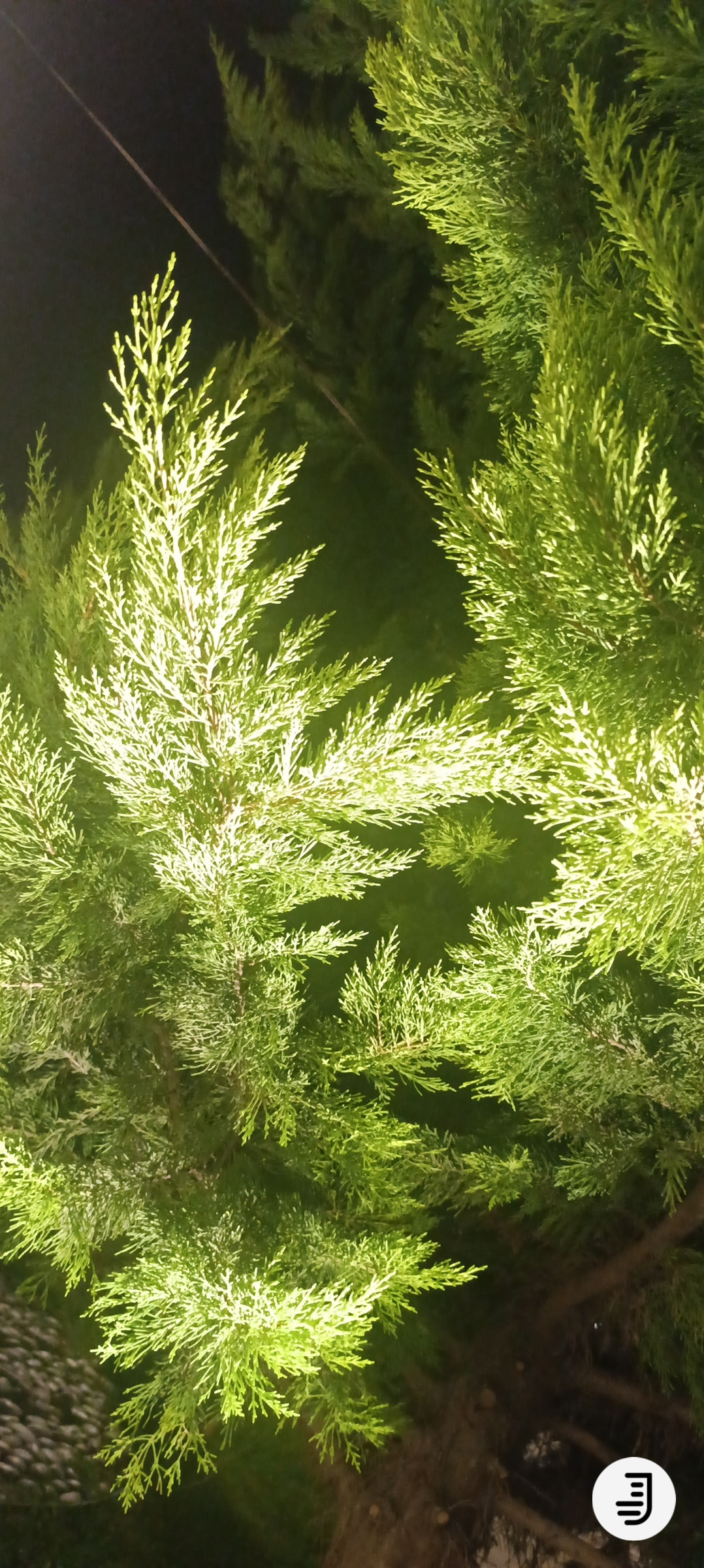
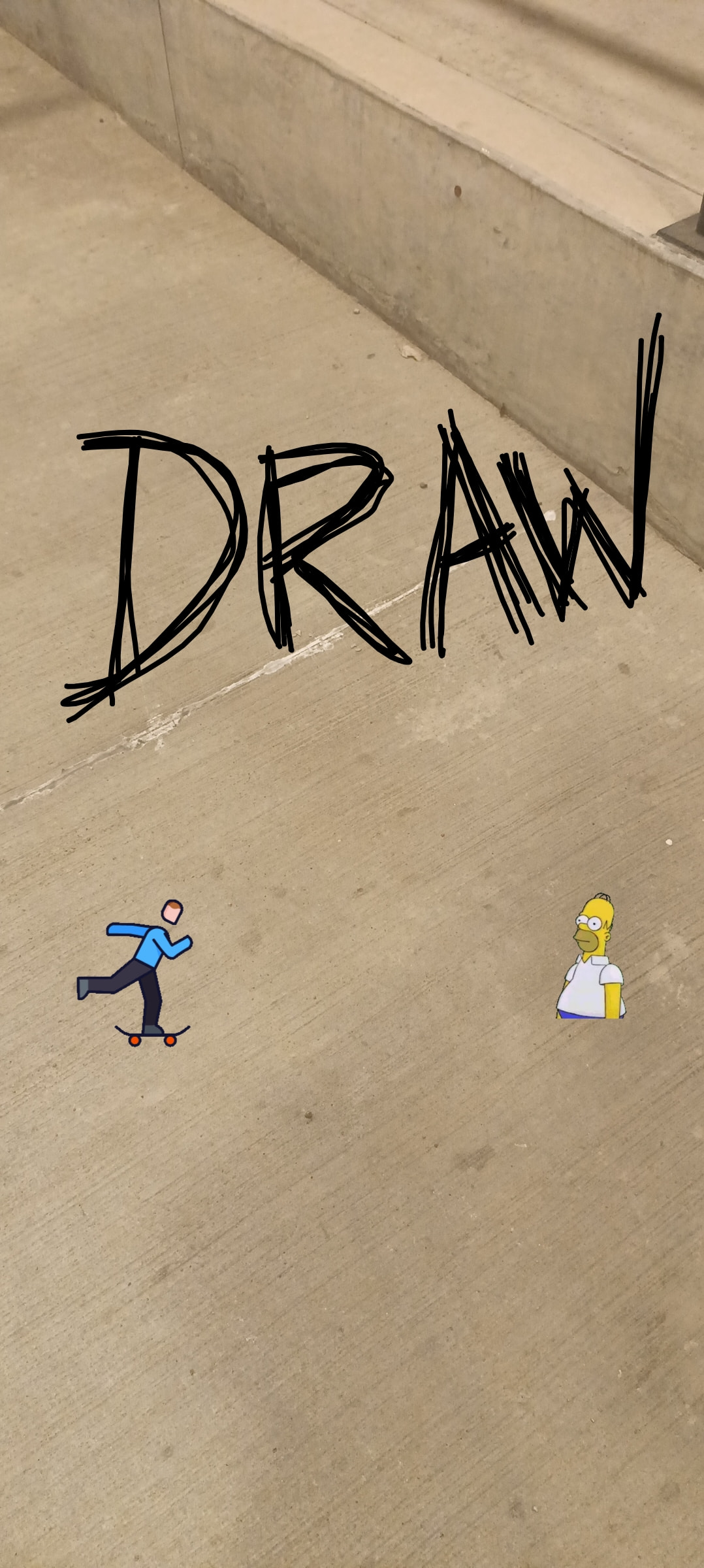
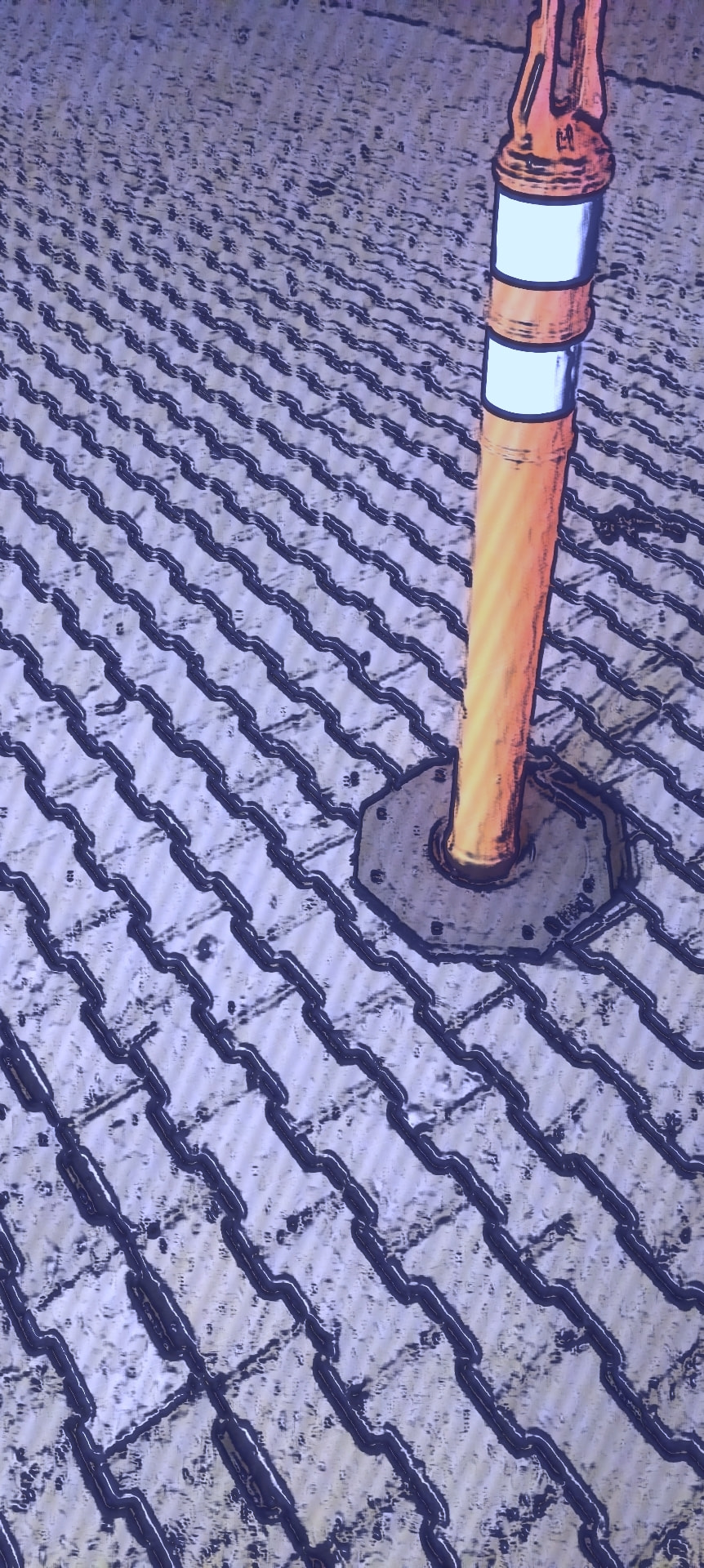
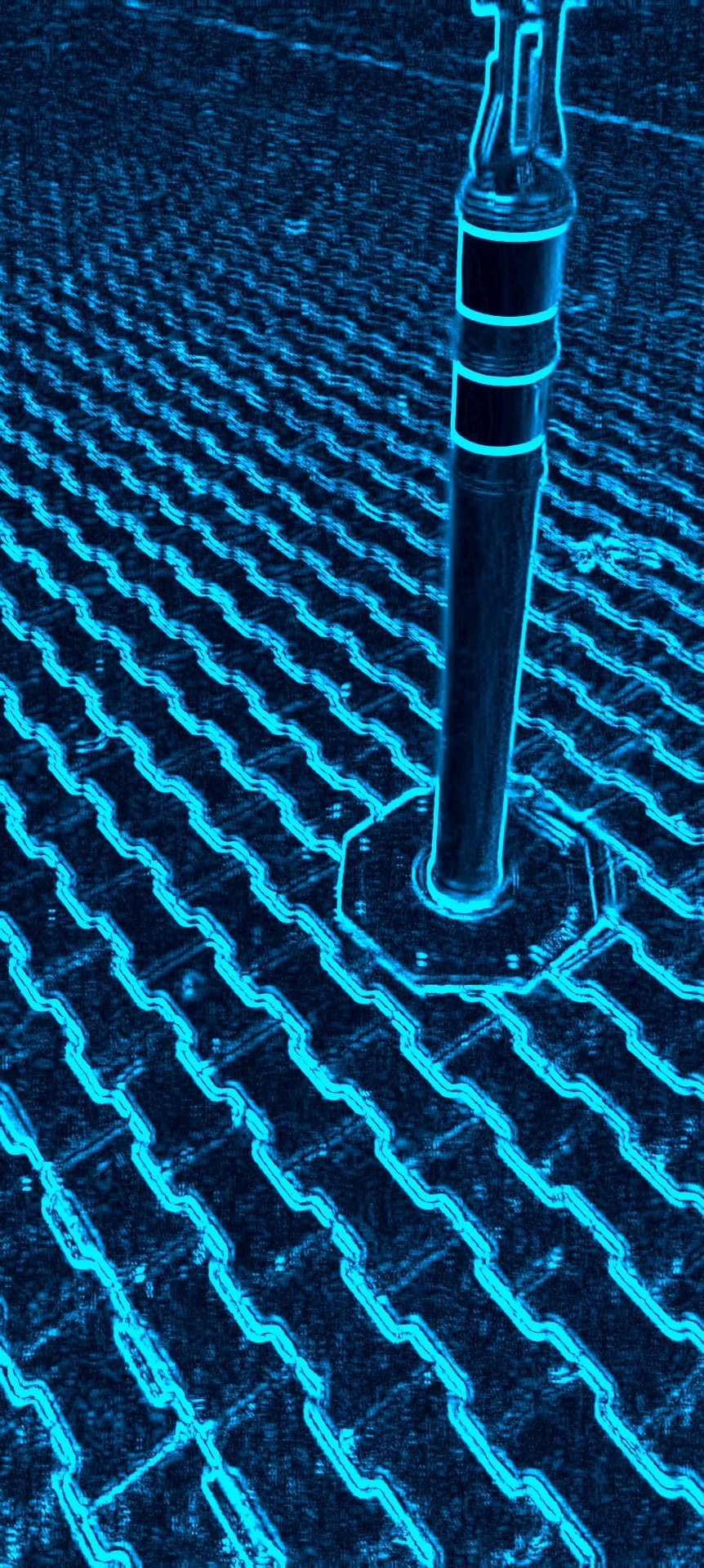
Photos with some filters and overlay burn-in:
Burnt
Some filters
Required permissions at initialization
When initializing, you must grant these permissions:
Table of Contents
Functions / Methods
Permissions
| Function |
Parameters |
Returns |
Description |
| HasCameraPermission |
— |
boolean |
Checks if camera permission is granted. |
| HasAudioPermission |
— |
boolean |
Checks if audio recording permission is granted. |
Camera control
| Function |
Parameters |
Returns |
Description |
| StartCamera |
arrangement: component (HVArrangement) |
— |
Starts the camera and displays it in the Arrangement. |
| StopCamera |
— |
— |
Stops the camera and releases resources. |
| ResetCamera |
— |
— |
Resets the camera session. Call this after changing the AspectRatio so the camera picks the best resolution for the new layout. |
| SwitchCamera |
— |
— |
Switches between front and rear cameras. |
| IsCameraActive |
— |
boolean |
Checks if the camera is active. |
| CameraResolution |
— |
text |
Gets the current camera view resolution. |
Photos
| Function |
Parameters |
Returns |
Description |
| TakePicture |
— |
— |
Takes a photo and saves it automatically. |
Video recording
| Function |
Parameters |
Returns |
Description |
| StartRecording |
— |
— |
Starts video recording. |
| StopRecording |
— |
— |
Stops video recording. |
| IsRecording |
— |
boolean |
Checks if video is currently being recorded. |
Zoom and focus
| Function |
Parameters |
Returns |
Description |
| SetZoomLevel |
level: number |
— |
Adjusts the zoom level (1–10). You can also zoom by pinching without using this function. |
| GetZoomLevel |
— |
number |
Gets the current zoom level. |
| GetMaxZoomLevel |
— |
number |
Gets the maximum available zoom level. |
| FocusOnPoint |
x: number, y: number |
— |
Focuses on a specific point on the screen. x and y must be between 0 and 1. |
Filters and adjustments
| Function |
Parameters |
Returns |
Description |
| ShaderFilter |
filterType: ShaderFilter (helper blocks) |
— |
Sets an OpenGL shader effect (0 to 18). |
| SetNeonColor |
color: number |
— |
Sets the color for the Neon shader. |
| SetFilterMatrix |
matrixList: list |
— |
Sets the active filter from a 20-value ColorMatrix. |
| ClearFilter |
— |
— |
Clears the active filter from the preview. Keeps brightness and saturation adjustments. |
| ResetAdjustments |
— |
— |
Resets brightness, saturation, contrast, and temperature to defaults. |
| GetActiveFilterId |
— |
text |
Gets the current active filter ID. |
| PreviewShaderOnImage |
targetImage: component (Image), filterType: number |
— |
Previews a shader effect on a single Image component using the image loaded in it. |
Burn-in / overlay
| Function |
Parameters |
Returns |
Description |
| BurnInComponents |
list: list |
— |
Sets which components will be burned into the photo/video. Pass a list of components. |
| ClearBurnInComponents |
— |
— |
Clears all overlay components. |
Orientation
| Function |
Parameters |
Returns |
Description |
| GetOrientationMode |
— |
text |
Gets the current physical orientation mode: Portrait or Landscape. |
| GetDeviceOrientation |
— |
number |
Gets the current physical device orientation angle: 0, 90, 180, or 270. |
Resolution information
| Function |
Parameters |
Returns |
Description |
| GetActualPhotoResolution |
— |
text |
Gets the actual photo resolution being used, e.g. 4000x3000. |
| GetActualVideoResolution |
— |
text |
Gets the actual video resolution being used, e.g. 1920x1080. |
| GetActualPreviewResolution |
— |
text |
Gets the actual preview resolution being used, e.g. 1280x720. |
| GetActualPhotoWidth |
— |
number |
Gets the actual photo width in pixels. |
| GetActualPhotoHeight |
— |
number |
Gets the actual photo height in pixels. |
| GetActualVideoWidth |
— |
number |
Gets the actual video width in pixels. |
| GetActualVideoHeight |
— |
number |
Gets the actual video height in pixels. |
| GetActualPhotoMegapixels |
— |
number |
Gets the actual photo resolution in megapixels. |
Hardware information
| Function |
Parameters |
Returns |
Description |
| HasFlash |
— |
boolean |
Checks if the device has flash. |
| AvailableCamerasCount |
— |
number |
Gets the number of available cameras. |
| GetPhysicalCameraIds |
— |
text |
Returns the physical camera IDs of the back logical camera, e.g. [2, 3, 4]. |
Properties
Image adjustments
| Property |
Type |
Default |
Designer |
Get / Set |
Description |
| BrightnessLevel |
number (float) |
0.0 |
 |
Set only |
Brightness adjustment: -1.0 (very dark) to 1.0 (very bright). 0 = no change. |
| SaturationLevel |
number (float) |
1.0 |
|
Set only |
Saturation adjustment: 0.0 (grayscale) to 2.0 (very saturated). 1 = no change. |
| ContrastLevel |
number (float) |
0.0 |
|
Set only |
Contrast adjustment: -1.0 (flat) to 1.0 (punchy). 0 = no change. |
| TemperatureLevel |
number (float) |
0.0 |
|
Set only |
Temperature adjustment: -1.0 (cool/blue) to 1.0 (warm/orange). 0 = no change. |
| FiltersEnabled |
boolean |
True |
|
Set only |
Enables or disables real-time filters on the preview. |
Focus frame
| Property |
Type |
Default |
Designer |
Get / Set |
Description |
| FocusFrameColor |
color |
&HFFFFFFFF |
|
Set only |
Focus frame color. |
| FocusFrameDisappearanceTime |
number (int, ms) |
3000 |
|
Set only |
Frame disappearance time in milliseconds. |
| FocusFrameSize |
number (int) |
175 |
|
Set only |
Focus frame size. |
Orientation
| Property |
Type |
Default |
Designer |
Get / Set |
Description |
| OrientationTolerance |
number (int, degrees) |
40 |
|
Set only |
Tolerance in degrees to consider an orientation change between Portrait and Landscape. |
Camera
| Property |
Type |
Default |
Designer |
Get / Set |
Description |
| CameraId |
number |
0 |
|
Get / Set |
Camera ID to use: 0 = rear, 1 = front. |
| FlashEnabled |
boolean |
False |
|
Get / Set |
Turns the camera flash on or off. |
| MirrorFrontCamera |
boolean |
True |
|
Set only |
Enables or disables mirror mode on the front camera. Only affects camera ID 1. |
| AutoFocusEnabled |
boolean |
True |
|
Set only |
Turns autofocus on or off. |
| TouchToFocusEnabled |
boolean |
True |
|
Set only |
Turns touch focus on or off. You can focus on a specific point by touching the screen. |
Photo
| Property |
Type |
Default |
Designer |
Get / Set |
Description |
| JpegQuality |
number (int 0–100) |
90 |
|
Get / Set |
JPEG quality for photos. |
| SaveDirectory |
text |
Pictures |
|
Set only |
Directory where photos are saved. Currently only saving in Pictures is available. |
| CaptureSoundEnabled |
boolean |
True |
|
Set only |
Turns the sound on or off when taking a photo. |
Video
| Property |
Type |
Default |
Designer |
Get / Set |
Description |
| VideoBitrate |
number (int, bps) |
10000000 |
|
Get / Set |
Video bitrate in bits per second. |
| VideoFrameRate |
number (int, fps) |
30 |
|
Get / Set |
Frame rate per second for video. |
Resolutions
| Property |
Type |
Default |
Designer |
Get / Set |
Description |
| PhotoResolution |
text |
Max |
|
Set only |
Photo resolution. Options: Max, 1080p, 720p, 480p. |
| VideoResolution |
text |
1080p |
|
Set only |
Video resolution. Options: Max, 1080p, 720p, 480p. |
| PreviewResolution |
text |
720p |
|
Set only |
Preview resolution. Options: Max, 1080p, 720p, 480p. |
Resolution helper enum labels: Max, FullHd (1080p), Hd (720p), Sd (480p).
The property setters accept the string values Max, 1080p, 720p, and 480p.
Events
Photo events
| Event |
Parameters |
Description |
| PictureTaken |
imagePath: text, imageUri: text |
Triggered when a photo has been taken successfully. Returns both the file path and content URI. |
| PictureError |
errorMessage: text |
Triggered when an error occurs while taking a photo. |
Camera events
| Event |
Parameters |
Description |
| CameraReady |
— |
Fires when the camera is ready. |
| CameraSwitched |
newCameraId: number |
Fires when the camera is changed. |
| CameraConfigured |
photoResolution: text, videoResolution: text, previewResolution: text |
Fires when the camera has finished configuring, providing the actual resolutions in use. |
Focus events
| Event |
Parameters |
Description |
| FocusedOnPoint |
x: number, y: number |
Fires when the user focuses on a touch point. |
Recording events
| Event |
Parameters |
Description |
| RecordingStarted |
videoPath: text |
Triggered when video recording starts. |
| RecordingStopped |
videoPath: text |
Triggered when video recording is stopped. |
| RecordingError |
errorMessage: text |
Triggered when an error occurs during video recording. |
Orientation events
| Event |
Parameters |
Description |
| OrientationChanged |
mode: text, angle: number |
Fires when the physical device orientation changes between Portrait and Landscape. mode is Portrait or Landscape; angle is 0, 90, 180, or 270. |
Filter events
| Event |
Parameters |
Description |
| FilterChanged |
filterId: text |
Fires when the active filter changes. |
Zoom events
| Event |
Parameters |
Description |
| ZoomChanged |
zoomLevel: number, zoomFactor: number |
Triggered when the zoom level changes, either by gestures or programmatically. |
| ZoomEnded |
zoomLevel: number, zoomFactor: number |
Fires when the user finishes zooming, either by releasing the screen or ending the pinch gesture. |
Helpers / Enums
ShaderFilter
Normal, Pixelated, ChromaticAberration, Vignette, ColoredPencil, Halftone, Scanline, Thermal, Mirror, Emboss, CrtArcade, ThermalImaging, DataMoshing, Neon, X_Ray, TvDistortion, HeatMap, ZoomBlur, AnamorphicLens
Resolution
Sd (480p), Hd (720p), FullHd (1080p), Max
Changelog
v1.2
- Added
deviceOrientation (physical orientation) instead of screen rotation.
- This ensures that photos are saved with the correct EXIF orientation.
- The orientation sensor must be set to Portrait so the camera functions correctly in either orientation when the device is rotated.
- Added properties to set and retrieve photo, video, and preview resolutions.
v1.3
- Added Brightness and Saturation adjustments.
- Added Mirror mode for photos taken with the front camera. It does not apply to videos.
- Added blocks for filter support via another extension.
v1.4 — Current
- Added OpenGL shader filters via
ShaderFilter.
- Added Neon shader color customization via
SetNeonColor.
- Added 20-value ColorMatrix filters via
SetFilterMatrix, ClearFilter, and GetActiveFilterId.
- Added brightness, saturation, contrast, and temperature adjustments.
- Added
FiltersEnabled property.
- Added burn-in overlays for photos and videos via
BurnInComponents and ClearBurnInComponents.
- Added focus frame customization:
FocusFrameColor, FocusFrameDisappearanceTime, and FocusFrameSize.
- Added
OrientationTolerance, OrientationChanged, and GetOrientationMode / GetDeviceOrientation.
- Added
CameraConfigured event.
- Added actual resolution getters for photo, video, and preview.
- Added
GetActualPhotoMegapixels.
- Added
GetPhysicalCameraIds.
- Added
PreviewShaderOnImage.
- Added
MirrorFrontCamera.
- Added
ResetCamera.
- Added
ResetAdjustments.
- Added
PhotoResolution, VideoResolution, and PreviewResolution properties.
- Added
CameraConfigured and FilterChanged events.
Downloads
CameraV1_4.aia (539.3 KB)
joejsanz.joedevcamera.aix (127.6 KB)
Metadata
| Field |
Value |
| Package |
joejsanz.joedevcamera |
| Class |
JoeDevCamera |
| Version |
1.4 |
| Icon |
icon.png |
| Description |
Developed by Joe using Fast. |
| Minimum API Level |
14 |
| JDK |
17 |
| Updated On |
2026-11-10 |
| Built using |
FAST-CLI v8.1.0 |
Blocks
Support free development
This extension is and will remain free. If you have found it useful and wish to support my work so I can continue creating and updating components like this one, any voluntary contribution is greatly appreciated:

Thanks.