OK, have a working "solution": The html file, getModel.html provides an input button to select a glb file from the shared directories (Download/Documents/Pictures etc.). The selected glb file is converted to a blob, and its url is fed into the model viewer. I placed a glb file in the Download directory for testing. I used webviewextra (needed for the file input button) and a webviewer, but it should also work with customwebview.
I will leave you to play around with layout/sizing/css enhancements
AIA
view3d.aia (30.3 KB)
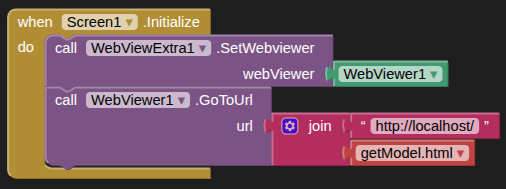
 )
)
HTML
<!DOCTYPE html>
<!--REF:https://developer.mozilla.org/en-US/docs/Web/API/File_API/Using_files_from_web_applications#example_using_object_urls_to_display_images-->
<html>
<meta name="viewport" content="width=device-width, initial-scale=1.0, maximum-scale=1.0, user-scalable=no">
<link href="https://www.w3schools.com/w3css/4/w3.css" rel="stylesheet">
<script type="module" src="https://unpkg.com/@google/model-viewer/dist/model-viewer.min.js"></script>

<head>
<title>Get Model</title>
<style>
	#fileElem {
		padding: 10px;
		color:white;
	}
	#mv-model {
		display:none;
	}
	body {
	  background: #111;
	}
    #main {
	  margin: 0;
      display: flex;
      height: 100vh;
      justify-content: center;
      align-items: center;
      background: #111;
    }
    model-viewer {
      width: 100vw;
      height: 100vh;
    }
</style>
</head>

<body>

<input type="file" id="fileElem"/>
<div id="main">
  <model-viewer id="mv-model" src=""
                camera-controls
                auto-rotate
                min-camera-orbit="auto auto 0.001m"
                max-camera-orbit="auto auto 1000m"
                shadow-intensity="1"
                min-field-of-view="10deg"
                max-field-of-view="80deg">
  </model-viewer>
</div>

<script>

  const fileSelect = document.getElementById("fileSelect"),
        fileElem = document.getElementById("fileElem");

  fileElem.addEventListener("change", simpleFile);

  function simpleFile() {
      const blobUrl = URL.createObjectURL(this.files[0]);
      document.getElementById("mv-model").src = blobUrl;
      document.getElementById("mv-model").style.display = 'block';
 }
</script>


</body>

</html>
SCREEN
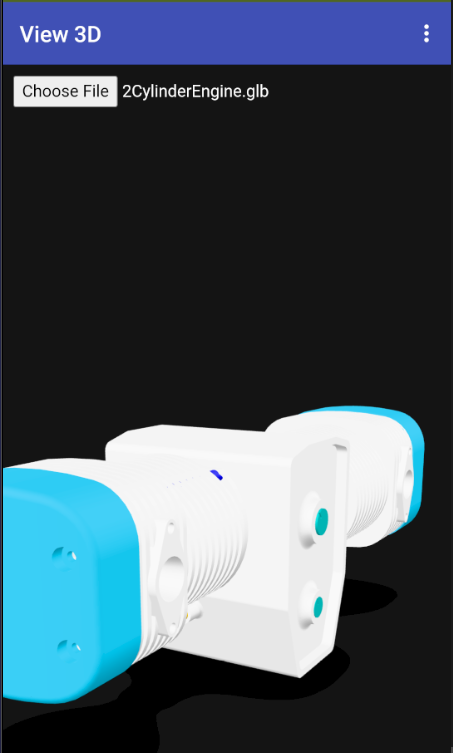
This method will also work for selecting and viewing images:
VIEW IMAGES
<!DOCTYPE html>
<!--REF:https://developer.mozilla.org/en-US/docs/Web/API/File_API/Using_files_from_web_applications#example_using_object_urls_to_display_images-->
<html>
<meta name="viewport" content="width=device-width, initial-scale=1.0, maximum-scale=1.0, user-scalable=no">
<link href="https://www.w3schools.com/w3css/4/w3.css" rel="stylesheet">
<head>
<title>Demo</title>
<style>
	#fileElem, #display {
		padding: 30px;
	}
		#display {
		display:none;
	}
</style>
</head>
<body>
<input type="file" id="fileElem"/><br><br>
<img id="display" alt="Selected image" />
<script>
  const fileSelect = document.getElementById("fileSelect"),
        fileElem = document.getElementById("fileElem");
  fileElem.addEventListener("change", simpleFile);
  function simpleFile() {
      const blobUrl = URL.createObjectURL(this.files[0]);
      document.getElementById("display").src = blobUrl;
      document.getElementById("display").style.display = 'block';
 }
</script>
</body>
</html>